shadcn.io is an independent project built on shadcn/ui
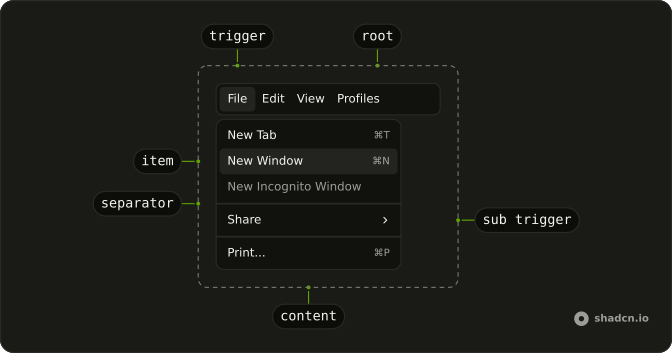
File, Edit, and View stay on screen while the document underneath changes.
Use it when those commands belong to the window, not to one action. Links that move around a marketing site belong in a Navigation Menu. In React, React Aria keeps unavailable commands in the menu, disabled, so the row doesn't grow and shrink.
Installation
Anatomy
Menubar
├── MenubarMenu
│   ├── MenubarTrigger
│   └── MenubarContent
│       ├── MenubarGroup
│       │   ├── MenubarLabel
│       │   ├── MenubarItem
│       │   └── MenubarItem
│       ├── MenubarSeparator
│       ├── MenubarGroup
│       │   ├── MenubarCheckboxItem
│       │   └── MenubarCheckboxItem
│       ├── MenubarRadioGroup
│       │   ├── MenubarRadioItem
│       │   └── MenubarRadioItem
│       └── MenubarSub
│           ├── MenubarSubTrigger
│           └── MenubarSubContent
│               └── MenubarItem
└── MenubarMenu
    ├── MenubarTrigger
    └── MenubarContent
Usage
import {
  Menubar, MenubarCheckboxItem, MenubarContent, MenubarGroup,
  MenubarItem, MenubarMenu, MenubarRadioGroup, MenubarRadioItem,
  MenubarSeparator, MenubarShortcut, MenubarSub, MenubarSubContent,
  MenubarSubTrigger, MenubarTrigger,
} from "@/components/ui/menubar";
const MenubarDemo = () => (
<Menubar className="w-72 max-w-full">
<MenubarMenu>
<MenubarTrigger>File</MenubarTrigger>
<MenubarContent>
<MenubarGroup>
<MenubarItem>
New Tab <MenubarShortcut>⌘T</MenubarShortcut>
</MenubarItem>
<MenubarItem>
New Window <MenubarShortcut>⌘N</MenubarShortcut>
</MenubarItem>
<MenubarItem isDisabled>New Incognito Window</MenubarItem>
</MenubarGroup>
<MenubarSeparator />
<MenubarGroup>
<MenubarSub>
<MenubarSubTrigger>Share</MenubarSubTrigger>
<MenubarSubContent>
<MenubarGroup>
<MenubarItem>Email link</MenubarItem>
<MenubarItem>Messages</MenubarItem>
<MenubarItem>Notes</MenubarItem>
</MenubarGroup>
</MenubarSubContent>
</MenubarSub>
</MenubarGroup>
<MenubarSeparator />
<MenubarGroup>
<MenubarItem>
Print... <MenubarShortcut>⌘P</MenubarShortcut>
</MenubarItem>
</MenubarGroup>
</MenubarContent>
</MenubarMenu>
<MenubarMenu>
<MenubarTrigger>Edit</MenubarTrigger>
<MenubarContent>
<MenubarGroup>
<MenubarItem>
Undo <MenubarShortcut>⌘Z</MenubarShortcut>
</MenubarItem>
<MenubarItem>
Redo <MenubarShortcut>⇧⌘Z</MenubarShortcut>
</MenubarItem>
</MenubarGroup>
<MenubarSeparator />
<MenubarGroup>
<MenubarSub>
<MenubarSubTrigger>Find</MenubarSubTrigger>
<MenubarSubContent>
<MenubarGroup>
<MenubarItem>Search the web</MenubarItem>
</MenubarGroup>
<MenubarSeparator />
<MenubarGroup>
<MenubarItem>Find...</MenubarItem>
<MenubarItem>Find Next</MenubarItem>
<MenubarItem>Find Previous</MenubarItem>
</MenubarGroup>
</MenubarSubContent>
</MenubarSub>
</MenubarGroup>
<MenubarSeparator />
<MenubarGroup>
<MenubarItem>Cut</MenubarItem>
<MenubarItem>Copy</MenubarItem>
<MenubarItem>Paste</MenubarItem>
</MenubarGroup>
</MenubarContent>
</MenubarMenu>
<MenubarMenu>
<MenubarTrigger>View</MenubarTrigger>
<MenubarContent className="w-44 max-w-full">
<MenubarGroup
defaultSelectedKeys={["full-urls"]}
selectionMode="multiple"
>
<MenubarCheckboxItem id="bookmarks-bar">
Bookmarks Bar
</MenubarCheckboxItem>
<MenubarCheckboxItem id="full-urls">Full URLs</MenubarCheckboxItem>
</MenubarGroup>
<MenubarSeparator />
<MenubarGroup>
<MenubarItem inset>
Reload <MenubarShortcut>⌘R</MenubarShortcut>
</MenubarItem>
<MenubarItem inset isDisabled>
Force Reload <MenubarShortcut>⇧⌘R</MenubarShortcut>
</MenubarItem>
</MenubarGroup>
<MenubarSeparator />
<MenubarGroup>
<MenubarItem inset>Toggle Fullscreen</MenubarItem>
</MenubarGroup>
<MenubarSeparator />
<MenubarGroup>
<MenubarItem inset>Hide Sidebar</MenubarItem>
</MenubarGroup>
</MenubarContent>
</MenubarMenu>
<MenubarMenu>
<MenubarTrigger>Profiles</MenubarTrigger>
<MenubarContent>
<MenubarRadioGroup defaultSelectedKeys={["benoit"]}>
<MenubarRadioItem id="andy">Andy</MenubarRadioItem>
<MenubarRadioItem id="benoit">Benoit</MenubarRadioItem>
<MenubarRadioItem id="Luis">Luis</MenubarRadioItem>
</MenubarRadioGroup>
<MenubarSeparator />
<MenubarGroup>
<MenubarItem inset>Edit...</MenubarItem>
</MenubarGroup>
<MenubarSeparator />
<MenubarGroup>
<MenubarItem inset>Add Profile...</MenubarItem>
</MenubarGroup>
</MenubarContent>
</MenubarMenu>
</Menubar>
);
Accessibility
- Enter
- Activate the focused control.
- Space
- Activate the focused control.
- Arrow Down
- Move down.
- Arrow Up
- Move up.
- Arrow Left
- Move left.
- Arrow Right
- Move right.
- Home
- Go to the start.
- End
- Go to the end.
Demos
Checkbox
View holds two checkbox items, bookmarks and full URLs, beside ordinary commands such as Reload. Format is only checkboxes: strikethrough, code, and superscript. Several can be on, and each keeps its checked state after the menu closes if you store it. Give plain items inset so their labels line up, and reserve checkboxes for settings rather than one-shot actions.
Radio
Profiles is a radio group, Andy, Benoit, or Luis, with Edit and Add Profile as plain items underneath. Theme is a second group: light, dark, or system, and only one item in a group stays selected. Keep commands that are not part of the choice outside the group, with inset so they line up, and use two menus so unrelated choices do not share a selection.
Submenu
File opens Share beside the item: email, messages, and notes, then Print under a separator. Edit nests Find the same way, between undo and the clipboard commands. A submenu is for a cluster that does not deserve its own top-level menu, and one extra level is usually enough. Do not put another menubar inside an item.
Icons
File leads New, Open, and Save with icons, and the shortcuts stay at the end of the row. More uses icons for Settings and Help, then a destructive Delete. The icon is decorative when the label is there, so hide it from assistive tech. Icons pay off on a menu people scan often, and the destructive variant still marks the dangerous row.
Rtl
The full bar, File through Profiles, is in Arabic. The wrapper and each menu set dir to rtl, so triggers run from the right and submenus open toward the start of the line. Checkboxes, radios, and shortcuts follow. Set the direction on the nested menus too, since a direction on the page alone can miss content that has been portaled out of the bar.
FAQ
How do I control a checkbox in a Menubar in React?
A checkbox row toggles a setting and stays in the menu, unlike a command that runs once, and each choice is its own MenubarCheckboxItem. Keep that choice in state if it should survive closing the menu. Group the items in MenubarGroup with selectionMode multiple, selectedKeys, and onSelectionChange, and set id on each MenubarCheckboxItem.
How do I keep one Menubar radio item selected?
Put the choices in one MenubarRadioGroup so only one of them is selected, and leave unrelated commands, such as Edit, as MenubarItem elements beside the group. The group is the control, and the items only name the options. Pass selectedKeys and onSelectionChange on the group, and set id on each MenubarRadioItem.
Can I operate a Menubar from the keyboard?
Yes. Arrow keys move between triggers and items, Home and End jump to the ends, and Enter or Space activates the focused control. MenubarShortcut only displays the hint you put inside it. It does not register a key listener, so those glyphs are not a shortcut system.
Should I use a Menubar or a Dropdown Menu?
Use a Menubar for a persistent row of commands, such as File and Edit. Use a Dropdown Menu for one button that opens a single menu, and a Navigation Menu for links that move around the site. A menubar item is a command unless you render it as a link yourself.
Why is my Menubar menu clipped or hidden?
Menu content is portaled, so overflow hidden on a parent does not clip it. If a dialog or another layer still covers the menu, raise the content in the menubar file under components/ui. The content is already stacked above ordinary page content. Inset lines up an item that has no icon with items that do.
How do I style a Menubar with React Aria?
Edit the menubar file under components/ui. Triggers and items are flex rows, and MenubarItem accepts variant destructive for a dangerous command. inset on an item, label, or submenu trigger sets data-inset so the label lines up with checked rows. Shortcuts are pushed to the end of the row with a logical margin.
API Reference
Menubar
data-slot="menubar"
children?ChildrenOrFunction<T>
The children of the component. A function may be provided to alter the children based on component state.
- Type
ChildrenOrFunction<T>
orientation?Orientation
The orientation of the entire toolbar.
- Default
"horizontal"
slot?string | null
A slot name for the component. Slots allow the component to receive props from a parent
component. An explicit null value indicates that the local props completely override all
props received from a parent.
- Type
string | null- Default
menubar
style?StyleOrFunction<T>
The inline [style](https://developer.mozilla.org/en-US/docs/Web/API/HTMLElement/style) for the element. A function may be provided to compute the style based on component state.
- Type
StyleOrFunction<T>
render?DOMRenderFunction<E, T>
Overrides the default DOM element with a custom render function.
This allows rendering existing components with built-in styles and behaviors
such as router links, animation libraries, and pre-styled components.
Requirements:
- You must render the expected element type (e.g. if <button> is expected, you cannot render an
<a>).
- Only a single root DOM element can be rendered (no fragments).
- You must pass through props and ref to the underlying DOM element, merging with your own prop
as appropriate.
- Type
DOMRenderFunction<E, T>
className?string
Merged with the part's classes.
MenubarMenu
data-slot="menubar-menu"
defaultOpen?boolean
Whether the overlay is open by default (uncontrolled).
onOpenChange?(isOpen: boolean) → void
Handler that is called when the overlay's open state changes.
- Parameters
isOpen– boolean- Returns
void
isOpen?boolean
Whether the overlay is open by default (controlled).
trigger?"press" | "longPress" | "contextMenu"
How the menu is triggered.
- Type
"press" | "longPress" | "contextMenu"- Default
"press"
MenubarTrigger
data-slot="menubar-trigger"
children?ReactNode
The content to display in the button.
isDisabled?boolean
Whether the button is disabled.
className?string
Merged with the part's classes.
MenubarContent
data-slot="string"
autoFocus?boolean | FocusStrategy
Where the focus should be set.
- Type
boolean | FocusStrategy
crossOffset?number
The additional offset applied along the cross axis between the element and its
anchor element. Ark default: 0.
- Default
-4
offset?number
The additional offset applied along the main axis between the element and its anchor element.
- Default
8
onAction?(key: Key, value: T) → void
Handler that is called when an item is selected.
- Parameters
key– Keyvalue– T- Returns
void
onClose?() → void
Handler that is called when the menu should close after selecting an item.
- Returns
void
placement?"bottom" | "bottom left" | "bottom right" | "bottom start" | "bottom end" | "top" | "top left" | "top right" | "top start" | "top end" | "left" | "left top" | "left bottom" | "start" | "start top" | "start bottom" | "right" | "right top" | "right bottom" | "end" | "end top" | "end bottom"
The placement of the element with respect to its anchor element. Ark default: bottom.
- Type
"bottom" | "bottom left" | "bottom right" | "bottom start" | "bottom end" | "top" | "top left" | "top right" | "top start" | "top end" | "left" | "left top" | "left bottom" | "start" | "start top" | "start bottom" | "right" | "right top" | "right bottom" | "end" | "end top" | "end bottom"- Default
"bottom start"
shouldFocusWrap?boolean
Whether keyboard navigation is circular.
className?string
Merged with the part's classes.
--trigger-anchor-pointstringMenubarGroup
data-slot="menubar-group"
dependencies?ReadonlyArray<any>
Values that should invalidate the item cache when using dynamic collections.
- Type
ReadonlyArray<any>
id?Key
The unique id of the section.
shouldCloseOnSelect?boolean
Whether the menu should close when the menu item is selected.
style?CSSProperties
The inline [style](https://developer.mozilla.org/en-US/docs/Web/API/HTMLElement/style) for the element.
value?T
The object value that this section represents. When using dynamic collections, this is set automatically.
render?DOMRenderFunction<E, T>
Overrides the default DOM element with a custom render function.
This allows rendering existing components with built-in styles and behaviors
such as router links, animation libraries, and pre-styled components.
Requirements:
- You must render the expected element type (e.g. if <button> is expected, you cannot render an
<a>).
- Only a single root DOM element can be rendered (no fragments).
- You must pass through props and ref to the underlying DOM element, merging with your own prop
as appropriate.
- Type
DOMRenderFunction<E, T>
className?string
The CSS [className](https://developer.mozilla.org/en-US/docs/Web/API/Element/className) for the element.
- Default
"react-aria-MenuSection"
MenubarLabel
data-slot="menubar-label"
inset?boolean
Indents it to line up with items that have an icon or indicator.
render?DOMRenderFunction<E, T>
Overrides the default DOM element with a custom render function.
This allows rendering existing components with built-in styles and behaviors
such as router links, animation libraries, and pre-styled components.
Requirements:
- You must render the expected element type (e.g. if <button> is expected, you cannot render an
<a>).
- Only a single root DOM element can be rendered (no fragments).
- You must pass through props and ref to the underlying DOM element, merging with your own prop
as appropriate.
- Type
DOMRenderFunction<E, T>
className?string
Merged with the part's classes.
data-inset?string
Mirrors inset.
data-variant?string
Mirrors variant.
MenubarItem
children?ChildrenOrFunction<T>
The children of the component. A function may be provided to alter the children based on component state.
- Type
ChildrenOrFunction<T>
id?Key
The unique id of the item.
inset?boolean
Indents it to line up with items that have an icon or indicator.
isDisabled?boolean
Whether the item is disabled.
onAction?() → void
Handler that is called when the item is selected.
- Returns
void
shouldCloseOnSelect?boolean
Whether the menu should close when the menu item is selected.
style?StyleOrFunction<T>
The inline [style](https://developer.mozilla.org/en-US/docs/Web/API/HTMLElement/style) for the element. A function may be provided to compute the style based on component state.
- Type
StyleOrFunction<T>
textValue?string
A string representation of the item's contents, used for features like typeahead.
value?T
The object value that this item represents. When using dynamic collections, this is set automatically.
variant?"default" | "destructive"
The visual style.
- Type
"default" | "destructive"
render?(props: DetailedHTMLProps<LinkWithRequiredHref, HTMLAnchorElement> | React.JSX.IntrinsicElements[Fallback], renderProps: T) → ReactElement
Overrides the default DOM element with a custom render function.
This allows rendering existing components with built-in styles and behaviors
such as router links, animation libraries, and pre-styled components.
Note: You can check if 'href' in props in order to tell whether to render an <a> element.
Requirements:
- You must render the expected element type (e.g. if <a> is expected, you cannot render a
<button>).
- Only a single root DOM element can be rendered (no fragments).
- You must pass through props and ref to the underlying DOM element, merging with your own prop
as appropriate.
- Type
(props: DetailedHTMLProps<LinkWithRequiredHref, HTMLAnchorElement> | React.JSX.IntrinsicElements[Fallback], renderProps: T) → ReactElement- Parameters
props– DetailedHTMLProps<LinkWithRequiredHrefHTMLAnchorElement> | React.JSX.IntrinsicElements[Fallback]renderProps– T- Returns
ReactElement
className?ClassNameOrFunction<MenuItemRenderProps>
The CSS [className](https://developer.mozilla.org/en-US/docs/Web/API/Element/className) for the element. A function may be provided to compute the class based on component state.
- Type
ClassNameOrFunction<MenuItemRenderProps>- Default
"react-aria-MenuItem"
MenubarCheckboxItem
children?ChildrenOrFunction<T>
The children of the component. A function may be provided to alter the children based on component state.
- Type
ChildrenOrFunction<T>
id?Key
The unique id of the item.
inset?boolean
Indents it to line up with items that have an icon or indicator.
isDisabled?boolean
Whether the item is disabled.
onAction?() → void
Handler that is called when the item is selected.
- Returns
void
shouldCloseOnSelect?boolean
Whether the menu should close when the menu item is selected.
style?StyleOrFunction<T>
The inline [style](https://developer.mozilla.org/en-US/docs/Web/API/HTMLElement/style) for the element. A function may be provided to compute the style based on component state.
- Type
StyleOrFunction<T>
textValue?string
A string representation of the item's contents, used for features like typeahead.
value?T
The object value that this item represents. When using dynamic collections, this is set automatically.
render?(props: DetailedHTMLProps<LinkWithRequiredHref, HTMLAnchorElement> | React.JSX.IntrinsicElements[Fallback], renderProps: T) → ReactElement
Overrides the default DOM element with a custom render function.
This allows rendering existing components with built-in styles and behaviors
such as router links, animation libraries, and pre-styled components.
Note: You can check if 'href' in props in order to tell whether to render an <a> element.
Requirements:
- You must render the expected element type (e.g. if <a> is expected, you cannot render a
<button>).
- Only a single root DOM element can be rendered (no fragments).
- You must pass through props and ref to the underlying DOM element, merging with your own prop
as appropriate.
- Type
(props: DetailedHTMLProps<LinkWithRequiredHref, HTMLAnchorElement> | React.JSX.IntrinsicElements[Fallback], renderProps: T) → ReactElement- Parameters
props– DetailedHTMLProps<LinkWithRequiredHrefHTMLAnchorElement> | React.JSX.IntrinsicElements[Fallback]renderProps– T- Returns
ReactElement
className?ClassNameOrFunction<MenuItemRenderProps>
The CSS [className](https://developer.mozilla.org/en-US/docs/Web/API/Element/className) for the element. A function may be provided to compute the class based on component state.
- Type
ClassNameOrFunction<MenuItemRenderProps>- Default
"react-aria-MenuItem"
MenubarRadioGroup
data-slot="menubar-radio-group"
dependencies?ReadonlyArray<any>
Values that should invalidate the item cache when using dynamic collections.
- Type
ReadonlyArray<any>
id?Key
The unique id of the section.
shouldCloseOnSelect?boolean
Whether the menu should close when the menu item is selected.
style?CSSProperties
The inline [style](https://developer.mozilla.org/en-US/docs/Web/API/HTMLElement/style) for the element.
value?T
The object value that this section represents. When using dynamic collections, this is set automatically.
render?DOMRenderFunction<E, T>
Overrides the default DOM element with a custom render function.
This allows rendering existing components with built-in styles and behaviors
such as router links, animation libraries, and pre-styled components.
Requirements:
- You must render the expected element type (e.g. if <button> is expected, you cannot render an
<a>).
- Only a single root DOM element can be rendered (no fragments).
- You must pass through props and ref to the underlying DOM element, merging with your own prop
as appropriate.
- Type
DOMRenderFunction<E, T>
className?string
The CSS [className](https://developer.mozilla.org/en-US/docs/Web/API/Element/className) for the element.
- Default
"react-aria-MenuSection"
MenubarRadioItem
children?ChildrenOrFunction<T>
The children of the component. A function may be provided to alter the children based on component state.
- Type
ChildrenOrFunction<T>
id?Key
The unique id of the item.
inset?boolean
Indents it to line up with items that have an icon or indicator.
isDisabled?boolean
Whether the item is disabled.
onAction?() → void
Handler that is called when the item is selected.
- Returns
void
shouldCloseOnSelect?boolean
Whether the menu should close when the menu item is selected.
style?StyleOrFunction<T>
The inline [style](https://developer.mozilla.org/en-US/docs/Web/API/HTMLElement/style) for the element. A function may be provided to compute the style based on component state.
- Type
StyleOrFunction<T>
textValue?string
A string representation of the item's contents, used for features like typeahead.
value?T
The object value that this item represents. When using dynamic collections, this is set automatically.
render?(props: DetailedHTMLProps<LinkWithRequiredHref, HTMLAnchorElement> | React.JSX.IntrinsicElements[Fallback], renderProps: T) → ReactElement
Overrides the default DOM element with a custom render function.
This allows rendering existing components with built-in styles and behaviors
such as router links, animation libraries, and pre-styled components.
Note: You can check if 'href' in props in order to tell whether to render an <a> element.
Requirements:
- You must render the expected element type (e.g. if <a> is expected, you cannot render a
<button>).
- Only a single root DOM element can be rendered (no fragments).
- You must pass through props and ref to the underlying DOM element, merging with your own prop
as appropriate.
- Type
(props: DetailedHTMLProps<LinkWithRequiredHref, HTMLAnchorElement> | React.JSX.IntrinsicElements[Fallback], renderProps: T) → ReactElement- Parameters
props– DetailedHTMLProps<LinkWithRequiredHrefHTMLAnchorElement> | React.JSX.IntrinsicElements[Fallback]renderProps– T- Returns
ReactElement
className?ClassNameOrFunction<MenuItemRenderProps>
The CSS [className](https://developer.mozilla.org/en-US/docs/Web/API/Element/className) for the element. A function may be provided to compute the class based on component state.
- Type
ClassNameOrFunction<MenuItemRenderProps>- Default
"react-aria-MenuItem"
MenubarSeparator
data-slot="menubar-separator"
children?ReactNode
The children of the component.
elementType?string
The HTML element type that will be used to render the separator.
orientation?Orientation
The orientation of the separator.
- Default
"horizontal"
style?CSSProperties
The inline [style](https://developer.mozilla.org/en-US/docs/Web/API/HTMLElement/style) for the element.
className?string
Merged with the part's classes.
MenubarShortcut
<span> data-slot="menubar-shortcut"
className?string
Merged with the part's classes.
MenubarSub
data-slot="menubar-sub"
triggerKeyKey
Key of the trigger item.
MenubarSubTrigger
data-slot="menubar-sub-trigger"
children?ChildrenOrFunction<T>
The children of the component. A function may be provided to alter the children based on component state.
- Type
ChildrenOrFunction<T>
id?Key
The unique id of the item.
inset?boolean
Indents it to line up with items that have an icon or indicator.
isDisabled?boolean
Whether the item is disabled.
onAction?() → void
Handler that is called when the item is selected.
- Returns
void
shouldCloseOnSelect?boolean
Whether the menu should close when the menu item is selected.
style?StyleOrFunction<T>
The inline [style](https://developer.mozilla.org/en-US/docs/Web/API/HTMLElement/style) for the element. A function may be provided to compute the style based on component state.
- Type
StyleOrFunction<T>
textValue?string
A string representation of the item's contents, used for features like typeahead.
value?T
The object value that this item represents. When using dynamic collections, this is set automatically.
render?(props: DetailedHTMLProps<LinkWithRequiredHref, HTMLAnchorElement> | React.JSX.IntrinsicElements[Fallback], renderProps: T) → ReactElement
Overrides the default DOM element with a custom render function.
This allows rendering existing components with built-in styles and behaviors
such as router links, animation libraries, and pre-styled components.
Note: You can check if 'href' in props in order to tell whether to render an <a> element.
Requirements:
- You must render the expected element type (e.g. if <a> is expected, you cannot render a
<button>).
- Only a single root DOM element can be rendered (no fragments).
- You must pass through props and ref to the underlying DOM element, merging with your own prop
as appropriate.
- Type
(props: DetailedHTMLProps<LinkWithRequiredHref, HTMLAnchorElement> | React.JSX.IntrinsicElements[Fallback], renderProps: T) → ReactElement- Parameters
props– DetailedHTMLProps<LinkWithRequiredHrefHTMLAnchorElement> | React.JSX.IntrinsicElements[Fallback]renderProps– T- Returns
ReactElement
className?string
Merged with the part's classes.
data-inset?string
Mirrors inset.
MenubarSubContent
data-slot="menubar-sub-content"
autoFocus?boolean | FocusStrategy
Where the focus should be set.
- Type
boolean | FocusStrategy
crossOffset?number
The additional offset applied along the cross axis between the element and its
anchor element. Ark default: 0.
- Default
-3
offset?number
The additional offset applied along the main axis between the element and its
anchor element. Ark default: 8.
- Default
0
onAction?(key: Key, value: T) → void
Handler that is called when an item is selected.
- Parameters
key– Keyvalue– T- Returns
void
onClose?() → void
Handler that is called when the menu should close after selecting an item.
- Returns
void
placement?"bottom" | "bottom left" | "bottom right" | "bottom start" | "bottom end" | "top" | "top left" | "top right" | "top start" | "top end" | "left" | "left top" | "left bottom" | "start" | "start top" | "start bottom" | "right" | "right top" | "right bottom" | "end" | "end top" | "end bottom"
The placement of the element with respect to its anchor element. Ark default: bottom.
- Type
"bottom" | "bottom left" | "bottom right" | "bottom start" | "bottom end" | "top" | "top left" | "top right" | "top start" | "top end" | "left" | "left top" | "left bottom" | "start" | "start top" | "start bottom" | "right" | "right top" | "right bottom" | "end" | "end top" | "end bottom"- Default
"end top"
shouldFocusWrap?boolean
Whether keyboard navigation is circular.
className?string
Merged with the part's classes.