shadcn.io is an independent project built on shadcn/ui
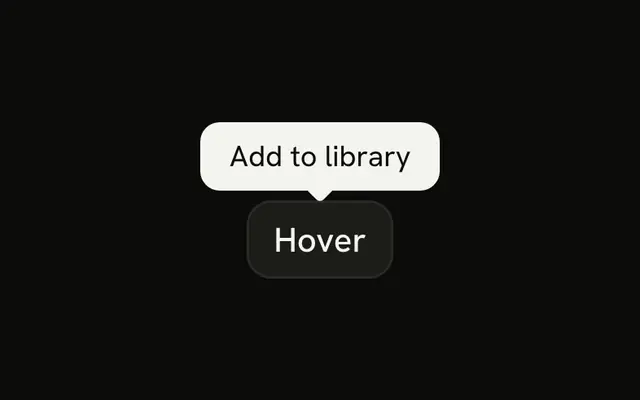
The card opens on hover and stays up so the pointer can move inside. People can select the text in it.
Use it for a preview that takes more than a glance, like a handle and a short bio. A Tooltip is enough for a few words on an icon button. In React, React Aria waits briefly before closing so the pointer can cross into the card.
Installation
Anatomy
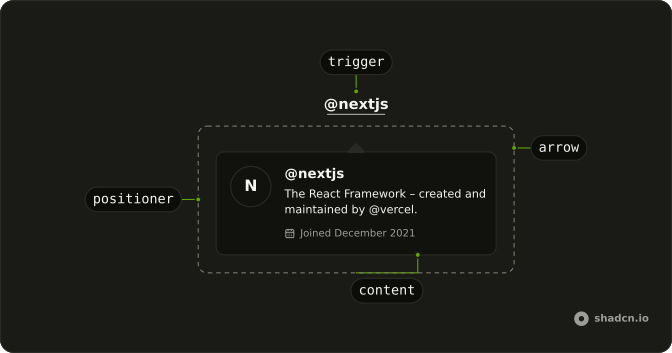
HoverCardArrow
└── HoverCardArrowTip
HoverCardTrigger
HoverCardContent
└── HoverCardPositioner
Usage
import { Button } from "@/components/ui/button";
import {
  HoverCard, HoverCardTrigger,
} from "@/components/ui/hover-card";
const HoverCardDemo = () => (
<HoverCardTrigger closeDelay={100} delay={10}>
<Button variant="link">Hover Here</Button>
<HoverCard className="flex w-64 max-w-full flex-col gap-0.5">
<div className="font-semibold">@nextjs</div>
<div>The React Framework – created and maintained by @vercel.</div>
<div className="mt-1 text-muted-foreground text-xs">
Joined December 2021
</div>
</HoverCard>
</HoverCardTrigger>
);Accessibility
- Tab
- Opens the hover card once focus reaches the trigger, after the open delay. Closes it when focus leaves.
- Escape
- If open, closes the hover card.
- Enter
- Activate the focused item.
- Space
- Activate the focused control.
Demos
Sides
Four buttons open the same card on the left, top, bottom, and right, and each card says which side it used. The open and close delays are short here so you can move between them. Pin a side when the default would cover the link the person is reading. Leave it unset when there is room for the card to flip on its own.
Rtl
The card is a product preview in Arabic, wireless headphones and a price, opened from buttons for each physical side. A second row is labeled as the start and the end of the line. Direction is set on the wrapper and again on the card, so the price and the title align with the page instead of hugging the wrong edge.
FAQ
How do I control whether a Hover Card is open in React?
Leave the card uncontrolled and it opens from hover and keyboard focus, then closes after the pointer and focus leave. Control it when another part of the screen must force it open or closed, using defaultOpen only for the first state, because the close delay is what lets the pointer move into the content.
Pass isOpen, and onOpenChange receives the next boolean, while defaultOpen still sets the first state.
How do I choose which side a Hover Card appears on with React Aria?
The Sides demo places the card on the left, top, bottom, or right, and the content is portaled and stacked at z-50 so overflow on a parent does not clip it. A longer close delay, measured in milliseconds, makes the card easier to reach.
Set placement on HoverCard, which is the popup, and set delay and closeDelay on HoverCardTrigger, since there is no HoverCardContent.
How do I use a button as the Hover Card trigger in React?
The trigger must be focusable, or keyboard users cannot open the card, so a Button or a link is the right host. The card then opens from hover and from focus, and Escape closes it, as the Accessibility section describes. Do not put the preview text inside the trigger label.
Put the Button and HoverCard inside HoverCardTrigger, since there is no HoverCardContent and no asChild.
Can I open a Hover Card from the keyboard?
Yes, focus opens a Hover Card after the delay, and moving focus away closes it, while Escape dismisses an open card. The Accessibility section also lists Enter and Space for activating the focused control. On a touch screen there is no hover, so use a Popover when the preview must open from a tap and stay until dismissed.
How do I install Hover Card?
Run the command in the Installation section above. It adds Hover Card, its trigger, and its content to your ui folder. Install from that section rather than pasting a partial tree, so the positioning parts stay together, and check the Anatomy section for the arrow and positioner on the builds that render them. The command uses the shadcn CLI.
Why does a Hover Card close before I can read it?
The pointer left the trigger before the close delay elapsed, so the Hover Card shut, and raising the close delay gives the pointer time to cross the gap into the content. The open delay is the wait before it appears, which avoids flashing while the pointer passes by. Both are milliseconds, and the side question above says which component receives them.
API Reference
HoverCard
data-slot="hover-card-content"
defaultOpen?boolean
Whether the overlay is open by default (uncontrolled).
onOpenChange?(isOpen: boolean) → void
Handler that is called when the overlay's open state changes.
- Parameters
isOpen– boolean- Returns
void
arrowBoundaryOffset?number
The minimum distance the arrow's edge should be from the edge of the overlay element.
- Default
0
arrowRef?RefObject<Element | null>
A ref for the popover arrow element.
- Type
RefObject<Element | null>
boundaryElement?Element
Element that that serves as the positioning boundary.
- Default
document.body
children?ChildrenOrFunction<T>
The children of the component. A function may be provided to alter the children based on component state.
- Type
ChildrenOrFunction<T>
containerPadding?number
The placement padding that should be applied between the element and its surrounding container.
- Default
12
crossOffset?number
The additional offset applied along the cross axis between the element and its anchor element.
- Default
0
getTargetRect?(target: Element) → DOMRect | null
Overrides the target element's bounding rectangle. Useful for positioning relative to a specific point such as the mouse cursor (e.g. context menus) or text selection.
- Type
(target: Element) → DOMRect | null- Default
target.getBoundingClientRect()- Parameters
target– Element- Returns
DOMRect | null
isEntering?boolean
Whether the popover is currently performing an entry animation.
isExiting?boolean
Whether the popover is currently performing an exit animation.
isKeyboardDismissDisabled?boolean
Whether pressing the escape key to close the popover should be disabled. Most popovers should not use this option. When set to true, an alternative way to close the popover with a keyboard must be provided.
- Default
false
isNonModal?boolean
Whether the popover is non-modal, i.e. elements outside the popover may be interacted with by assistive technologies. Most popovers should not use this option as it may negatively impact the screen reader experience. Only use with components such as combobox, which are designed to handle this situation carefully.
isOpen?boolean
Whether the overlay is open by default (controlled).
maxHeight?number
The maxHeight specified for the overlay element. By default, it will take all space up to the current viewport height.
offset?number
The additional offset applied along the main axis between the element and its
anchor element. Ark default: 8.
- Default
4
onBlurWithin?(e: FocusEvent) → void
Handler that is called when the target element and all descendants lose focus.
- Parameters
e– FocusEvent- Returns
void
onFocusWithin?(e: FocusEvent) → void
Handler that is called when the target element or a descendant receives focus.
- Parameters
e– FocusEvent- Returns
void
onFocusWithinChange?(isFocusWithin: boolean) → void
Handler that is called when the the focus within state changes.
- Parameters
isFocusWithin– boolean- Returns
void
placement?"bottom" | "bottom left" | "bottom right" | "bottom start" | "bottom end" | "top" | "top left" | "top right" | "top start" | "top end" | "left" | "left top" | "left bottom" | "start" | "start top" | "start bottom" | "right" | "right top" | "right bottom" | "end" | "end top" | "end bottom"
The placement of the element with respect to its anchor element.
- Type
"bottom" | "bottom left" | "bottom right" | "bottom start" | "bottom end" | "top" | "top left" | "top right" | "top start" | "top end" | "left" | "left top" | "left bottom" | "start" | "start top" | "start bottom" | "right" | "right top" | "right bottom" | "end" | "end top" | "end bottom"- Default
"bottom"
scrollRef?RefObject<Element | null>
A ref for the scrollable region within the overlay.
- Type
RefObject<Element | null>- Default
overlayRef
shouldCloseOnInteractOutside?(element: Element) → boolean
When user interacts with the argument element outside of the popover ref, return true if onClose should be called. This gives you a chance to filter out interaction with elements that should not dismiss the popover. By default, onClose will always be called on interaction outside the popover ref.
- Parameters
element– Element- Returns
boolean
shouldFlip?boolean
Whether the element should flip its orientation (e.g. top to bottom or left to right) when there is insufficient room for it to render completely.
- Default
true
shouldSkipAnimation?boolean
Whether the popover should appear and disappear without an entry or exit animation. This is used by components such as PreviewTrigger to skip animations when quickly swapping between overlays.
shouldUpdatePosition?boolean
Whether the overlay should update its position automatically.
- Default
true
slot?string | null
A slot name for the component. Slots allow the component to receive props from a parent
component. An explicit null value indicates that the local props completely override all
props received from a parent.
- Type
string | null
style?StyleOrFunction<T>
The inline [style](https://developer.mozilla.org/en-US/docs/Web/API/HTMLElement/style) for the element. A function may be provided to compute the style based on component state.
- Type
StyleOrFunction<T>
trigger?string
The name of the component that triggered the popover. This is reflected on the element
as the data-trigger attribute, and can be used to provide specific
styles for the popover depending on which element triggered it.
triggerRef?RefObject<Element | null>
The ref for the element which the popover positions itself with respect to. When used within a trigger component such as DialogTrigger, MenuTrigger, Select, etc., this is set automatically. It is only required when used standalone.
- Type
RefObject<Element | null>
UNSTABLE_portalContainer?Element
The container element in which the overlay portal will be placed. This may have unknown behavior depending on where it is portalled to. Deprecated. - Use a parent UNSAFE_PortalProvider to set your portal container instead.
- Default
document.body
render?DOMRenderFunction<E, T>
Overrides the default DOM element with a custom render function.
This allows rendering existing components with built-in styles and behaviors
such as router links, animation libraries, and pre-styled components.
Requirements:
- You must render the expected element type (e.g. if <button> is expected, you cannot render an
<a>).
- Only a single root DOM element can be rendered (no fragments).
- You must pass through props and ref to the underlying DOM element, merging with your own prop
as appropriate.
- Type
DOMRenderFunction<E, T>
className?string
Merged with the part's classes.
--trigger-anchor-pointstringHoverCardTrigger
data-slot="hover-card-trigger"
defaultOpen?boolean
Whether the overlay is open by default (uncontrolled).
onOpenChange?(isOpen: boolean) → void
Handler that is called when the overlay's open state changes.
- Parameters
isOpen– boolean- Returns
void
childrenReactNode
The trigger and Popover that make up the preview trigger.
closeDelay?number
The delay time in milliseconds before the preview closes.
- Default
200
delay?number
The delay time in milliseconds before the preview opens.
- Default
600
isDisabled?boolean
Whether the tooltip should be disabled, independent from the trigger.
isOpen?boolean
Whether the overlay is open by default (controlled).