shadcn.io is an independent project built on shadcn/ui
The panel moves with the drag and closes when the swipe finishes. On a wider layout it can dock to another edge.
Use it when people should drag it closed, like filters or a short form on a phone. A Sheet stays put on a large screen, and it opens from a button. In React, React Aria handles focus and the drag.
Installation
Anatomy
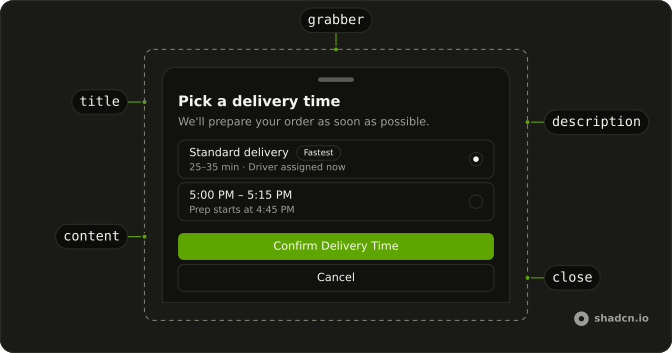
DrawerPositioner
DrawerPositioner
DrawerTitle
DrawerDescription
DrawerTrigger
DrawerOverlay
DrawerGrabber
└── DrawerGrabberIndicator
DrawerClose
DrawerSwipeArea
Usage
import { useState } from "react";
import { Badge } from "@/components/ui/badge";
import { Button } from "@/components/ui/button";
import {
  Drawer, DrawerClose, DrawerContent, DrawerDescription, DrawerFooter,
  DrawerHeader, DrawerTitle, DrawerTrigger,
} from "@/components/ui/drawer";
import {
  Field, FieldContent, FieldDescription, FieldLabel, FieldTitle,
} from "@/components/ui/field";
import {
  RadioGroup, RadioGroupItem,
} from "@/components/ui/radio-group";
import { ScrollArea } from "@/components/ui/scroll-area";
import { Toaster, toast } from "@/components/ui/toast";
import { useIsMobile } from "@/hooks/use-is-mobile";
const deliveryTimes = [
{
badge: "Fastest",
description: "25–35 min · Driver assigned now",
id: "delivery-asap",
label: "Standard delivery",
value: "asap",
},
{
description: "Prep starts at 4:45 PM",
id: "delivery-5-00",
label: "5:00 PM – 5:15 PM",
value: "5-00",
},
{
description: "Good if you're heading home",
id: "delivery-5-30",
label: "5:30 PM – 5:45 PM",
value: "5-30",
},
{
description: "Most popular · High demand",
id: "delivery-6-00",
label: "6:00 PM – 6:15 PM",
value: "6-00",
},
{
description: "Last slot before kitchen closes",
id: "delivery-6-30",
label: "6:30 PM – 6:45 PM",
value: "6-30",
},
];
const DrawerDemo = () => {
const [open, setOpen] = useState(false);
const [deliveryTime, setDeliveryTime] = useState("asap");
const isMobile = useIsMobile();
const handleConfirm = () => {
const selected = deliveryTimes.find((time) => time.value === deliveryTime);
if (!selected) {
return;
}
setOpen(false);
toast("Delivery time confirmed", { description: selected.label });
};
return (
<>
<Toaster />
<Drawer
onOpenChange={setOpen}
open={open}
showSwipeHandle={isMobile}
swipeDirection={isMobile ? "down" : "right"}
>
<DrawerTrigger render={<Button variant="secondary" />}>
Open Drawer
</DrawerTrigger>
<DrawerContent>
<DrawerHeader>
<DrawerTitle>Pick a delivery time</DrawerTitle>
<DrawerDescription>
We'll prepare your order as soon as possible.
</DrawerDescription>
</DrawerHeader>
<ScrollArea className="min-h-0 flex-1 p-4">
<RadioGroup
aria-label="Delivery time"
className="gap-2"
onChange={setDeliveryTime}
value={deliveryTime}
>
{deliveryTimes.map((time) => (
<FieldLabel htmlFor={time.id} key={time.value}>
<Field orientation="horizontal">
<FieldContent>
<FieldTitle className="flex items-center gap-2">
{time.label}
{time.badge ? (
<Badge variant="secondary">{time.badge}</Badge>
) : null}
</FieldTitle>
<FieldDescription>{time.description}</FieldDescription>
</FieldContent>
<RadioGroupItem id={time.id} value={time.value} />
</Field>
</FieldLabel>
))}
</RadioGroup>
</ScrollArea>
<DrawerFooter>
<Button className="h-[34px]" onClick={handleConfirm} type="button">
Confirm Delivery Time
</Button>
<DrawerClose render={<Button variant="outline" />}>
Cancel
</DrawerClose>
</DrawerFooter>
</DrawerContent>
</Drawer>
</>
);
};
Accessibility
- Enter
- Activate the focused control.
- Space
- Activate the focused control.
- End
- Go to the end.
Demos
Sides
Bottom is the default, and it is the wrong edge for a tray that should sit beside the page. Open from the left, the right, or the top when the panel is a side editor, and hide the grabber if a close button is enough. Keep the bar on a bottom sheet. That is the handle people actually drag.
Swipe Handle
showBar on DrawerContent draws the grabber along the edge you swipe from. Use it on a bottom sheet, where the bar is the hint that the panel can be dragged closed. A side drawer often turns it off, because a handle on a vertical edge is easy to miss and the close button already covers dismissal.
Nested
A drawer opened from another drawer's footer, several levels deep, all along the same edge. The parent stays mounted behind the child, so closing the front panel returns you to the previous step. Use that for a short drill-in, such as a category and then an item, knowing two levels is usually enough and this file only keeps going to show the stack still works.
Non Modal
It is not modal, and a click on the page does not dismiss it. The panel sits on the right so the rest of the screen stays usable, which is what you want for a reference tray beside a form. A choice the person must finish, such as the delivery time in the hero, should stay modal so focus does not wander off into the page.
Snap Points
snapPoints gives the vertical drawer two stops: a compact peek at 31rem, and a near full-height stop at 1. Dragging the bar settles on one or the other, instead of only open or closed. Use this for a map, a playlist, or a comment sheet that should preview and then expand. A side panel does not snap this way.
Dialog
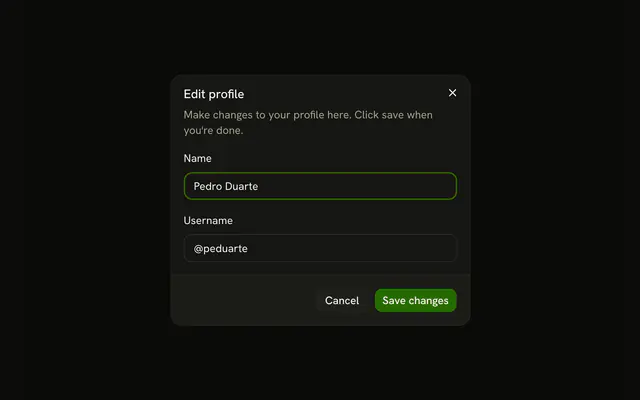
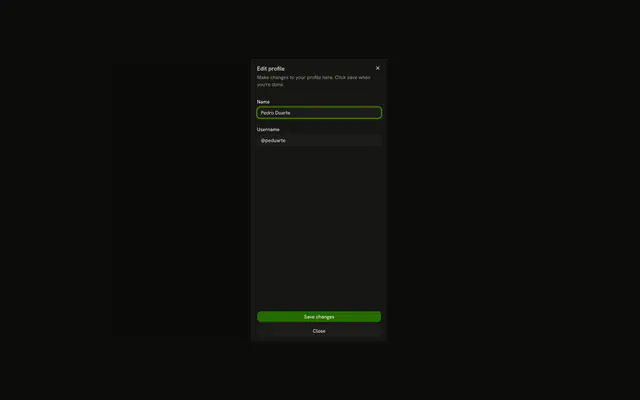
One profile form and one open flag: on a wide screen it renders as a Dialog, and on a phone as a drawer with the same email and username fields. Use the split when the form is short enough for both and the phone should drag the sheet. Do not fork the fields. If desktop wants a side tray, pair the drawer with a sheet instead.
FAQ
Should I use a Drawer or a Sheet?
Use a Drawer when people drag it with a finger, mostly on phones: it follows the swipe, closes when swiped away and can stop at snap points. Use a Sheet for a side panel on larger screens, like filters or a cart, that opens and closes with buttons.
How do I open the Drawer from the left or right in React Aria?
Set swipeDirection on Drawer to the direction that closes it: down for a bottom drawer, the default, left for one on the left.
The Sides demo shows each edge.
How do I control the Drawer open state in React?
Pass open and update it in onOpenChange, which receives the new boolean.
That's also how you close it after an action, like a saved form.
How do I add snap points to a Drawer?
Pass snapPoints to Drawer: an array of heights, as fractions of the screen like 0.5 or as CSS lengths like "31rem", and the drawer stops at each one while dragged. The Snap Points demo shows preset heights.
How do I stop a Drawer from closing on an outside click?
Pass disablePointerDismissal.
Then give people a button that closes it, so they aren't stuck.
Can I open a Drawer from another Drawer?
Yes. Put a second Drawer inside the first one's content: it opens on top, as in the Nested demo. Two levels are usually enough; deeper than that, the first drawer is often better as a page.
How do I show a drag handle on the Drawer?
Set showSwipeHandle on Drawer, as in the Swipe Handle demo.
The handle tells people they can drag the drawer.
API Reference
Drawer
data-slot="drawer"
open?boolean
Whether the drawer is currently open.
defaultOpen?boolean
Whether the drawer is initially open.
To render a controlled drawer, use the open prop instead.
- Default
false
onOpenChange?(open: boolean, eventDetails: DrawerRoot.ChangeEventDetails) → void
Event handler called when the drawer is opened or closed.
- Type
(open: boolean, eventDetails: DrawerRoot.ChangeEventDetails) → void- Parameters
open– booleaneventDetails– DrawerRoot.ChangeEventDetails- Returns
void
snapPoint?DrawerSnapPoint | null
The currently active snap point. Use with onSnapPointChange to control the snap point.
- Type
DrawerSnapPoint | null
defaultSnapPoint?DrawerSnapPoint | null
The initial snap point value when uncontrolled.
- Type
DrawerSnapPoint | null
onSnapPointChange?(snapPoint: DrawerSnapPoint | null, eventDetails: DrawerRoot.SnapPointChangeEventDetails) → void
Callback fired when the snap point changes.
- Type
(snapPoint: DrawerSnapPoint | null, eventDetails: DrawerRoot.SnapPointChangeEventDetails) → void- Parameters
snapPoint– DrawerSnapPoint | nulleventDetails– DrawerRoot.SnapPointChangeEventDetails- Returns
void
actionsRef?React.RefObject<DrawerRoot.Actions | null>
A ref to imperative actions.
- unmount: Ends the closing phase of the drawer after an externally controlled closing animation finishes.
Call preventUnmountOnClose() in onOpenChange first, otherwise the drawer completes closing on its own.
Whether it leaves the DOM is decided by keepMounted on the portal.
- close: Closes the drawer imperatively when called.
- Type
React.RefObject<DrawerRoot.Actions | null>
children?React.ReactNode | PayloadChildRenderFunction<Payload>
The content of the drawer.
- Type
React.ReactNode | PayloadChildRenderFunction<Payload>
defaultTriggerId?string | null
ID of the trigger that the drawer is associated with.
This is useful in conjunction with the defaultOpen prop to create an initially open drawer.
- Type
string | null
disablePointerDismissal?boolean
Whether to prevent the drawer from closing on outside presses. For non-modal drawers, this also prevents the drawer from closing when focus moves outside of it.
- Default
false
handle?DrawerHandle<Payload>
A handle to associate the drawer with a trigger. If specified, allows detached triggers to control the drawer's open state. Can be created with the Drawer.createHandle() method.
- Type
DrawerHandle<Payload>
modal?boolean | "trap-focus"
Determines if the drawer enters a modal state when open.
- true: user interaction is limited to just the drawer: focus is trapped, document page scroll is locked, and pointer interactions on outside elements are disabled.
- false: user interaction with the rest of the document is allowed.
- trap-focus: focus is trapped inside the drawer, but document page scroll is not locked and pointer interactions outside of it remain enabled.
- Type
boolean | "trap-focus"- Default
true
onOpenChangeComplete?(open: boolean) → void
Event handler called after any animations complete when the drawer is opened or closed.
- Parameters
open– boolean- Returns
void
showSwipeHandle?boolean
Shows the handle bar you can drag the drawer by.
- Default
false
snapPoints?DrawerSnapPoint[]
Snap points used to position the drawer.
Use numbers between 0 and 1 to represent fractions of the viewport height,
numbers greater than 1 as pixel values, or strings in px/rem units
(for example, 148px or 30rem).
- Default
[1]
snapToSequentialPoints?boolean
Disables velocity-based snap skipping so drag distance determines the next snap point.
- Default
false
swipeDirection?SwipeDirection
The swipe direction used to dismiss the drawer.
- Default
"down"
triggerId?string | null
ID of the trigger that the drawer is associated with.
This is useful in conjunction with the open prop to create a controlled drawer.
There's no need to specify this prop when the drawer is uncontrolled (that is, when the open prop is not set).
- Type
string | null
DrawerContent
<div> data-slot="drawer-content"
data-snap-points?string
Present when snapPoints is set.
data-swipe-axis?string
Mirrors swipeAxis.
--bleedstring--closed-transformstring--drawer-content-heightstring--drawer-swipe-movement-xstring--drawer-swipe-movement-ystring--drawer-swipe-progressstring--drawer-swipe-strengthstring--nested-drawersstring--peekstring--stack-heightstring--stack-peek-offsetstring--stack-progressstring--stack-scalestring--stack-scale-basestring--stack-shrinkstring--stack-stepstringDrawerTitle
<h2> data-slot="drawer-title"
render?ReactElement | ((props: object, state: object) => ReactElement)
Replace the host element or compose it with another component.
- Type
ReactElement | ((props: object, state: object) => ReactElement)
className?string
Merged with the part's classes.
DrawerDescription
<div> data-slot="drawer-description"
render?ReactElement | ((props: object, state: object) => ReactElement)
Replace the host element or compose it with another component.
- Type
ReactElement | ((props: object, state: object) => ReactElement)
className?string
Merged with the part's classes.
DrawerTrigger
<button> data-slot="drawer-trigger"
handle?DrawerHandle<Payload>
A handle to associate the trigger with a drawer. Can be created with the Drawer.createHandle() method.
- Type
DrawerHandle<Payload>
id?string
ID of the trigger. In addition to being forwarded to the rendered element,
it is also used to specify the active trigger for drawers in controlled mode (with the Drawer.Root triggerId prop).
nativeButton?boolean
Whether the component renders a native <button> element when replacing it
via the render prop.
Set to false if the rendered element is not a button (for example, <div>).
- Default
true
payload?Payload
A payload to pass to the drawer when it is opened.
render?ReactElement | ((props: object, state: object) => ReactElement)
Replace the host element or compose it with another component.
- Type
ReactElement | ((props: object, state: object) => ReactElement)
DrawerOverlay
<div> data-slot="drawer-overlay"
forceRender?boolean
Whether the backdrop is forced to render even when nested.
- Default
false
render?ReactElement | ((props: object, state: object) => ReactElement)
Replace the host element or compose it with another component.
- Type
ReactElement | ((props: object, state: object) => ReactElement)
className?string
Merged with the part's classes.
data-state"open" | "closed"
"open" or "closed".
- Type
"open" | "closed"
data-swipingstring--drawer-swipe-progressstring--drawer-swipe-strengthstringDrawerPortal
data-slot="drawer-portal"
container?HTMLElement | ShadowRoot | React.RefObject<HTMLElement | ShadowRoot | null> | null
A parent element to render the portal element into.
- Type
HTMLElement | ShadowRoot | React.RefObject<HTMLElement | ShadowRoot | null> | null
keepMounted?boolean
Whether to keep the portal mounted in the DOM while the popup is hidden.
- Default
false
render?ReactElement | ((props: object, state: object) => ReactElement)
Replace the host element or compose it with another component.
- Type
ReactElement | ((props: object, state: object) => ReactElement)
DrawerClose
data-slot="drawer-close"
nativeButton?boolean
Whether the component renders a native <button> element when replacing it
via the render prop.
Set to false if the rendered element is not a button (for example, <div>).
- Default
true
render?ReactElement | ((props: object, state: object) => ReactElement)
Replace the host element or compose it with another component.
- Type
ReactElement | ((props: object, state: object) => ReactElement)
DrawerSwipeHandle
<div> data-slot="drawer-swipe-handle"
className?string
Merged with the part's classes.
DrawerHeader
<div> data-slot="drawer-header"
description?string
The description of the drawer.
title?string
The title of the drawer.
className?string
Merged with the part's classes.
DrawerFooter
<div> data-slot="drawer-footer"
className?string
Merged with the part's classes.