shadcn.io is an independent project built on shadcn/ui
Type a few letters and the list narrows to the matches. If nothing is left, show an empty state.
Use it when the set is long or the names are hard to remember. Three order statuses are quicker as a Select. In React, Radix UI handles the popup, the highlight, and the keyboard path.
Installation
Anatomy
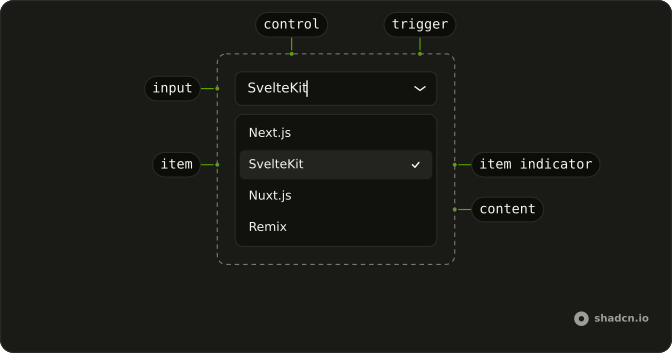
ComboboxRoot
├── ComboboxClear
├── ComboboxContent
├── ComboboxControl
├── ComboboxFieldInput
├── ComboboxItem
│   ├── ComboboxGroup
│   │   └── ComboboxGroupLabel
│   ├── ComboboxItemIndicator
│   └── ComboboxItemText
├── ComboboxLabel
├── ComboboxList
├── ComboboxPositioner
└── ComboboxTrigger
Usage
import {
  Combobox, ComboboxContent, ComboboxEmpty, ComboboxInput, ComboboxItem,
  ComboboxList,
} from "@/components/ui/combobox";
const frameworks = [
"Next.js",
"SvelteKit",
"Nuxt.js",
"Remix",
"Astro",
] as const;
const ComboboxDemo = () => (
<Combobox items={frameworks}>
<ComboboxInput placeholder="Select a framework" />
<ComboboxContent>
<ComboboxEmpty>No items found.</ComboboxEmpty>
<ComboboxList>
{(item) => (
<ComboboxItem key={item} value={item}>
{item}
</ComboboxItem>
)}
</ComboboxList>
</ComboboxContent>
</Combobox>
);Accessibility
- Arrow Down
- When the combobox is closed, opens the listbox and highlights to the first option. When the combobox is open, moves focus to the next option.
- Arrow Up
- When the combobox is closed, opens the listbox and highlights to the last option. When the combobox is open, moves focus to the previous option.
- Home
- When the combobox is open, moves focus to the first option.
- End
- When the combobox is open, moves focus to the last option.
- Escape
- Closes the listbox.
- Enter
- Selects the highlighted option and closes the combobox.
- Space
- Activate the focused control.
Demos
Basic
Five framework names, an input, and a list. The filter narrows the rows as you type, and ComboboxEmpty shows when the query matches nothing. Start here. Chips, groups, and a custom row are the same control with more furniture, and you do not need them for one pick from a flat list.
Multiple
More than one framework can stay selected, and each pick is a chip you can remove without opening the list. The text field lives in that chip row, so the control grows with the selection instead of hiding it behind a closed value. Use this for tags. A field that has to end as one value should stay single-select.
Clear
The field already has a value, and showClear puts a button in the input that wipes it. Use that when empty is allowed, such as an optional framework, or when people often change their mind and should not have to select the text and delete it. Leave the button off a required field, where blank is always an error waiting to happen.
Groups
Timezones split into Americas, Europe, and Asia/Pacific, with a heading on each group and a separator between them. Use groups when people know the category better than the item, and a flat list would be a wall of offsets. Five framework names do not need this. The separator is optional, and the heading is what actually helps someone scan.
Custom
Each country is a row with the name, the continent, and the code, using Item inside ComboboxItem. Use a custom row when the label is not enough to choose, and a second line saves a lookup. Filtering still keys off the country name, so the continent is for reading, not a second search field. Keep the row short or the list becomes a table.
Invalid
The field is flagged invalid, which turns on the error styling and tells assistive tech the value is wrong. Use it after a submit that failed, next to a sentence that says why. Do not paint the combobox red on first view. An empty optional field is not invalid yet, and a red border with no explanation is just noise.
Disabled
The combobox and its input are both disabled, so the list will not open and typing does nothing. Use that for a value fixed by the plan or the role, where showing the current choice still matters and changing it does not. If there is nothing to search, plain text is clearer than a control that looks broken.
Auto Highlight
Enter should commit the obvious framework without a down-arrow first. That is worth turning on for a short list of names, and worth leaving off when the top hit is often the wrong place name. Set autoHighlight.
Popup
The closed control is a button that shows the selected country. Search moves inside the popup, so the field looks like a select until someone opens it. Use this when the page is dense and a full input is too loud, but the list is still long enough to need a filter. The popup is anchored to that button, not to a separate field sitting somewhere else.
Input Group
A globe sits in the input as an addon, ahead of the timezone text, and the list stays grouped by region. Use an addon when the icon explains the field better than the placeholder does. The popup is nudged so it lines up with the text, not with the icon. Otherwise the menu looks like it belongs to the wrong edge of the control.
Rtl
Arabic category names, multiple chips, and dir set to rtl on the field and the combobox. The placeholder asks for more categories, and the empty copy is in the same language. Use this when the page is right to left, so the chips, the caret, and the list sit on the correct side. A left-to-right combobox dropped into an rtl form is what this is checking.
FAQ
Should I use a Combobox or a Select?
Use a Combobox when the list is long enough that people want to type to find an option, like countries or timezones. For a short, fixed set of options, use a Select: it has no text input, so it's quicker to scan.
How do I filter Combobox options as the user types in Radix UI?
Pass the options as items: the combobox filters them by their label as the user types. Pass filter to match another way.
How do I select multiple values in a Combobox?
Set multiple on Combobox and show the picks as chips with ComboboxChips, as in the Multiple demo. The value is then an array.
How do I control the Combobox value in React?
Hold the selection yourself and pass it back on every change.
Pass value and update it in onValueChange, which receives the selected item.
Can users type a value that isn't in the Combobox list?
No, the value is always one of the items.
For free text with suggestions, an Autocomplete fits better.
How do I show a message when no Combobox options match?
Put a ComboboxEmpty with the text, like "No results", in the list: it only shows when the filter leaves nothing to pick.
Is the Combobox accessible with the keyboard?
Yes. It follows the WAI-ARIA combobox pattern: the arrow keys open the list and move through the options, Enter picks the highlighted one and Escape closes the list. Screen readers announce the highlighted option while focus stays in the input.
Does the Combobox work in forms?
Yes. Connect your form state to the combobox's controlled value and its change handler, and put it in a Field for the label, description and error.
API Reference
Combobox
<div>
inputValue?React.ComponentProps<"input">["value"]
The input value of the combobox. Use when controlled.
- Type
React.ComponentProps<"input">["value"]
defaultInputValue?React.ComponentProps<"input">["defaultValue"]
The uncontrolled input value when initially rendered.
To render a controlled input, use the inputValue prop instead.
- Type
React.ComponentProps<"input">["defaultValue"]- Default
""
onInputValueChange?(inputValue: string, eventDetails: ComboboxRoot.ChangeEventDetails) → void
Event handler called when the input value changes.
- Type
(inputValue: string, eventDetails: ComboboxRoot.ChangeEventDetails) → void- Parameters
inputValue– stringeventDetails– ComboboxRoot.ChangeEventDetails- Returns
void
open?boolean
Whether the popup is currently open. Use when controlled.
defaultOpen?boolean
Whether the popup is initially open.
To render a controlled popup, use the open prop instead.
- Default
false
onOpenChange?(open: boolean, eventDetails: ComboboxRoot.OpenChangeEventDetails) → void
Event handler called when the popup is opened or closed.
- Type
(open: boolean, eventDetails: ComboboxRoot.OpenChangeEventDetails) → void- Parameters
open– booleaneventDetails– ComboboxRoot.OpenChangeEventDetails- Returns
void
value?ComboboxInputValue<Value, Multiple> | null
The selected value of the combobox. Use when controlled.
- Type
ComboboxInputValue<Value, Multiple> | null
defaultValue?ComboboxInputValue<Value, Multiple> | null
The uncontrolled selected value of the combobox when it's initially rendered.
To render a controlled combobox, use the value prop instead.
- Type
ComboboxInputValue<Value, Multiple> | null- Default
[]
onValueChange?(value: ComboboxOutputValue<Value, Multiple> | (Multiple extends true ? never : null), eventDetails: ComboboxRoot.ChangeEventDetails) → void
Event handler called when the selected value of the combobox changes.
- Type
(value: ComboboxOutputValue<Value, Multiple> | (Multiple extends true ? never : null), eventDetails: ComboboxRoot.ChangeEventDetails) → void- Parameters
value– ComboboxOutputValue<ValueMultiple> | (Multiple extends true ? never– null)eventDetails– ComboboxRoot.ChangeEventDetails- Returns
void
actionsRef?React.RefObject<ComboboxRoot.Actions | null>
A ref to imperative actions.
- unmount: Ends the closing phase of the combobox after an externally controlled closing animation finishes.
Call preventUnmountOnClose() in onOpenChange first, otherwise the combobox completes closing on its own.
Whether it leaves the DOM is decided by keepMounted on the portal.
- close: Closes the combobox imperatively when called.
- Type
React.RefObject<ComboboxRoot.Actions | null>
autoComplete?string
Provides a hint to the browser for autofill.
autoHighlight?boolean
Whether the first matching item is highlighted automatically while filtering.
- Default
false
disabled?boolean
Whether the component should ignore user interaction.
- Default
false
filter?null | ((item: Item, query: string, itemToString?: (item: Item) → string) → boolean)
Filter function used to match items vs input query.
Receives the source item, which is the derived value's item when items is a createItems()
collection, and the item itself otherwise.
- Type
null | ((item: Item, query: string, itemToString?: (item: Item) → string) → boolean)
filteredItems?readonly Item[] | readonly Group<Item>[]
Filtered items to display in the list.
When provided, the list uses these items instead of filtering the items prop internally.
When items is also provided, this array must preserve its flat or grouped structure.
With a createItems() collection, pass source items rather than derived values.
Nullish entries are not supported, as in items.
Use when you want to control filtering logic externally with the useFilter() hook.
- Type
readonly Item[] | readonly Group<Item>[]
form?string
Identifies the form that owns the internal input. Useful when the combobox is rendered outside the form.
grid?boolean
Whether list items are presented in a grid layout. When enabled, arrow keys navigate across rows and columns inferred from DOM rows.
- Default
false
highlightItemOnHover?boolean
Whether moving the pointer over items should highlight them.
Disabling this prop allows CSS :hover to be differentiated from the :focus (data-highlighted) state.
- Default
true
id?string
The id of the component.
inline?boolean
Whether the list is rendered inline without using the component's own popup.
Specify open unconditionally in conjunction with this prop so the list is considered
visible: <Combobox.Root inline open>
In a Combobox.Root > Dialog.Root composition, bind the Combobox's open and
onOpenChange props to the Dialog's open and onOpenChange state instead so the
component resets its transient state (filter query, highlighted item, and input value) when
the dialog closes.
- Default
false
inputRef?React.Ref<HTMLInputElement>
A ref to the hidden input element.
- Type
React.Ref<HTMLInputElement>
isItemEqualToValue?(itemValue: Value, value: Value) → boolean
Custom comparison logic used to determine if a combobox item value matches the current selected value. Useful when item values are objects without matching referentially.
With a createItems() collection, both arguments are derived values.
Defaults to Object.is comparison.
- Type
(itemValue: Value, value: Value) → boolean- Parameters
itemValue– Valuevalue– Value- Returns
boolean
items?readonly any[] | readonly Group<any>[] | ComboboxItemCollection<Item, ItemValue>
The items to be displayed in the list.
Can be a flat array of items, an array of groups with items, or a collection created by
the createItems() function, which derives each item's selection value and label.
Nullish entries are not supported: remove them from the data before passing it.
- Type
readonly any[] | readonly Group<any>[] | ComboboxItemCollection<Item, ItemValue>
itemToStringLabel?(itemValue: Value) → string
When the item values are objects (<Combobox.Item value={object}>), this function converts the object value to a string representation for display in the input.
If the shape of the object is { value, label }, the label will be used automatically without needing to specify this prop.
With a createItems() collection, this receives the derived value, and the collection's
getLabel takes precedence for values it can resolve.
- Parameters
itemValue– Value- Returns
string
itemToStringValue?(itemValue: Value) → string
When the item values are objects (<Combobox.Item value={object}>), this function converts the object value to a string representation for form submission.
If the shape of the object is { value, label }, the value will be used automatically without needing to specify this prop.
With a createItems() collection, this receives the derived value.
- Parameters
itemValue– Value- Returns
string
limit?number
The maximum number of items to display in the list.
- Default
-1
locale?Intl.LocalesArgument
The locale to use for string comparison. Defaults to the user's runtime locale.
loopFocus?boolean
Whether to loop keyboard focus back to the input when the end of the list is reached while using the arrow keys. The first item can then be reached by pressing <kbd>ArrowDown</kbd> again from the input, or the last item can be reached by pressing <kbd>ArrowUp</kbd> from the input. The input is always included in the focus loop per [ARIA Authoring Practices](https://www.w3.org/WAI/ARIA/apg/patterns/combobox/). When disabled, focus does not move when on the last element and the user presses <kbd>ArrowDown</kbd>, or when on the first element and the user presses <kbd>ArrowUp</kbd>.
- Default
true
modal?boolean
Determines if the popup enters a modal state when open.
- true: user interaction is limited to the popup: document page scroll is locked and pointer interactions on outside elements are disabled.
- false: user interaction with the rest of the document is allowed.
On touch devices, a true modal blocks outside taps but leaves the page scrollable unless the popup spans nearly the full viewport width, matching native iOS behavior.
- Default
false
multiple?Multiple
Whether multiple items can be selected.
- Default
false
name?string
Identifies the field when a form is submitted.
onItemHighlighted?(highlightedValue: Value, eventDetails: ComboboxRoot.HighlightEventDetails) → void
Callback fired when an item is highlighted or unhighlighted.
Receives the highlighted item value (or undefined if no item is highlighted) and event details with a reason property describing why the highlight changed.
The reason can be:
- keyboard: the highlight changed due to keyboard navigation.
- pointer: the highlight changed due to pointer hovering. The event may be a MouseEvent
rather than a PointerEvent.
- none: the highlight changed for another reason, such as typing, autoHighlight, the
item list changing, or the popup opening or closing.
- Type
(highlightedValue: Value, eventDetails: ComboboxRoot.HighlightEventDetails) → void- Parameters
highlightedValue– ValueeventDetails– ComboboxRoot.HighlightEventDetails- Returns
void
onOpenChangeComplete?(open: boolean) → void
Event handler called after any animations complete when the popup is opened or closed.
- Parameters
open– boolean- Returns
void
openOnInputClick?boolean
Whether the popup opens when clicking the input.
- Default
true
readOnly?boolean
Whether the user should be unable to choose a different option from the popup.
- Default
false
required?boolean
Whether the user must choose a value before submitting a form.
- Default
false
virtualized?boolean
Whether the items are being externally virtualized.
- Default
false
data-invalid?string
Present when invalid is true.
data-readonly?string
Present when readOnly is true.
ComboboxChipsInput
<input> data-slot="combobox-chip-input"
disabled?boolean
Whether the component should ignore user interaction.
- Default
false
render?ReactElement | ((props: object, state: object) => ReactElement)
Replace the host element or compose it with another component.
- Type
ReactElement | ((props: object, state: object) => ReactElement)
className?string
Merged with the part's classes.
data-autofocus?string
Present when autoFocus is true.
data-invalid?string
Present when invalid is true.
data-state"open" | "closed"
"open" or "closed".
- Type
"open" | "closed"
ComboboxItem
<div> data-slot="combobox-item"
disabled?boolean
Whether the component should ignore user interaction.
- Default
false
index?number
The index of the item in the list. Improves performance when specified by avoiding the need to calculate the index automatically from the DOM.
nativeButton?boolean
Whether the component renders a native <button> element when replacing it
via the render prop.
Set to true if the rendered element is a native button.
- Default
false
onClick?React.MouseEventHandler
An optional click handler for the item when selected.
It fires when clicking the item with the pointer, as well as when pressing Enter with the keyboard if the item is highlighted when the Input or List element has focus.
value?any
A unique value that identifies this item.
- Default
null
render?ReactElement | ((props: object, state: object) => ReactElement)
Replace the host element or compose it with another component.
- Type
ReactElement | ((props: object, state: object) => ReactElement)
className?string
Merged with the part's classes.
data-disabled?string
Present when disabled is true.
data-highlighted?string
Present when highlighted is true.
data-state"checked" | "unchecked"
"checked" or "unchecked".
- Type
"checked" | "unchecked"
data-valueboolean
Value of value.
ComboboxItemIndicator
<div>
keepMounted?boolean
Whether to keep the HTML element in the DOM when the item is not selected.
- Default
false
data-state"checked" | "unchecked"
"checked" or "unchecked".
- Type
"checked" | "unchecked"
ComboboxList
<div> data-slot="combobox-list"
children?React.ReactNode | ((item: any, index: number) → React.ReactNode)
A function that gets item and returns what it renders.
- Type
React.ReactNode | ((item: any, index: number) → React.ReactNode)
render?ReactElement | ((props: object, state: object) => ReactElement)
Replace the host element or compose it with another component.
- Type
ReactElement | ((props: object, state: object) => ReactElement)
className?string
Merged with the part's classes.
data-empty?string
Present when there are no items.
ComboboxPositioner
<div>
align?"start" | "center" | "end"
How to align the popup relative to the specified side.
- Type
"start" | "center" | "end"- Default
"center"
alignOffset?number | OffsetFunction
Additional offset along the alignment axis in pixels.
Also accepts a function that returns the offset to read the dimensions of the anchor
and positioner elements, along with its side and alignment.
The function takes a data object parameter with the following properties:
- data.anchor: the dimensions of the anchor element with properties width and height.
- data.positioner: the dimensions of the positioner element with properties width and height.
- data.side: which side of the anchor element the positioner is aligned against.
- data.align: how the positioner is aligned relative to the specified side.
``jsx
<Positioner
alignOffset={({ side, align, anchor, positioner }) => {
return side === top || side === bottom
      ? anchor.width
      : anchor.height;
  }}
/>
``
- Type
number | OffsetFunction- Default
0
anchor?Element | null | VirtualElement | React.RefObject<Element | null> | (() → Element | VirtualElement | null)
An element to position the popup against. By default, the popup will be positioned against the trigger.
- Type
Element | null | VirtualElement | React.RefObject<Element | null> | (() → Element | VirtualElement | null)
arrowPadding?number
Minimum distance to maintain between the arrow and the edges of the popup. Use it to prevent the arrow element from hanging out of the rounded corners of a popup.
- Default
5
collisionAvoidance?SideFlipMode | SideShiftMode
Determines how to handle collisions when positioning the popup.
side controls overflow on the preferred placement axis (top/bottom or left/right):
- flip: keep the requested side when it fits; otherwise try the opposite side
(top and bottom, or left and right).
- shift: never change side; keep the requested side and move the popup within
the clipping boundary so it stays visible.
- none: do not correct side-axis overflow.
align controls overflow on the alignment axis (start/center/end):
- flip: keep side, but swap start and end when the requested alignment overflows.
- shift: keep side and requested alignment, then nudge the popup along the
alignment axis to fit.
- none: do not correct alignment-axis overflow.
fallbackAxisSide controls fallback behavior on the perpendicular axis when the
preferred axis cannot fit:
- start: allow perpendicular fallback and try the logical start side first
(top before bottom, or left before right in LTR).
- end: allow perpendicular fallback and try the logical end side first
(bottom before top, or right before left in LTR).
- none: do not fallback to the perpendicular axis.
When side is shift, explicitly setting align only supports shift or none.
If align is omitted, it defaults to flip.
``jsx
<Positioner
collisionAvoidance={{
side: shift,
align: shift,
fallbackAxisSide: none,
}}
/>
``
- Type
SideFlipMode | SideShiftMode
collisionBoundary?"clipping-ancestors" | Element | Element[] | Rect
An element or a rectangle that delimits the area that the popup is confined to.
- Type
"clipping-ancestors" | Element | Element[] | Rect- Default
"clipping-ancestors"
collisionPadding?Padding
Additional space to maintain from the edge of the collision boundary.
- Default
5
disableAnchorTracking?boolean
Whether to disable the popup from tracking any layout shift of its positioning anchor.
- Default
false
positionMethod?"absolute" | "fixed"
Determines which CSS position property to use.
- Type
"absolute" | "fixed"- Default
"absolute"
side?"top" | "bottom" | "left" | "right" | "inline-end" | "inline-start"
Which side of the anchor element to align the popup against. May automatically change to avoid collisions.
- Type
"top" | "bottom" | "left" | "right" | "inline-end" | "inline-start"- Default
"bottom"
sideOffset?number | OffsetFunction
Distance between the anchor and the popup in pixels.
Also accepts a function that returns the distance to read the dimensions of the anchor
and positioner elements, along with its side and alignment.
The function takes a data object parameter with the following properties:
- data.anchor: the dimensions of the anchor element with properties width and height.
- data.positioner: the dimensions of the positioner element with properties width and height.
- data.side: which side of the anchor element the positioner is aligned against.
- data.align: how the positioner is aligned relative to the specified side.
``jsx
<Positioner
sideOffset={({ side, align, anchor, positioner }) => {
return side === top || side === bottom
      ? anchor.height
      : anchor.width;
  }}
/>
``
- Type
number | OffsetFunction- Default
0
sticky?boolean
Whether to maintain the popup in the viewport after the anchor element was scrolled out of view.
- Default
false
--anchor-widthstring
The anchor's width.
--available-heightstring
The height left between the anchor and the viewport's edge.
--available-widthstring
The width left between the anchor and the viewport's edge.
--transform-originstring
Where the content scales from, on its trigger's side.
ComboboxTrigger
<button> data-slot="combobox-trigger"
disabled?boolean
Whether the component should ignore user interaction.
- Default
false
nativeButton?boolean
Whether the component renders a native <button> element when replacing it
via the render prop.
Set to false if the rendered element is not a button (for example, <div>).
- Default
true
render?ReactElement | ((props: object, state: object) => ReactElement)
Replace the host element or compose it with another component.
- Type
ReactElement | ((props: object, state: object) => ReactElement)
className?string
Merged with the part's classes.
ComboboxValue
data-slot="combobox-value"
children?React.ReactNode | ((selectedValue: any) → React.ReactNode)
Accepts a function that returns a ReactNode to format the selected value.
Treat the value as read-only: in multiple mode it may be a shared frozen array
when nothing is selected.
- Type
React.ReactNode | ((selectedValue: any) → React.ReactNode)
placeholder?React.ReactNode
The placeholder value to display when no value is selected.
This is overridden by children if specified, or by a null item's label in items.
ComboboxClear
data-slot="combobox-clear"
disabled?boolean
Whether the component should ignore user interaction.
- Default
false
keepMounted?boolean
Whether the component should remain mounted in the DOM when not visible.
- Default
false
nativeButton?boolean
Whether the component renders a native <button> element when replacing it
via the render prop.
Set to false if the rendered element is not a button (for example, <div>).
- Default
true
render?ReactElement | ((props: object, state: object) => ReactElement)
Replace the host element or compose it with another component.
- Type
ReactElement | ((props: object, state: object) => ReactElement)
className?string
Merged with the part's classes.
ComboboxInput
<input>
disabled?boolean
Whether the component should ignore user interaction.
- Default
false
showClear?boolean
Shows a button that clears the input.
- Default
false
showTrigger?boolean
Shows the button that opens the list.
- Default
true
render?ReactElement | ((props: object, state: object) => ReactElement)
Replace the host element or compose it with another component.
- Type
ReactElement | ((props: object, state: object) => ReactElement)
className?string
Merged with the part's classes.
data-autofocus?string
Present when autoFocus is true.
data-invalid?string
Present when invalid is true.
data-state"open" | "closed"
"open" or "closed".
- Type
"open" | "closed"
ComboboxContent
data-slot="combobox-content"
finalFocus?boolean | React.RefObject<HTMLElement | null> | ((closeType: InteractionType) → void | boolean | HTMLElement | null)
Determines the element to focus when the popup is closed.
- false: Do not move focus.
- true: Move focus based on the default behavior (trigger or previously focused element).
- RefObject: Move focus to the ref element.
- function: Called with the interaction type (mouse, touch, pen, or keyboard).
Return an element to focus, true to use the default behavior, or false/undefined to do nothing.
- Type
boolean | React.RefObject<HTMLElement | null> | ((closeType: InteractionType) → void | boolean | HTMLElement | null)
initialFocus?boolean | React.RefObject<HTMLElement | null> | ((openType: InteractionType) → void | boolean | HTMLElement | null)
Determines the element to focus when the popup is opened.
- false: Do not move focus.
- true: Move focus based on the default behavior (first tabbable element or popup).
- RefObject: Move focus to the ref element.
- function: Called with the interaction type (mouse, touch, pen, or keyboard).
Return an element to focus, true to use the default behavior, or false/undefined to do nothing.
- Type
boolean | React.RefObject<HTMLElement | null> | ((openType: InteractionType) → void | boolean | HTMLElement | null)
render?ReactElement | ((props: object, state: object) => ReactElement)
Replace the host element or compose it with another component.
- Type
ReactElement | ((props: object, state: object) => ReactElement)
className?string
Merged with the part's classes.
data-chips?string--anchor-widthstring
The anchor's width.
--available-heightstring
The height left between the anchor and the viewport's edge.
--available-widthstring
The width left between the anchor and the viewport's edge.
--transform-originstring
Where the content scales from, on its trigger's side.
ComboboxGroup
data-slot="combobox-group"
items?readonly any[]
Items to be rendered within this group.
When provided, child Collection components will use these items.
render?ReactElement | ((props: object, state: object) => ReactElement)
Replace the host element or compose it with another component.
- Type
ReactElement | ((props: object, state: object) => ReactElement)
className?string
Merged with the part's classes.
ComboboxLabel
data-slot="combobox-label"
render?ReactElement | ((props: object, state: object) => ReactElement)
Replace the host element or compose it with another component.
- Type
ReactElement | ((props: object, state: object) => ReactElement)
className?string
Merged with the part's classes.
ComboboxCollection
data-slot="combobox-collection"
children(item: any, index: number) → React.ReactNode
A function that gets item and returns what it renders.
- Type
(item: any, index: number) → React.ReactNode- Parameters
item– anyindex– number- Returns
React.ReactNode
ComboboxEmpty
<div> data-slot="combobox-empty"
render?ReactElement | ((props: object, state: object) => ReactElement)
Replace the host element or compose it with another component.
- Type
ReactElement | ((props: object, state: object) => ReactElement)
className?string
Merged with the part's classes.
ComboboxSeparator
data-slot="combobox-separator"
orientation?"horizontal" | "vertical"
The orientation of the separator.
- Type
"horizontal" | "vertical"- Default
"horizontal"
render?ReactElement | ((props: object, state: object) => ReactElement)
Replace the host element or compose it with another component.
- Type
ReactElement | ((props: object, state: object) => ReactElement)
className?string
Merged with the part's classes.
ComboboxChips
data-slot="combobox-chips"
render?ReactElement | ((props: object, state: object) => ReactElement)
Replace the host element or compose it with another component.
- Type
ReactElement | ((props: object, state: object) => ReactElement)
className?string
Merged with the part's classes.
ComboboxChip
data-slot="combobox-chip"
showRemove?boolean
Shows a button that removes the chip.
- Default
true
render?ReactElement | ((props: object, state: object) => ReactElement)
Replace the host element or compose it with another component.
- Type
ReactElement | ((props: object, state: object) => ReactElement)
className?string
Merged with the part's classes.