shadcn.io is an independent project built on shadcn/ui
The panel moves with the drag and closes when the swipe finishes. On a wider layout it can dock to another edge.
Use it when people should drag it closed, like filters or a short form on a phone. A Sheet stays put on a large screen, and it opens from a button. In React, Radix UI handles focus and the drag.
Installation
Anatomy
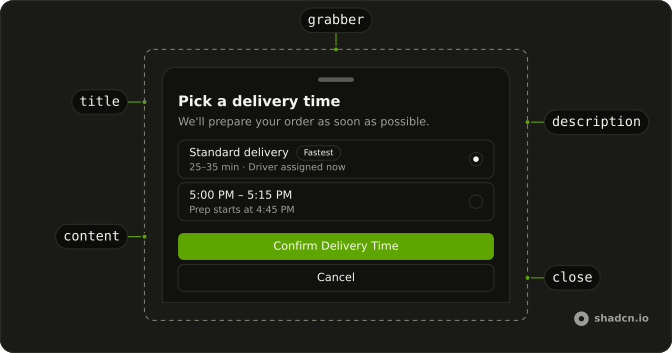
DrawerPositioner
DrawerPositioner
DrawerTitle
DrawerDescription
DrawerTrigger
DrawerOverlay
DrawerGrabber
└── DrawerGrabberIndicator
DrawerClose
DrawerSwipeArea
Usage
import { MinusIcon, PlusIcon } from "lucide-react";
import { useState } from "react";
import { Bar, BarChart, ResponsiveContainer } from "recharts";
import { Button } from "@/components/ui/button";
import {
  Drawer, DrawerClose, DrawerContent, DrawerDescription, DrawerFooter,
  DrawerHeader, DrawerTitle, DrawerTrigger,
} from "@/components/ui/drawer";
const data = [
{ goal: 400 },
{ goal: 300 },
{ goal: 200 },
{ goal: 300 },
{ goal: 200 },
{ goal: 278 },
{ goal: 189 },
{ goal: 239 },
{ goal: 300 },
{ goal: 200 },
{ goal: 278 },
{ goal: 189 },
{ goal: 349 },
];
const DrawerDemo = () => {
const [goal, setGoal] = useState(350);
const handleDecrease = () => {
setGoal((current) => Math.max(200, current - 10));
};
const handleIncrease = () => {
setGoal((current) => Math.min(400, current + 10));
};
return (
<Drawer>
<DrawerTrigger asChild>
<Button variant="outline">Open Drawer</Button>
</DrawerTrigger>
<DrawerContent>
<div className="mx-auto w-full min-w-0 max-w-sm">
<DrawerHeader>
<DrawerTitle>Move Goal</DrawerTitle>
<DrawerDescription>Set your daily activity goal.</DrawerDescription>
</DrawerHeader>
<div className="p-4 pb-0">
<div className="flex items-center justify-center gap-2">
<Button
className="size-8 shrink-0 rounded-full"
disabled={goal <= 200}
onClick={handleDecrease}
size="icon-sm"
type="button"
variant="outline"
>
<MinusIcon aria-hidden="true" className="size-4" />
<span className="sr-only">Decrease</span>
</Button>
<div className="flex-1 text-center">
<div className="font-bold text-7xl tracking-tighter">
{goal}
</div>
<div className="text-[0.70rem] text-muted-foreground uppercase">
Calories/day
</div>
</div>
<Button
className="size-8 shrink-0 rounded-full"
disabled={goal >= 400}
onClick={handleIncrease}
size="icon-sm"
type="button"
variant="outline"
>
<PlusIcon aria-hidden="true" className="size-4" />
<span className="sr-only">Increase</span>
</Button>
</div>
<div className="mt-3 h-[120px]">
<ResponsiveContainer height="100%" width="100%">
<BarChart data={data}>
<Bar dataKey="goal" fill="var(--chart-1)" />
</BarChart>
</ResponsiveContainer>
</div>
</div>
<DrawerFooter>
<Button type="button">Submit</Button>
<DrawerClose asChild>
<Button variant="outline">Cancel</Button>
</DrawerClose>
</DrawerFooter>
</div>
</DrawerContent>
</Drawer>
);
};
Accessibility
- Enter
- Activate the focused control.
- Space
- Activate the focused control.
- End
- Go to the end.
Demos
Sides
Bottom is the default, and it is the wrong edge for a tray that should sit beside the page. Open from the left, the right, or the top when the panel is a side editor, and hide the grabber if a close button is enough. Keep the bar on a bottom sheet. That is the handle people actually drag.
Swipe Handle
showBar on DrawerContent draws the grabber along the edge you swipe from. Use it on a bottom sheet, where the bar is the hint that the panel can be dragged closed. A side drawer often turns it off, because a handle on a vertical edge is easy to miss and the close button already covers dismissal.
Nested
A drawer opened from another drawer's footer, several levels deep, all along the same edge. The parent stays mounted behind the child, so closing the front panel returns you to the previous step. Use that for a short drill-in, such as a category and then an item, knowing two levels is usually enough and this file only keeps going to show the stack still works.
Non Modal
It is not modal, and a click on the page does not dismiss it. The panel sits on the right so the rest of the screen stays usable, which is what you want for a reference tray beside a form. A choice the person must finish, such as the delivery time in the hero, should stay modal so focus does not wander off into the page.
Snap Points
snapPoints gives the vertical drawer two stops: a compact peek at 31rem, and a near full-height stop at 1. Dragging the bar settles on one or the other, instead of only open or closed. Use this for a map, a playlist, or a comment sheet that should preview and then expand. A side panel does not snap this way.
Dialog
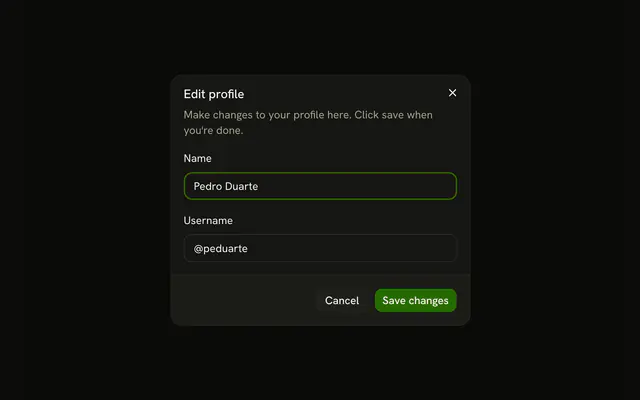
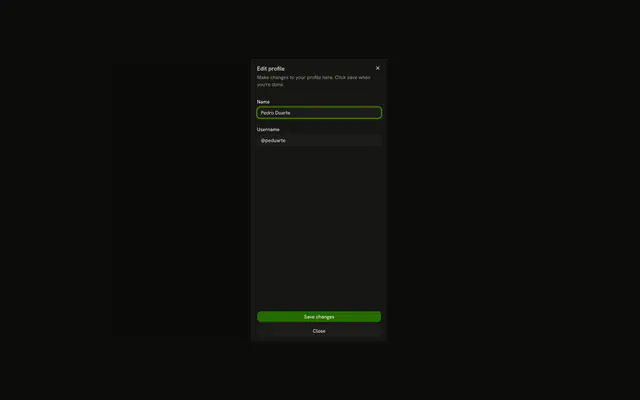
One profile form and one open flag: on a wide screen it renders as a Dialog, and on a phone as a drawer with the same email and username fields. Use the split when the form is short enough for both and the phone should drag the sheet. Do not fork the fields. If desktop wants a side tray, pair the drawer with a sheet instead.
FAQ
Should I use a Drawer or a Sheet?
Use a Drawer when people drag it with a finger, mostly on phones: it follows the swipe, closes when swiped away and can stop at snap points. Use a Sheet for a side panel on larger screens, like filters or a cart, that opens and closes with buttons.
How do I open the Drawer from the left or right in Radix UI?
Set direction on Drawer to left, right or top; it opens from the bottom by default.
The Sides demo shows each edge.
How do I control the Drawer open state in React?
Pass open and update it in onOpenChange, which receives the new boolean.
That's also how you close it after an action, like a saved form.
How do I add snap points to a Drawer?
Pass snapPoints to Drawer: an array of heights, as fractions of the screen like 0.5 or as CSS lengths like "31rem", and the drawer stops at each one while dragged. The Snap Points demo shows preset heights.
How do I stop a Drawer from closing on an outside click?
Set dismissible to false, which also stops swipe and Escape from closing it.
Then give people a button that closes it, so they aren't stuck.
Can I open a Drawer from another Drawer?
Yes. Put a second Drawer inside the first one's content: it opens on top, as in the Nested demo. Two levels are usually enough; deeper than that, the first drawer is often better as a page.
API Reference
Drawer
data-slot="drawer"
open?boolean
Whether it's open. Pair with onOpenChange to control it.
defaultOpen?boolean
Opened by default, skips initial enter animation. Still reacts to open state changes.
- Default
false
onOpenChange?(open: boolean) → void
Called when it opens or closes.
- Parameters
open– boolean- Returns
void
activeSnapPoint?number | string | null
The snap point it's at. Pair with setActiveSnapPoint to control it.
- Type
number | string | null
autoFocus?boolean
Whether focus moves into it when it opens.
closeThreshold?number
Number between 0 and 1 that determines when the drawer should be closed. Example: threshold of 0.5 would close the drawer if the user swiped for 50% of the height of the drawer or more.
- Default
0.25
container?HTMLElement | null
The element it portals into. document.body when unset.
- Type
HTMLElement | null
direction?"top" | "bottom" | "left" | "right"
Direction of the drawer. Can be top or bottom, left, right.
- Type
"top" | "bottom" | "left" | "right"- Default
"bottom"
disablePreventScroll?boolean
When set to true prevents scrolling on the document body on mount, and restores it on unmount.
- Default
false
dismissible?boolean
When false dragging, clicking outside, pressing esc, etc. will not close the drawer.
Use this in comination with the open prop, otherwise you won't be able to open/close the drawer.
- Default
true
fadeFromIndex?number
Index of a snapPoint from which the overlay fade should be applied. Defaults to the last snap point.
fixed?boolean
When true, don't move the drawer upwards if there's space, but rather only change it's height so it's fully scrollable when the keyboard is open.
handleOnly?boolean
When true only allows the drawer to be dragged by the <Drawer.Handle /> component.
- Default
false
modal?boolean
When false it allows to interact with elements outside of the drawer without closing it.
- Default
true
nested?boolean
Whether it opens from inside another drawer.
noBodyStyles?boolean
When true the body doesn't get any styles assigned from Vaul.
onAnimationEnd?(open: boolean) → void
Gets triggered after the open or close animation ends, it receives an open argument with the open state of the drawer by the time the function was triggered.
Useful to revert any state changes for example.
- Parameters
open– boolean- Returns
void
onClose?() → void
Called when it closes.
- Returns
void
onDrag?(event: React.PointerEvent<HTMLDivElement>, percentageDragged: number) → void
Called while it's dragged, with how far it's been dragged.
- Type
(event: React.PointerEvent<HTMLDivElement>, percentageDragged: number) → void- Parameters
event– React.PointerEvent<HTMLDivElement>percentageDragged– number- Returns
void
onRelease?(event: React.PointerEvent<HTMLDivElement>, open: boolean) → void
Called when a drag ends, with whether it stays open.
- Type
(event: React.PointerEvent<HTMLDivElement>, open: boolean) → void- Parameters
event– React.PointerEvent<HTMLDivElement>open– boolean- Returns
void
preventScrollRestoration?boolean
Whether it leaves the page's scroll position alone on close when the URL changed while it was open.
repositionInputs?boolean
When true Vaul will reposition inputs rather than scroll then into view if the keyboard is in the way.
Setting it to false will fall back to the default browser behavior.
- Default
true when {@link snapPoints} is defined
scrollLockTimeout?number
Duration for which the drawer is not draggable after scrolling content inside of the drawer.
- Default
500ms
setActiveSnapPoint?(snapPoint: number | string | null) → void
Called with the snap point it moves to.
- Type
(snapPoint: number | string | null) → void- Parameters
snapPoint– number | string | null- Returns
void
setBackgroundColorOnScale?boolean
When false we don't change body's background color when the drawer is open.
- Default
true
shouldScaleBackground?boolean
Whether the page behind it (the element with data-vaul-drawer-wrapper) scales down while it's open.
snapPoints?(number | string)[]
Array of numbers from 0 to 100 that corresponds to % of the screen a given snap point should take up.
Should go from least visible. Example [0.2, 0.5, 0.8].
You can also use px values, which doesn't take screen height into account.
- Type
(number | string)[]- Default
[1]
snapToSequentialPoint?boolean
Disabled velocity based swiping for snap points. This means that a snap point won't be skipped even if the velocity is high enough. Useful if each snap point in a drawer is equally important.
- Default
false
DrawerTrigger
data-slot="drawer-trigger"
asChild?boolean
Merge props onto the child element instead of rendering a host.
DrawerPortal
data-slot="drawer-portal"
container?Element | DocumentFragment | null
Specify a container element to portal the content into.
- Type
Element | DocumentFragment | null
forceMount?true
Used to force mounting when more control is needed. Useful when controlling animation with React animation libraries.
DrawerClose
data-slot="drawer-close"
asChild?boolean
Merge props onto the child element instead of rendering a host.
DrawerOverlay
data-slot="drawer-overlay"
forceMount?true
Used to force mounting when more control is needed. Useful when controlling animation with React animation libraries.
asChild?boolean
Merge props onto the child element instead of rendering a host.
className?string
Merged with the part's classes.
DrawerContent
data-slot="drawer-content"
deferPointerDownOutside?boolean
When true, a pointerdown event outside of the layered element will
wait for the interaction's click event before dispatching, allowing
third-party code to stop propagation of later events and cancel dismissal.
forceMount?true
Used to force mounting when more control is needed. Useful when controlling animation with React animation libraries.
onCloseAutoFocus?{ bivarianceHack(event: Event): void; }["bivarianceHack"]
Event handler called when auto-focusing on close. Can be prevented.
- Type
{ bivarianceHack(event: Event): void; }["bivarianceHack"]
onEscapeKeyDown?{ bivarianceHack(event: KeyboardEvent): void; }["bivarianceHack"]
Event handler called when the escape key is down. Can be prevented.
- Type
{ bivarianceHack(event: KeyboardEvent): void; }["bivarianceHack"]
onFocusOutside?{ bivarianceHack(event: FocusOutsideEvent): void; }["bivarianceHack"]
Event handler called when the focus moves outside of the DismissableLayer.
Can be prevented.
- Type
{ bivarianceHack(event: FocusOutsideEvent): void; }["bivarianceHack"]
onInteractOutside?{ bivarianceHack(event: PointerDownOutsideEvent | FocusOutsideEvent): void; }["bivarianceHack"]
Event handler called when an interaction happens outside the DismissableLayer.
Specifically, when a pointerdown event happens outside or focus moves outside of it.
Can be prevented.
- Type
{ bivarianceHack(event: PointerDownOutsideEvent | FocusOutsideEvent): void; }["bivarianceHack"]
onOpenAutoFocus?{ bivarianceHack(event: Event): void; }["bivarianceHack"]
Event handler called when auto-focusing on open. Can be prevented.
- Type
{ bivarianceHack(event: Event): void; }["bivarianceHack"]
onPointerDownOutside?{ bivarianceHack(event: PointerDownOutsideEvent): void; }["bivarianceHack"]
Event handler called when the a pointerdown event happens outside of the DismissableLayer.
Can be prevented.
- Type
{ bivarianceHack(event: PointerDownOutsideEvent): void; }["bivarianceHack"]
asChild?boolean
Merge props onto the child element instead of rendering a host.
className?string
Merged with the part's classes.
DrawerHeader
<div> data-slot="drawer-header"
description?string
The description of the drawer.
title?string
The title of the drawer.
className?string
Merged with the part's classes.
DrawerFooter
<div> data-slot="drawer-footer"
className?string
Merged with the part's classes.
DrawerTitle
data-slot="drawer-title"
asChild?boolean
Merge props onto the child element instead of rendering a host.
className?string
Merged with the part's classes.
DrawerDescription
data-slot="drawer-description"
asChild?boolean
Merge props onto the child element instead of rendering a host.
className?string
Merged with the part's classes.