shadcn.io is an independent project built on shadcn/ui
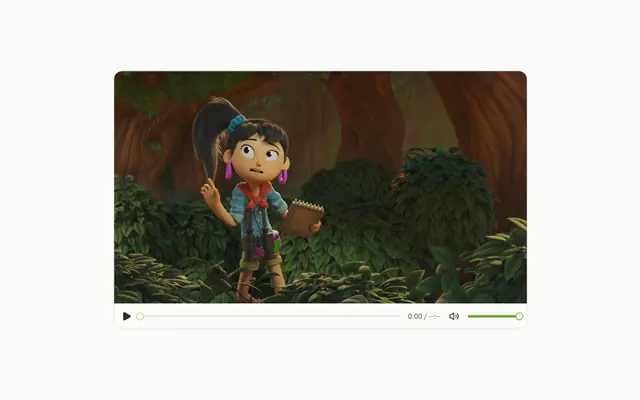
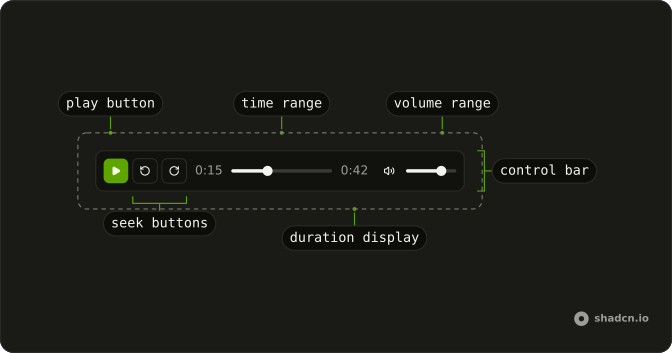
Audio Player puts play, seek, time and volume controls around a native audio element, drawn with your theme instead of the browser's own player. Reach for it when a chat reply is spoken, when people send voice messages, or when a page previews a short clip, and hand it the AI SDK's speech as it comes back.
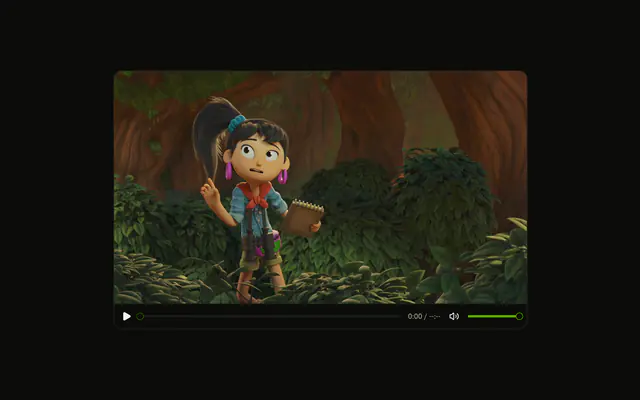
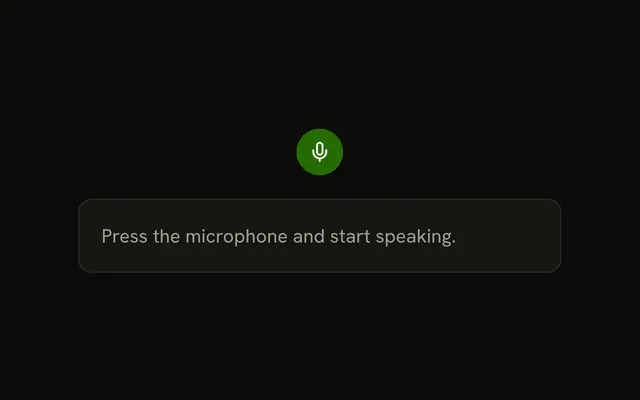
For a clip with pictures, use Video Player. To turn what people say into text, use Speech Input.
Installation
Anatomy
Usage
import {
  AudioPlayer, AudioPlayerControlBar, AudioPlayerDurationDisplay,
  AudioPlayerElement, AudioPlayerMuteButton, AudioPlayerPlayButton,
  AudioPlayerTimeDisplay, AudioPlayerTimeRange, AudioPlayerVolumeRange,
} from "@/components/ui/audio-player";
AudioPlayerElement holds the audio and shows nothing on screen. Every control reads it through AudioPlayer, so keep those two and pick the controls you want.
<AudioPlayer>
  <AudioPlayerElement src="/reply.mp3" />
  <AudioPlayerControlBar>
    <AudioPlayerPlayButton />
    <AudioPlayerTimeDisplay />
    <AudioPlayerTimeRange />
    <AudioPlayerDurationDisplay />
    <AudioPlayerMuteButton />
    <AudioPlayerVolumeRange />
  </AudioPlayerControlBar>
</AudioPlayer>
Accessibility
Each button is named for what a press does now, so a screen reader hears Play or Pause, Mute or Unmute, and Back 10 seconds. The seek bar and the volume are native range inputs named Seek and Volume, and the seek bar reads its value as a time, such as "0:04 of 0:12". The control bar is a group named Audio controls. The names are in English: aria-label on a part renames it, and for the play and mute buttons, which change name with the state, read paused and muted from useAudioPlayer in a component of your own inside AudioPlayer. The shortcuts below listen on AudioPlayer, so they work from any of its controls.
- Tab
- Moves focus to the next control. The seek bar is skipped until the audio's length is known.
- Space
- Presses the focused button.
- Enter
- Presses the focused button.
- K
- Plays or pauses, from any control.
- J
- Seeks back 10 seconds, from any control.
- L
- Seeks forward 10 seconds, from any control.
- M
- Mutes or unmutes, from any control.
- Arrow Left
- On a button or the seek bar, seeks back 5 seconds. On the volume, lowers it by 5%.
- Arrow Right
- On a button or the seek bar, seeks forward 5 seconds. On the volume, raises it by 5%.
- Arrow Up
- On a button, raises the volume by 5%. On the seek bar, seeks forward 5 seconds, and on the volume, raises it by 5%.
- Arrow Down
- On a button, lowers the volume by 5%. On the seek bar, seeks back 5 seconds, and on the volume, lowers it by 5%.
- Home
- On a button, goes to the start of the audio. On a range, moves it to its lowest value.
- End
- On a button, goes to the end of the audio, and does nothing while its length is still unknown. On a range, moves it to its highest value.
Demos
Compact
A player laid out like a voice message, in a rounded pill: a filled round play button, the seek bar and the clip's length, with no time, seek buttons or volume. Every part reads the player through AudioPlayer, so the ones left out need no other change. Use this inside a message list, where a full row of controls would crowd a few seconds of speech.
Seek
Two ghost buttons on either side of play skip 2 seconds each way through seekOffset, and the time at the end counts down with remaining. The clip loads nothing until play is pressed, because preload is none, so the time reads --:-- and the seek bar stays disabled until then. Short steps suit speech that people replay phrase by phrase, such as a language lesson.
Transcript
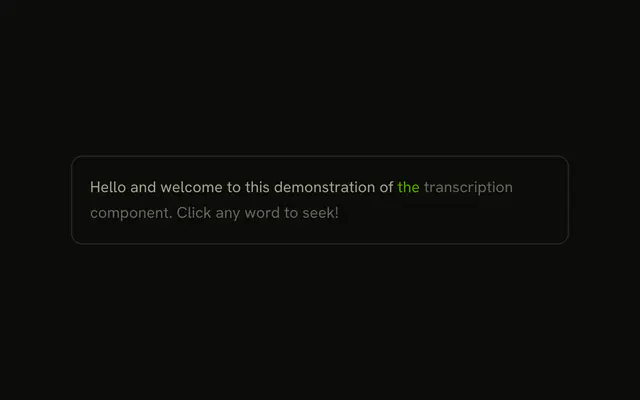
Five lines of film dialogue sit under the player, and the line being spoken turns the primary color as the audio plays. The player and the Transcription share one time state: the player writes its position into it as the audio plays, and a click on a line sets it, which seeks the audio. Use it for a voice note or a generated reading that people skim before they listen.
AI SDK
generateSpeech returns the audio as result.audio, with its bytes as base64 and its type as mediaType. Return those two from your server route or action.
import { openai } from "@ai-sdk/openai";
import { generateSpeech } from "ai";

export async function speak(text: string) {
  const { audio } = await generateSpeech({
    model: openai.speech("tts-1"),
    text,
    voice: "alloy",
  });

  return { base64: audio.base64, mediaType: audio.mediaType };
}
Pass the object to AudioPlayerElement as data, and it plays it as a data: URL.
<AudioPlayerElement data={speech} />A data URL holds the whole file in the page, which is fine for a reply of a few seconds. For a long reading, store the file and pass its URL as src, so the browser can stream it.
Migrating from AI SDK Elements
If you added Audio Player from AI SDK Elements (opens in a new tab), your project has a components/ai-elements/audio-player.tsx built on media-chrome. Install this one, import from @/components/ui/audio-player instead, then delete the old file and remove media-chrome from your dependencies if nothing else uses it. Every part keeps its name, and src, data, seekOffset, remaining and showDuration work as before. What differs:
AudioPlayeris adiv, not a MediaController, so media-chrome's attributes and its--media-*CSS variables do nothing here. Style the parts withclassName.AudioPlayerElementneeds noslot="media", and it loads the audio's length on its own, sincepreloaddefaults tometadata.AudioPlayeraddscurrentTimeandonCurrentTimeChange, to follow the audio and move it from outside.
FAQ
How do I play AI SDK generated speech in Audio Player?
Pass the speech to AudioPlayerElement as data, an object with base64 and mediaType, which is what generateSpeech returns as result.audio. The element turns it into a data: URL and plays it. The AI SDK section has the server side.
A file you already host goes in src as a URL instead. Everything else an audio element accepts, such as preload, loop or muted, is passed through to it.
How do I hide the volume slider or other Audio Player controls?
Leave the part out. Each control reads the player from AudioPlayer on its own, so AudioPlayerControlBar holds whichever ones you place in it, in any order. The Compact demo keeps only the play button, the seek bar and the length.
The keyboard shortcuts stay either way, because they listen on AudioPlayer and act on the audio directly. M still mutes a player with no mute button.
Which keyboard shortcuts does Audio Player support in React?
K plays and pauses, J and L seek 10 seconds back and forward, and M mutes, from any control in the player. The arrow keys, Home and End also work from a button: left and right seek 5 seconds, up and down change the volume by 5%, and Home and End jump to the start and the end.
On the seek bar the arrows seek 5 seconds too, while the volume's arrows move it in steps of 5%. A focused range keeps its own Home and End, and a focused button keeps Space and Enter. The Accessibility section lists every key.
How do I sync a transcript with Audio Player?
Hold the time in your own state and give it to both, as the Transcript demo does.
AudioPlayer reports the position through onCurrentTimeChange as the audio plays, and a new currentTime seeks the audio. Pass the same state to Transcription as its currentTime, and give its onSeek the same setter.
A click on a line then moves the player, and the playing audio moves the highlight from line to line.
Why does Audio Player show --:-- instead of the audio's length?
The length comes from the audio's metadata, and until the browser has read it the duration displays show --:-- and the seek bar stays disabled. With preload set to none, as in the Seek demo, that happens only once play is pressed.
A live stream never gets a finite length, so its seek bar stays disabled while play, pause and volume keep working. A file that fails to load shows --:-- too, so when a hosted file never shows its length, open its URL on its own and check that it plays.
How do I play the next clip when Audio Player finishes?
Listen for the ended event on AudioPlayerElement, which passes every attribute and event handler on to its audio element. In the handler, move your queue on and give the element the next src or data.
The controls follow the new source on their own, since they read the audio's own events. A new source starts paused, so add the audio element's autoplay attribute as well for the next clip to start without a press, or put a ref on AudioPlayerElement and call play() on the element it holds. The browser's autoplay policy decides whether it may, and a blocked start leaves the player paused with its button on Play.
How do I style Audio Player to match my theme?
It's drawn with your theme's tokens, so dark mode and your colors carry over: outline and ghost Buttons, ranges in primary on input, and times in muted-foreground. AudioPlayer has no border or background of its own, so it fits inside a message or a card. Add a class to it for a frame, as the demos do.
Every part takes a class. On the two ranges it lands on the wrapper around the input, which sets the width. While the audio plays, AudioPlayer carries data-state set to playing, and paused otherwise.
Why don't Audio Player controls mirror in right-to-left languages?
Media controls keep the direction of the tape in every language: the seek bar fills from the left, and the back button points left. AudioPlayerControlBar sets dir to ltr for that reason, as do the ranges and the time displays.
To reverse the order of the controls anyway, set dir to rtl on AudioPlayerControlBar. The seek bar, the volume and the times still read left to right, because each one sets its own direction.
API Reference
AudioPlayer
currentTime?number
The playback position in seconds. When it changes, the audio seeks to it, so a transcript or a list of chapters can move the player.
onCurrentTimeChange?(seconds: number) → void
Called with the position in seconds as the audio plays and seeks.
- Parameters
seconds– number- Returns
void
className?string
Merged with the part's classes.
AudioPlayerElement
<audio> data-slot="audio-player-element"
data?object
Generated speech to play, turned into a data: URL; or give src.
- Type
{ base64: string; mediaType: string }
loop?boolean
Plays it again from the start when it ends.
muted?boolean
Starts it without sound.
preload?"" | "none" | "metadata" | "auto"
How much to load before it plays: none waits for a press, metadata
loads its length, auto may load it all.
- Type
"" | "none" | "metadata" | "auto"- Default
"metadata"
src?string
The audio's URL; or give data.
className?string
Forwarded to the part.
AudioPlayerControlBar
<div> data-slot="audio-player-control-bar"
className?string
Merged with the part's classes.
AudioPlayerPlayButton
data-slot="audio-player-play-button"
clickEffect?boolean
Apply a click effect to the button.
- Default
true
isLoading?boolean
Show a loading indicator.
- Default
false
asChild?boolean
Merge props onto the child element instead of rendering a host.
className?string
Merged with the part's classes.
AudioPlayerSeekBackwardButton
data-slot="audio-player-seek-backward-button"
clickEffect?boolean
Apply a click effect to the button.
- Default
true
isLoading?boolean
Show a loading indicator.
- Default
false
seekOffset?number
How far a press seeks, in seconds.
- Default
10
asChild?boolean
Merge props onto the child element instead of rendering a host.
className?string
Merged with the part's classes.
AudioPlayerSeekForwardButton
data-slot="audio-player-seek-forward-button"
clickEffect?boolean
Apply a click effect to the button.
- Default
true
isLoading?boolean
Show a loading indicator.
- Default
false
seekOffset?number
How far a press seeks, in seconds.
- Default
10
asChild?boolean
Merge props onto the child element instead of rendering a host.
className?string
Merged with the part's classes.
AudioPlayerTimeDisplay
<span> data-slot="audio-player-time-display"
remaining?boolean
Counts down the time left instead of up.
- Default
false
showDuration?boolean
Shows the duration after the time, 0:42 / 3:12.
- Default
false
className?string
Merged with the part's classes.
AudioPlayerDurationDisplay
<span> data-slot="audio-player-duration-display"
className?string
Merged with the part's classes.
--audio-player-range-fillstringAudioPlayerTimeRange
<div> data-slot="audio-player-time-range"
className?string
Merged with the part's classes.
AudioPlayerMuteButton
data-slot="audio-player-mute-button"
clickEffect?boolean
Apply a click effect to the button.
- Default
true
isLoading?boolean
Show a loading indicator.
- Default
false
asChild?boolean
Merge props onto the child element instead of rendering a host.
className?string
Merged with the part's classes.
AudioPlayerVolumeRange
<div> data-slot="audio-player-volume-range"
className?string
Merged with the part's classes.
useAudioPlayer
returns{ currentTime: number; duration: number; muted: boolean; paused: boolean; volume: number }
The player's state (paused, muted, currentTime, duration, volume) and the actions its buttons call: togglePaused, toggleMuted, seekTo, seekBy and setVolume.
- Type
{ currentTime: number; duration: number; muted: boolean; paused: boolean; volume: number }