shadcn.io is an independent project built on shadcn/ui
Mic Selector is a button that shows which microphone a recording will use and opens a searchable list of every audio input the browser sees. Reach for it before recording, when someone may have a laptop mic, a headset and a webcam at once and the system default isn't the one they speak into.
The list follows the hardware as it's plugged in and out. It's a Popover holding a Command, and it hands you the chosen deviceId. Recording from it is your code's job.
Installation
Anatomy
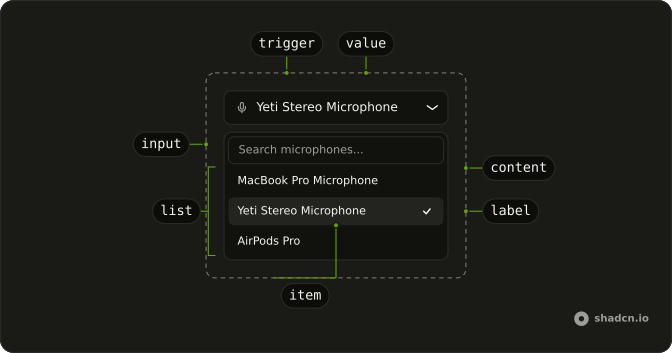
Usage
import { MicIcon } from "lucide-react";
import { useState } from "react";
import {
  MicSelector, MicSelectorContent, MicSelectorEmpty, MicSelectorInput,
  MicSelectorList, MicSelectorTrigger, MicSelectorValue,
} from "@/components/ui/mic-selector";
export function MicrophonePicker() {
const [deviceId, setDeviceId] = useState<string>();
return (
<MicSelector onValueChange={setDeviceId} value={deviceId}>
<MicSelectorTrigger className="w-full">
<MicIcon aria-hidden="true" />
<MicSelectorValue />
</MicSelectorTrigger>
<MicSelectorContent>
<MicSelectorInput />
<MicSelectorList>
<MicSelectorEmpty />
</MicSelectorList>
</MicSelectorContent>
</MicSelector>
);
}MicSelectorList renders one item per microphone by itself, so its only child is MicSelectorEmpty, which shows when the search matches nothing. The value is the picked microphone's deviceId.
Accessibility
The trigger is a button whose name is the microphone it shows, or the placeholder, and it opens a popover with focus in the search field. The arrow keys move a highlight through the microphones while focus stays in the field, and picking one closes the popover and returns focus to the trigger. The selected microphone reports aria-current. The popover is named Microphone for screen readers, or whatever you set as title on MicSelectorContent. Because the trigger names only the device, put a visible label such as Microphone beside it.
- Enter
- On the trigger, opens the list. In the search field, picks the highlighted microphone and closes the list, or on the Allow microphone access row, asks for access and keeps the list open.
- Space
- On the trigger, opens the list.
- Arrow Down
- Highlights the next microphone, and stays on the last one.
- Arrow Up
- Highlights the previous microphone, and stays on the first one.
- Ctrl+N
- Highlights the next microphone, as ArrowDown does. Ctrl + J does the same.
- Ctrl+P
- Highlights the previous microphone, as ArrowUp does. Ctrl + K does the same.
- Home
- Highlights the first row.
- End
- Highlights the last row.
- Escape
- Closes the list without a change and returns focus to the trigger.
Microphone access
Listing the microphones asks for nothing, but browsers hide their names until the page may use the microphone. Until then the list starts with an Allow microphone access row, and picking it shows the browser's prompt. Once the person allows it, the row goes and the list fills with every microphone by name. Neither loading the page nor opening the list prompts on its own.
Record from the chosen microphone by its deviceId:
const stream = await navigator.mediaDevices.getUserMedia({
  audio: { deviceId: { exact: deviceId } },
});
A name that ends with a USB vendor and product id, such as Yeti Stereo Microphone (046d:0ab7), shows the id muted after the name, and a device with no name at all shows as Unknown microphone, or the unknownLabel you set on MicSelector.
Demos
Devices
Five microphones of your own, a MacBook's built-in mic listed twice, a Yeti, AirPods and a webcam, passed as devices instead of the browser's, with the Yeti selected and a line under the trigger naming it. Pass a list like this in tests, previews and screenshots where there's no hardware. Each entry needs a deviceId and a label, which a browser's MediaDeviceInfo already has.
Input level
Picking a microphone here opens that one alone, with getUserMedia and the picked deviceId as exact, and a bar under the trigger follows how loud it is. Picking another closes the first before opening the next. Start from this when you record or stream from the person's choice, and stop the tracks when they pick again or leave.
Audio devices
A status line under the trigger reads useAudioDevices from inside MicSelector and says how many microphones the browser lists, or why it couldn't list them. Until access is allowed, a Show their names button beside it calls loadDevices, the same request the Allow microphone access row makes. Use the hook for a part of your own, such as a count or a setup screen's access button.
Labels
The same picker in French. placeholder on MicSelectorValue and MicSelectorInput, permissionLabel and errorLabel on MicSelectorList, unknownLabel on MicSelector, title on MicSelectorContent and the children of MicSelectorEmpty cover every word, the ones only screen readers hear included. The popover renders outside the page's French wrapper, so MicSelectorContent takes lang too.
Reading devices with useAudioDevices
Called inside a MicSelector, the hook returns the browser's microphones, even when a devices prop replaces them in the list.
| Field | What it is |
|---|---|
devices | The audio inputs as MediaDeviceInfo, listed again on every devicechange |
hasPermission | Whether the page may use the microphone, so the devices have names |
loadDevices | Asks for the microphone, then lists the devices again with their names |
loading | Whether they're being listed |
error | Why they couldn't be listed or access was refused, else null |
Migrating from AI SDK Elements
If you added Mic Selector from AI SDK Elements (opens in a new tab), install this one and change the import from @/components/ai-elements/mic-selector to @/components/ui/mic-selector. The parts keep their names, and value, defaultValue, onValueChange, open and onOpenChange work the same. What differs:
MicSelectorListtakes no function. Drop{(devices) => …}and keep<MicSelectorEmpty />as its child, since it renders aMicSelectorItemandMicSelectorLabelper microphone itself.- Opening the list doesn't ask for the microphone. The Allow microphone access row does.
useAudioDevicesreturns the same fields, but reads theMicSelectoraround it instead of standing alone.MicSelectorContent's props go to the popover, andpopoverOptionsis gone. It matches the trigger's width without aResizeObserver.
FAQ
Why does Mic Selector show Allow microphone access instead of my microphones?
Browsers keep microphones' names from a page, and often the microphones themselves, until it may use one. Mic Selector lists only devices the browser gives an id, and until one of them has a name, it shows the Allow microphone access row first.
Pick the row and allow access in the browser's prompt, and the list fills in. Once access is allowed, for this visit or for good, the row is gone.
What happens in Mic Selector when someone blocks microphone access?
The Allow microphone access row turns into Couldn't access the microphone, and picking it asks again. A browser that remembers the refusal turns that request down without showing its prompt, so the row stays as it is. Set its text with errorLabel on MicSelectorList.
To say why, read error and hasPermission from useAudioDevices, as the Audio devices demo does, and when access was refused, tell people to allow the microphone in the browser's site settings and try again.
How do I record from the microphone picked in Mic Selector?
Take the picked deviceId from the value and pass it to getUserMedia as audio: { deviceId: { exact: deviceId } }, as the Input level demo does. With exact, the call fails when that microphone is unplugged, instead of quietly recording from another one.
The browser keeps a microphone's id stable for your site until the person clears its data, so save it and set it as the value on the next visit.
Does Mic Selector update when a microphone is plugged in?
Yes. It lists the devices again on the browser's devicechange event, so a headset plugged in or out appears or goes while the page is open, with no reload.
When the selected microphone is unplugged, the trigger shows the placeholder, but the value keeps its deviceId and nothing calls your change handler. Plug it back in and the trigger names it again.
Why does Mic Selector list the same microphone twice in Chrome?
Chrome adds an entry for the system default, with the id default and a name such as Default - MacBook Pro Microphone, beside the device's own entry. On Windows it adds a Communications entry too. Picking Default follows whatever the system's default is later, while the device's own entry stays on that microphone.
Mic Selector shows what the browser returns and has no option to hide entries. To drop them, list the devices yourself with enumerateDevices, filter them and pass the rest as devices.
How do I show Mic Selector without real microphones?
Pass devices, an array of objects with a deviceId and a label, as the Devices demo does. The list shows those instead of the browser's and skips the Allow microphone access row.
That suits tests, screenshots and docs, where there's no hardware, and a list you keep yourself. Because the access row goes, ask for the microphone some other way, such as a button that calls loadDevices.
Can Mic Selector be used with the keyboard?
Yes. Enter or Space on the trigger opens the list with focus in the search field. Typing filters by name, the arrow keys move through the microphones, Enter picks one, and Escape closes the list, returning focus to the trigger.
The Accessibility section lists each key on your library.
Is this the same as AI SDK Elements' Mic Selector?
It has the same parts and props, so most code only changes its import. The list renders its own items instead of taking a function, and it asks for the microphone from a row rather than when it opens. The Migrating section lists every difference.
API Reference
MicSelector
open?boolean
Whether it's open (controlled).
defaultOpen?boolean
Whether it starts open, when uncontrolled.
- Default
false
onOpenChange?(open: boolean) → void
Called when it opens or closes.
- Parameters
open– boolean- Returns
void
value?string
The selected microphone's deviceId (controlled).
defaultValue?string
The microphone selected at first, when uncontrolled: its deviceId.
onValueChange?(value: string) → void
Called with the deviceId of the microphone picked.
- Parameters
value– string- Returns
void
devices?MicSelectorDevice[]
The microphones to list instead of the browser's: your own list, or a demo's. Without it, it lists the browser's.
modal?boolean
Whether it's modal: the rest of the page can't be reached and focus stays inside while it's open.
unknownLabel?string
What a microphone the browser gives no name shows, in the list and the trigger, and what the search matches it by.
- Default
"Unknown microphone"
MicSelectorTrigger
data-slot="mic-selector-trigger"
clickEffect?boolean
Apply a click effect to the button.
- Default
true
isLoading?boolean
Show a loading indicator.
- Default
false
asChild?boolean
Merge props onto the child element instead of rendering a host.
className?string
Merged with the part's classes.
MicSelectorContent
data-slot="mic-selector-content"
align?(typeof ALIGN_OPTIONS)[number]
How it lines up with the trigger: start, center or end.
- Default
"start"
alignOffset?number
How far it shifts from its align position, in px.
arrowPadding?number
The space kept between the arrow and the content's corners, in px.
avoidCollisions?boolean
Whether it flips and shifts to stay in view.
collisionBoundary?Boundary | Boundary[]
The element or elements it stays inside. The viewport when unset.
- Type
Boundary | Boundary[]
collisionPadding?number | Partial<Record<Side, number>>
The distance it keeps from the boundary's edges, in px, or one per side.
- Type
number | Partial<Record<Side, number>>
deferPointerDownOutside?boolean
When true, a pointerdown event outside of the layered element will
wait for the interaction's click event before dispatching, allowing
third-party code to stop propagation of later events and cancel dismissal.
forceMount?true
Used to force mounting when more control is needed. Useful when controlling animation with React animation libraries.
hideWhenDetached?boolean
Whether it hides when its trigger is entirely out of view.
onCloseAutoFocus?{ bivarianceHack(event: Event): void; }["bivarianceHack"]
Event handler called when auto-focusing on close. Can be prevented.
- Type
{ bivarianceHack(event: Event): void; }["bivarianceHack"]
onEscapeKeyDown?{ bivarianceHack(event: KeyboardEvent): void; }["bivarianceHack"]
Event handler called when the escape key is down. Can be prevented.
- Type
{ bivarianceHack(event: KeyboardEvent): void; }["bivarianceHack"]
onFocusOutside?{ bivarianceHack(event: FocusOutsideEvent): void; }["bivarianceHack"]
Event handler called when the focus moves outside of the DismissableLayer.
Can be prevented.
- Type
{ bivarianceHack(event: FocusOutsideEvent): void; }["bivarianceHack"]
onInteractOutside?{ bivarianceHack(event: PointerDownOutsideEvent | FocusOutsideEvent): void; }["bivarianceHack"]
Event handler called when an interaction happens outside the DismissableLayer.
Specifically, when a pointerdown event happens outside or focus moves outside of it.
Can be prevented.
- Type
{ bivarianceHack(event: PointerDownOutsideEvent | FocusOutsideEvent): void; }["bivarianceHack"]
onOpenAutoFocus?{ bivarianceHack(event: Event): void; }["bivarianceHack"]
Event handler called when auto-focusing on open. Can be prevented.
- Type
{ bivarianceHack(event: Event): void; }["bivarianceHack"]
onPointerDownOutside?{ bivarianceHack(event: PointerDownOutsideEvent): void; }["bivarianceHack"]
Event handler called when the a pointerdown event happens outside of the DismissableLayer.
Can be prevented.
- Type
{ bivarianceHack(event: PointerDownOutsideEvent): void; }["bivarianceHack"]
side?(typeof SIDE_OPTIONS)[number]
The side of the trigger it opens on. It flips when there's no room, unless avoidCollisions is off.
sideOffset?number
The distance from the trigger, in px.
sticky?(typeof Sticky)[keyof typeof Sticky]
How it stays in view along its trigger: partial while the trigger is partly visible, always whatever the trigger does.
- Type
(typeof Sticky)[keyof typeof Sticky]
title?string
The popover's name, read only by screen readers.
- Default
"Microphone"
updatePositionStrategy?(typeof UpdatePositionStrategy)[keyof typeof UpdatePositionStrategy]
How often it updates its position: optimized, on layout changes, or always, every animation frame.
- Type
(typeof UpdatePositionStrategy)[keyof typeof UpdatePositionStrategy]
asChild?boolean
Merge props onto the child element instead of rendering a host.
className?string
Merged with the part's classes.
--radix-popover-trigger-widthstringMicSelectorInput
data-slot="mic-selector-input"
asChild?boolean
Merge props onto the child element instead of rendering a host.
MicSelectorList
data-slot="mic-selector-list"
errorLabel?string
What the row that asks for the microphone says once asking failed: access refused, no microphone, or a page that may not use one. Picking it asks again.
- Default
"Couldn't access the microphone"
permissionLabel?string
The row that asks for the microphone, shown until the page may use it.
- Default
"Allow microphone access"
asChild?boolean
Merge props onto the child element instead of rendering a host.
className?string
Merged with the part's classes.
MicSelectorEmpty
data-slot="mic-selector-empty"
asChild?boolean
Merge props onto the child element instead of rendering a host.
MicSelectorItem
data-slot="mic-selector-item"
valuestring
The microphone's deviceId.
asChild?boolean
Merge props onto the child element instead of rendering a host.
data-checked?stringMicSelectorLabel
<span> data-slot="mic-selector-label"
deviceobject
The microphone to name.
- Type
{ deviceId: string; label: string }
unknownLabel?string
What it shows when the microphone has no name. Inside a MicSelector,
the list and the trigger pass MicSelector's unknownLabel.
- Default
"Unknown microphone"
className?string
Merged with the part's classes.
MicSelectorValue
<span> data-slot="mic-selector-value"
placeholder?string
What it says before a microphone is selected.
- Default
"Select microphone..."
className?string
Merged with the part's classes.