shadcn.io is an independent project built on shadcn/ui
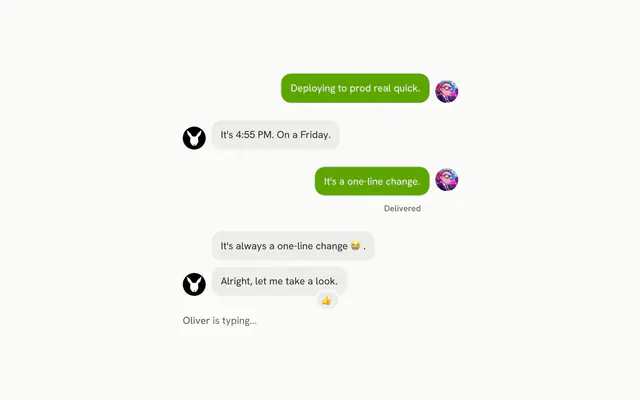
A streamed reply grows while people are still reading. The scroller holds a new turn near the top, follows the reply only while the reader stays at the bottom, and keeps their place when older messages load above.
Use it for a chat or an assistant transcript. A Scroll Area is enough for a finished log read from the top. The scrolling comes from @shadcn/react, and in React the jump button is a Radix UI button.
Installation
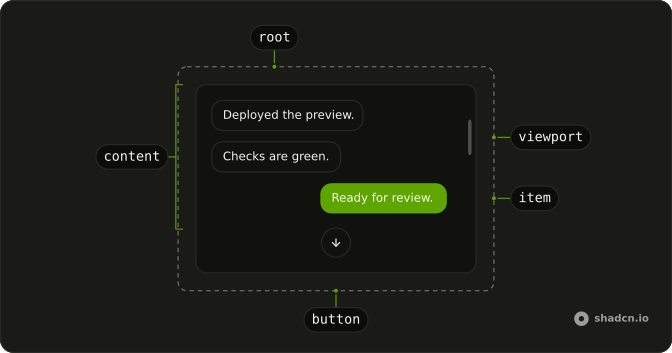
Anatomy
MessageScrollerProvider
└── MessageScroller
    ├── MessageScrollerViewport
    │   └── MessageScrollerContent
    │       └── MessageScrollerItem
    └── MessageScrollerButton
Usage
import {
  MessageScroller, MessageScrollerButton, MessageScrollerContent,
  MessageScrollerItem, MessageScrollerProvider, MessageScrollerViewport,
} from "@/components/ui/message-scroller";<MessageScrollerProvider>
<MessageScroller>
<MessageScrollerViewport>
<MessageScrollerContent>
<MessageScrollerItem messageId="question" scrollAnchor>
{/* the user's message */}
</MessageScrollerItem>
<MessageScrollerItem messageId="answer">
{/* the reply */}
</MessageScrollerItem>
</MessageScrollerContent>
</MessageScrollerViewport>
<MessageScrollerButton />
</MessageScroller>
</MessageScrollerProvider>MessageScroller fills its parent, so put it in a container with a fixed height.
<div className="flex h-screen flex-col">
  <MessageScrollerProvider>
    <MessageScroller className="min-h-0 flex-1">
      {/* viewport, content, button */}
    </MessageScroller>
  </MessageScrollerProvider>
</div>
MessageScrollerProvider renders nothing and owns the scroll state. It takes autoScroll (off), defaultScrollPosition (end, or start and last-anchor, applied once), scrollPreviousItemPeek (64), scrollMargin (0) and scrollEdgeThreshold (8, how close to an edge still counts as at it). MessageScroller is the frame, and like the viewport it mirrors the state as data-scrollable (start, end, both, or absent when everything fits), data-autoscrolling and data-pending-scroll. MessageScrollerViewport is the element that scrolls, and preserveScrollOnPrepend (on) keeps the visible row in place when rows are added above. MessageScrollerContent holds the rows and is the live region, and spacerClassName styles the spacer it adds to make room under an anchored turn. Wrap every row in MessageScrollerItem, with a messageId and, on a row that starts a turn, scrollAnchor. A row can be a message, a marker, a typing indicator or a load-more row, and the wrapper is what lets the scroller measure it, anchor it and jump to it. MessageScrollerButton scrolls toward its direction (end, or start) with behavior (smooth), and stays inert, with data-active="false", until there is something that way.
Hooks
import {
  useMessageScroller,
  useMessageScrollerScrollable,
  useMessageScrollerVisibility,
} from "@/components/ui/message-scroller";

const { scrollToMessage, scrollToEnd, scrollToStart } = useMessageScroller();
const { start, end } = useMessageScrollerScrollable();
const { currentAnchorId, visibleMessageIds } = useMessageScrollerVisibility();
The three hooks read MessageScrollerProvider, so they work in any component under it, including a toolbar outside the MessageScroller frame. The commands take align (start by default, or center, end, nearest), behavior (auto by default) and scrollMargin. They return false when they can't run: the viewport isn't mounted, or the row isn't and can't be queued. scrollToMessage can queue an id before the rows mount, for a permalink. Once rows exist, an unknown id returns false instead of retrying, and true means the scroll ran or was queued, not that the row is in view yet.
start and end say which edges the viewport can still scroll toward: at the top is !start, at the bottom is !end. end stays false while auto-scroll is holding the live edge. currentAnchorId is the anchored turn being read, and visibleMessageIds are the rows on screen, in order. Visibility costs nothing until something calls its hook.
Streaming Chat
A reply that arrives in chunks changes the transcript while someone is reading it. Most of the work is scroll: when to follow, when to hold still, and when to let the reader decide. A streaming chat should:
- Move only when the reader asked to. Auto-scroll is never the default.
- Follow only while they follow. At the live edge the stream stays in view; once they scroll away, it leaves them there.
- Treat every interaction as a signal. Selecting text, using the keyboard, opening a link or searching should stop the movement too.
- Start a new turn near the top of the viewport, so it can be read from its first line.
- Stream the answer into the room below it, instead of pushing everything away.
- Keep part of the previous turn in view, so the reader knows where they are.
- Let new content arrive off screen without changing what the reader is looking at.
- Show what's happening out of view, such as a reply still streaming or new messages below.
- Keep the latest reply one action away, and follow again from there.
- Let people jump anywhere: message links, search, unread markers.
- Reopen a saved thread at the last meaningful turn, often the last user message, not the absolute bottom.
- Keep the reader's place when layout changes: images load, code blocks render, older messages appear above.
- Stop, retry, regenerate and errors without moving the conversation.
- Stay fast in long threads full of markdown, code and images.
- Stay accessible without the noise: a navigable transcript, focus that stays put, and announcements at a comfortable pace.
Under all of them: never move the reader against their intent. MessageScroller does the scroll part of that list. It does not own your messages, model state, transport, branching or persistence, so the rows stay yours: messages, markers, tools, attachments and the prompt input.
Accessibility
MessageScrollerViewport is a focusable region named Messages (role="region", aria-label="Messages", tabIndex={0}), so a keyboard user can reach the transcript and scroll it. MessageScrollerContent is a log (role="log", aria-relevant="additions"): new rows can be announced, and a reply that grows word by word isn't read out token by token. Pass aria-busy to the content while a turn streams if the announcement should wait for the finished row. The jump button is a real button with a text alternative, Scroll to end or Scroll to start. While there's nothing in its direction it is inert, out of the tab order, and data-active="false", so it never adds an empty focus stop.
- Tab
- Focus the transcript, then the jump button when it's active.
- Arrow Up
- Scroll the focused transcript up a little.
- Arrow Down
- Scroll the focused transcript down a little.
- Page Up
- Scroll up by a screen.
- Page Down
- Scroll down by a screen.
- Home
- Go to the first message.
- End
- Go to the latest message.
Demos
Anchoring
A turn starts at the row that has scrollAnchor. Send with User selected and each question settles near the top, a slice of the previous turn above it, while its reply fills the room below. Switch to Assistant and the replies anchor instead, for a thread where the answer is what people come back to. Anchoring follows the prop, not the role, so a marker or a handoff event can start a turn too. Mark only the rows that start a turn, or every new line pulls the view.
Group Chat
In a group chat the turn often starts with an event, not a message. Add Rocky inserts a join marker with scrollAnchor, so that event is the turn to hold, and Send Message as Rocky adds his message under it. An earlier ping is anchored too. Typing indicators and history rows shouldn't anchor. Reset remounts the thread so you can watch it again.
Previous Context
scrollPreviousItemPeek is how much of the previous turn stays above a new anchor, 64px by default. Drag the slider between 64 and 128, then send: the end of the earlier reply stays in view at that height, so the new question reads as part of the same thread. scrollMargin (24px here) adds room at the top edge on top of the peek. Raise the peek when a question tends to refer to the end of the last answer, like a list or a code block. Too much and the new turn starts halfway down the viewport.
Streaming
autoScroll on the provider follows the reply while the reader is at the live edge. Scroll up mid-reply, by wheel, touch, keys or the scrollbar, and the view stays put while words keep arriving below. The jump button brings you back and starts following again, and so does scrollToEnd. A new turn still anchors near the top first, and following takes over once the reply fills the viewport. The stream here is a timer playing a script, and the AI SDK section below wires a real one.
Opening Position
Three landings for a saved transcript: the first message, the latest line, or the last anchored turn. last-anchor is usually the one to pick, since the reader sees what they asked and where the answer starts instead of the bottom of a long reply. It falls back to end when there is no anchor or the last turn already fits. Set it with defaultScrollPosition on the provider, and the tabs here only replay each choice. Use start to resume from the top, and end when the newest line is what matters.
Load History
Load History puts five earlier messages above the ones on screen, and the row you were reading doesn't move. preserveScrollOnPrepend on the viewport does that, and it's on by default. Give message rows a stable messageId, so the scroller holds that row rather than whatever pixel sits at the edge. Scroll up to find the older rows. Turn the prop off only when loading history should move the reader.
Animation
Pick an entrance and send: the user's message plays it once as it mounts, and the reply streams into a plain row below. The entrances are CSS classes on MessageScrollerItem (animate-in with fade, slide, zoom and blur), so they change transform, opacity and filter but never the row's measured height. Under reduced motion the row just appears, and scrolling behaves the same. Animate the item itself and keep messageId and scrollAnchor on it. Don't animate height, margin or padding, which fights the scroller's positioning.
Commands
The Jump to menu sits in the card's header, outside the scroller, and still drives it. useMessageScroller reads the provider, so a menu, a search result or a permalink handler can call scrollToMessage with a row's messageId. Each question here lands at the top with align: "start" and a smooth scroll. Rows people can jump to need stable ids. The call returns false when the row isn't mounted, so a search can say the message isn't loaded yet.
Visibility
The bars beside the card are the anchored turns, and the one you're reading is drawn in full ink. useMessageScrollerVisibility returns currentAnchorId, the last anchor at or above the reading line, which stays set after it scrolls out of view, and visibleMessageIds, the rows on screen in order. Hover or focus the bars to open the outline, then pick a turn to jump to it. Tracking only runs while something reads the hook, and only rows with a messageId count. Filter visibleMessageIds yourself for a narrower outline, such as search hits.
Scrollable
The transcript opens at the top, and the footer changes as you move: only down at the first message, both ways in the middle, only up at the latest, or a note that every row fits. useMessageScrollerScrollable returns start and end, whether content is hidden above and below, and the footer turns that pair into a sentence. Use the hook for UI beside the scroller. To style the scroller itself, use its data-scrollable attribute instead, which needs no React state.
State
Twelve messages open at the start, with four chips over the list: at the top, at the bottom, older above and newer below. They read the same two booleans as the footer above, and they update without rerendering a row. Use them for a jump button or a status of your own, not a sentence. scrollAnchor on a user row marks a turn, and it is not this state.
Avoiding a Flash on Reload
A scroll container always opens at the top, and HTML can't set scrollTop. A server-rendered transcript would show its oldest messages first, then jump once defaultScrollPosition runs. With end or last-anchor, the viewport has data-pending-scroll until that position is applied, and the styled viewport stays invisible meanwhile, so you see the frame instead of the jump. start needs none of this.
To show end on the first paint, add an inline script right after the viewport: give the viewport an id, scroll it to the bottom and remove the attribute.
const scrollToEndScript = `(function () {
  var viewport = document.getElementById("messages");
  if (!viewport) {
    return;
  }
  viewport.scrollTop = viewport.scrollHeight;
  viewport.removeAttribute("data-pending-scroll");
})()`;

<MessageScroller>
  <MessageScrollerViewport id="messages" suppressHydrationWarning>
    <MessageScrollerContent>{/* transcript */}</MessageScrollerContent>
  </MessageScrollerViewport>
  <script dangerouslySetInnerHTML={{ __html: scrollToEndScript }} />
  <MessageScrollerButton />
</MessageScroller>
Put the script in your page, not in the component. It only works for end, and only when the messages are already in the HTML, so skip it when they load on the client and don't use it with last-anchor. Keep suppressHydrationWarning on the viewport, and pass a nonce if you use a Content Security Policy.
AI SDK
The demos play scripted replies on a timer. With the AI SDK, useChat gives you the same two things, the messages and a status: map the messages to items, anchor the user's, and mark the log busy while a reply streams.
"use client";

import { useChat } from "@ai-sdk/react";
import { DefaultChatTransport } from "ai";

import { Bubble, BubbleContent } from "@/components/ui/bubble";
import { Message, MessageContent } from "@/components/ui/message";
import {
  MessageScroller,
  MessageScrollerButton,
  MessageScrollerContent,
  MessageScrollerItem,
  MessageScrollerProvider,
  MessageScrollerViewport,
} from "@/components/ui/message-scroller";

export function Chat() {
  const { messages, status } = useChat({
    transport: new DefaultChatTransport({ api: "/api/chat" }),
  });

  return (
    <MessageScrollerProvider autoScroll defaultScrollPosition="last-anchor">
      <MessageScroller>
        <MessageScrollerViewport>
          <MessageScrollerContent aria-busy={status === "streaming"}>
            {messages.map((message) => (
              <MessageScrollerItem
                key={message.id}
                messageId={message.id}
                scrollAnchor={message.role === "user"}
              >
                <Message align={message.role === "user" ? "end" : "start"}>
                  <MessageContent>
                    <Bubble variant={message.role === "user" ? "muted" : "ghost"}>
                      <BubbleContent>
                        {message.parts.map((part, index) =>
                          part.type === "text" ? (
                            <span key={`${message.id}-${index}`}>{part.text}</span>
                          ) : null
                        )}
                      </BubbleContent>
                    </Bubble>
                  </MessageContent>
                </Message>
              </MessageScrollerItem>
            ))}
          </MessageScrollerContent>
        </MessageScrollerViewport>
        <MessageScrollerButton />
      </MessageScroller>
    </MessageScrollerProvider>
  );
}
Your prompt input calls sendMessage from the same hook. The user's message is the anchor, so each new question settles near the top while its answer streams below it.
Performance
The scroll hot path stays out of React state. Position, anchoring and follow-output are tracked imperatively and mirrored onto the root and the viewport as data-* attributes, so scrolling and streaming don't rerender the rows, and nothing forces a layout on every scroll. MessageScrollerItem ships with content-visibility: auto and contain-intrinsic-size: rows stay in the DOM for selection, copy, find in page, server rendering and assistive tech, while the browser skips painting the ones far off screen. Visibility tracking only runs while something reads its hook. That covers the range a chat transcript lives in, hundreds to low thousands of turns with markdown and composed rows.
Virtualization
Virtualization stays outside the component. MessageScroller renders real rows and stays fast into the thousands of turns, so most transcripts never need it. When one does, use MessageScrollerViewport as the scroll element and let the virtualizer own the rows.
import { useVirtualizer } from "@tanstack/react-virtual";
import { type ReactNode, useRef } from "react";

export function VirtualizedTranscript({
  messages,
}: {
  messages: { id: string; content: ReactNode }[];
}) {
  const viewportRef = useRef<HTMLDivElement>(null);

  const virtualizer = useVirtualizer({
    count: messages.length,
    estimateSize: () => 86,
    getItemKey: (index) => messages[index]?.id ?? index,
    getScrollElement: () => viewportRef.current,
    overscan: 8,
  });

  return (
    <MessageScrollerProvider>
      <MessageScroller>
        <MessageScrollerViewport ref={viewportRef}>
          <MessageScrollerContent className="block min-h-full">
            <div
              className="relative w-full"
              style={{ height: virtualizer.getTotalSize() }}
            >
              {virtualizer.getVirtualItems().map((virtualItem) => {
                const message = messages[virtualItem.index];

                if (!message) {
                  return null;
                }

                return (
                  <div
                    className="absolute start-0 top-0 w-full"
                    data-index={virtualItem.index}
                    key={virtualItem.key}
                    ref={virtualizer.measureElement}
                    style={{ transform: `translateY(${virtualItem.start}px)` }}
                  >
                    <Message>{message.content}</Message>
                  </div>
                );
              })}
            </div>
          </MessageScrollerContent>
        </MessageScrollerViewport>
        <MessageScrollerButton />
      </MessageScroller>
    </MessageScrollerProvider>
  );
}
FAQ
How do I anchor a turn in a Message Scroller?
Set scrollAnchor on the MessageScrollerItem that starts the turn, usually the user's message, and give it a messageId when you need to jump back to it. When a new anchor is appended, it settles near the top with part of the previous turn above it, and the reply fills the room below. Anchoring follows the prop, not the role, so a marker such as someone joining can start a turn too.
How do I make a Message Scroller follow a streamed reply in React?
Set autoScroll on MessageScrollerProvider. It is off by default. With it on, the view follows the reply only while the reader is at the bottom, and scrolling away by wheel, touch, keys or the scrollbar stops it. The jump button brings the reader back and starts following again. Calling scrollToEnd from useMessageScroller does the same.
How do I control a Message Scroller from outside the list?
Put the control anywhere under MessageScrollerProvider, even outside the MessageScroller frame. The provider tracks which edges can still scroll and which anchored turn is being read, separately from the rows, so a menu, an outline or a status line can follow along without rerendering every message. useMessageScroller returns scrollToMessage, scrollToEnd and scrollToStart. useMessageScrollerScrollable returns start and end, and useMessageScrollerVisibility returns currentAnchorId and visibleMessageIds.
Why does my Message Scroller never scroll?
The root fills its parent and will not scroll if that parent grows with the messages. Give an ancestor a fixed height, and let the scroller sit in a flex child whose minimum height is zero, as the demos do. The viewport is the element that overflows. The jump button is positioned inside the scroller, not in a portal.
How do I load older messages into a Message Scroller without a jump?
Prepend the rows. preserveScrollOnPrepend is on by default on the viewport, so the row being read stays where it was while history appears above it. Give message rows a stable messageId, so the scroller holds that row rather than a pixel offset. Turn the prop off only when loading history should move the reader.
Why does a saved thread flash its first messages on reload?
A scroll container always opens at the top, so a server-rendered transcript shows its oldest rows until the opening position runs. With defaultScrollPosition end or last-anchor, the viewport carries data-pending-scroll until then, and the styled viewport stays invisible meanwhile. To show end on the first paint, add the inline script from the Avoiding a Flash on Reload section after the viewport.
Is a Message Scroller accessible?
The viewport is a focusable region named Messages, so once it has focus, arrow keys, Home, End, Page Up and Page Down scroll it. The content is a log that announces new rows, not every streamed word, and aria-busy can hold the announcement until a reply is finished. The jump button is named Scroll to end or Scroll to start and leaves the tab order while there is nothing in its direction.
How do I install Message Scroller in React?
Run the command in the Installation section on this page. It adds the provider, the scroller, the viewport, the content, the item, and the jump button to your ui folder, with the @shadcn/react package that does the scrolling. Wrap the tree in MessageScrollerProvider or the scroll helpers have no shared state. The command uses the shadcn CLI.
API Reference
MessageScroller
<div> data-slot="message-scroller"
className?string
Merged with the part's classes.
data-autoscrolling?string
Present while the viewport is programmatically scrolling to the latest message.
data-pending-scroll?string
Present until defaultScrollPosition ("end" or "last-anchor") is applied, or skipped for an empty transcript. Hide the viewport while it is set.
data-scrollable?"start" | "end" | "start end"
Edges the viewport can scroll toward. Query one with [data-scrollable~="end"]; absent means it fits.
- Type
"start" | "end" | "start end"
MessageScrollerButton
<button> data-slot="message-scroller-button"
behavior?ScrollBehavior
Native scroll behavior used when the button scrolls to its target edge.
- Default
"smooth"
children?React.ReactNode
Custom button content. Defaults to the scroll icon and accessible label.
direction?"start" | "end"
Transcript edge the button scrolls toward.
- Type
"start" | "end"- Default
"end"
size?"default" | "icon" | "icon-lg" | "icon-md" | "icon-sm" | "icon-xl" | "icon-xs" | "lg" | "md" | "sm" | "xl" | "xs"
Button's default: md.
- Type
"default" | "icon" | "icon-lg" | "icon-md" | "icon-sm" | "icon-xl" | "icon-xs" | "lg" | "md" | "sm" | "xl" | "xs"- Default
"icon-sm"
variant?"default" | "destructive" | "ghost" | "link" | "outline" | "secondary"
Button's default: default.
- Type
"default" | "destructive" | "ghost" | "link" | "outline" | "secondary"- Default
"secondary"
render?ReactElement | ((props: object, state: object) => ReactElement)
Custom render target. Its function's state has active and direction.
- Type
ReactElement | ((props: object, state: object) => ReactElement)- Default
<Button />
className?string
Merged with the part's classes.
data-active"true" | "false"
Whether this button can currently scroll.
- Type
"true" | "false"
data-direction"start" | "end"
Mirrors direction.
- Type
"start" | "end"
data-size?string
Mirrors size.
data-variant?string
Mirrors variant.
MessageScrollerContent
<div> data-slot="message-scroller-content"
aria-busy?boolean
Marks the live region busy while a turn streams, if needed.
aria-relevant?string
Live-region updates to announce. Defaults to new transcript rows only.
- Default
"additions"
role?string
ARIA role applied to the message list for live announcements.
- Default
"log"
spacerClassName?string
Class name for the internal spacer used to make room for anchored rows.
className?string
Merged with the part's classes.
MessageScrollerItem
<div> data-slot="message-scroller-item"
messageId?string
Stable row id used by scrollToMessage, visibility, and prepend preservation.
scrollAnchor?boolean
Marks this row as a turn boundary that can anchor newly appended turns.
- Default
false
className?string
Merged with the part's classes.
data-message-id?string
Mirrors messageId when provided.
data-scroll-anchor"true" | "false"
Mirrors scrollAnchor.
- Type
"true" | "false"
MessageScrollerViewport
<div> data-slot="message-scroller-viewport"
aria-label?string
Accessible name for the scrollable chat transcript.
- Default
"Messages"
preserveScrollOnPrepend?boolean
Keep the first visible message item stable when older rows are prepended.
- Default
true
role?string
Landmark role for the labelled scrollable transcript viewport.
- Default
"region"
tabIndex?number
Makes the transcript viewport keyboard-scrollable.
- Default
0
className?string
Merged with the part's classes.
data-autoscrolling?string
Present while the viewport is programmatically scrolling to the latest message.
data-pending-scroll?string
Present until defaultScrollPosition ("end" or "last-anchor") is applied, or skipped for an empty transcript. Hide the viewport while it is set.
data-scrollable?"start" | "end" | "start end"
Edges the viewport can scroll toward. Query one with [data-scrollable~="end"]; absent means it fits.
- Type
"start" | "end" | "start end"
MessageScrollerProvider
autoScroll?boolean
Follow new content only while the reader is already at the live edge. Wheel, touch, keyboard scroll, and explicit jumps release it.
- Default
false
defaultScrollPosition?"start" | "end" | "last-anchor"
Opening position on the first non-empty render, applied once. "last-anchor" opens at the last scrollAnchor row and falls back to "end" when the turn fits or no anchor exists. For "end" and "last-anchor", the viewport has data-pending-scroll until the position is applied.
- Type
"start" | "end" | "last-anchor"- Default
"end"
scrollEdgeThreshold?number
Distance from either edge that still counts as being at the start or end. Controls state attributes and scroll button visibility.
- Default
8
scrollMargin?number
Margin applied to the aligned edge for scrollToMessage, visibility, and programmatic targets.
- Default
0
scrollPreviousItemPeek?number
Extra margin added to scrollMargin when a newly appended scrollAnchor item is positioned so part of the previous item stays visible.
- Default
64
useMessageScroller
scrollToEnd(options?: MessageScrollerScrollOptions) → boolean
Scroll to the latest message.
- Type
(options?: MessageScrollerScrollOptions) → boolean- Parameters
options?– { align?: MessageScrollerScrollAlign; behavior?: ScrollBehavior; scrollMargin?: number }- Returns
boolean
scrollToMessage(messageId: string, options?: MessageScrollerScrollOptions) → boolean
Scroll to a mounted message id.
- Type
(messageId: string, options?: MessageScrollerScrollOptions) → boolean- Parameters
messageId– stringoptions?– { align?: MessageScrollerScrollAlign; behavior?: ScrollBehavior; scrollMargin?: number }- Returns
boolean
scrollToStart(options?: MessageScrollerScrollOptions) → boolean
Scroll to the top.
- Type
(options?: MessageScrollerScrollOptions) → boolean- Parameters
options?– { align?: MessageScrollerScrollAlign; behavior?: ScrollBehavior; scrollMargin?: number }- Returns
boolean
useMessageScroller options
align?"start" | "center" | "end" | "nearest"
How a message target aligns in the viewport.
- Type
"start" | "center" | "end" | "nearest"- Default
"start"
behavior?ScrollBehavior
Native scroll behavior for the command.
- Default
"auto"
scrollMargin?number
Margin applied to the aligned edge for this command. Defaults to the provider scrollMargin.
useMessageScrollerScrollable
endboolean
Whether the viewport can scroll toward the end. Content is hidden below (!end means at the bottom). Stays false while follow-output is keeping the reader at the live edge.
startboolean
Whether the viewport can scroll toward the start. Content is hidden above (!start means at the top).
useMessageScrollerVisibility
currentAnchorIdstring | null
The current anchored turn, based on the last scrollAnchor item at or above the reading line.
- Type
string | null
visibleMessageIdsstring[]
Message ids intersecting the viewport, in document order.