shadcn.io is an independent project built on shadcn/ui
Speech Input is a round microphone button for dictating into a prompt: press it and speak, press again to stop, and each finished phrase comes back as text. Where the browser has speech recognition it listens with that, and elsewhere it records and hands the audio to your transcription service.
Where the text goes is up to you, usually the message field. To show a transcript in step with audio that plays back, use Transcription instead.
Installation
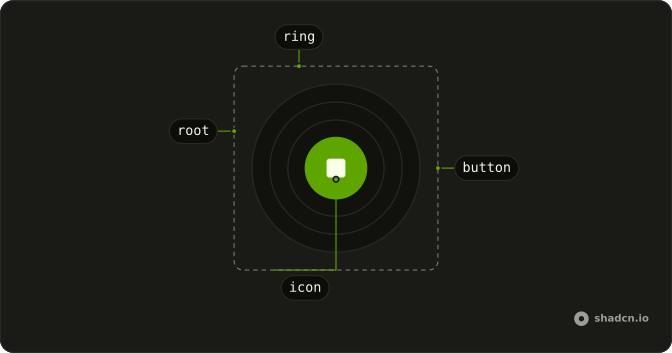
Anatomy
Usage
import { useState } from "react";
import { SpeechInput } from "@/components/ui/speech-input";
export function Dictation() {
const [draft, setDraft] = useState("");
return (
<div className="flex items-center gap-3">
<SpeechInput
onTranscriptionChange={(text) =>
setDraft((previous) => `${previous} ${text}`.trim())
}
/>
<p>{draft || "Press the microphone and speak."}</p>
</div>
);
}The transcription callback receives each finished phrase, not the whole transcript so far, so append it to what you have. Every other prop, a class included, goes to the Button.
Accessibility
Speech Input is one button whose aria-label says what a press does next: Start voice input, Stop voice input, Transcribing while a recording is turned into text, or Voice input isn't available in this browser when it can't listen. While it transcribes, it keeps focus and ignores presses. The pulsing rings are hidden from screen readers. Nothing announces the text that arrives, so put it in the field people are writing in, or in an aria-live region when it lands anywhere else.
- Enter
- Starts listening, or stops while it listens.
- Space
- Starts listening, or stops while it listens.
States
The wrapper's data-state says which one it's in, and the button's label changes with it.
data-state | What it shows | Label |
|---|---|---|
idle | A microphone | Start voice input |
listening | A stop square on the destructive look, with three rings pulsing out of it | Stop voice input |
processing | A spinner while onAudioRecorded transcribes a recording, with presses ignored | Transcribing |
unsupported | The microphone, disabled, because the browser can neither recognize nor record, or it can only record and there's no onAudioRecorded | Voice input isn't available in this browser |
The rings use a speech-input-ring keyframe animation that the install adds to your stylesheet. With reduced motion they don't show, and the stop square alone says it's listening.
How it listens
| Browser | How | What you give it |
|---|---|---|
| Chrome, Edge, Safari | The browser's speech recognition, which sends each finished phrase as it hears it | onTranscriptionChange |
| Firefox | A recording from one press to the next, handed to onAudioRecorded as a Blob | onAudioRecorded, which resolves with the text, and onTranscriptionChange |
| Neither | Nothing: the button is disabled, and its label says why |
It checks which one applies after it mounts, so the server renders a plain microphone. It asks for the microphone only when pressed, so the browser's prompt never shows on page load.
Demos
Prompt input
The microphone sits in an Input Group beside Send, as a small outline button that turns into the destructive stop button while it listens. Each phrase joins the draft with a space, so people can type, dictate and type again before sending. Don't send on each phrase, because recognition splits a sentence wherever the speaker pauses.
Transcription service
Here onAudioRecorded gets a stand-in for your transcription service, which waits a moment and then describes the recording it received. Chrome, Edge and Safari still listen with their own recognition, so the stand-in runs in Firefox, where the button spins while it waits. Any error, such as no-speech or a refused microphone, shows in the line under the button through onError.
Language
A Native Select of six languages, from English (US) to Japanese, sets lang, and the next press listens in that language. Take the tag from the person's settings or the page's language, not the browser's guess, because recognition in the wrong language returns words that were never said.
Sizes
Three buttons at icon-sm, icon and icon-lg, the Button's icon sizes, each one staying round. Use icon-sm inside a field's toolbar, icon, the default, beside a field, and icon-lg when speaking is the main way in, as on a voice-first screen.
Variants
Four idle looks side by side: default in your primary color, then secondary, outline and ghost. Whichever you pick, the button switches to the destructive look while it listens, so stopping reads the same everywhere. Match the buttons around it, such as ghost in a toolbar of ghost buttons.
AI SDK
Firefox has no speech recognition, so there it needs a transcription service. The AI SDK's transcribe turns the recording into text on your server.
import { openai } from "@ai-sdk/openai";
import { transcribe } from "ai";

export async function POST(request: Request) {
  const { text } = await transcribe({
    audio: new Uint8Array(await request.arrayBuffer()),
    model: openai.transcription("whisper-1"),
  });

  return Response.json({ text });
}
const transcribeAudio = async (audio: Blob) => {
const response = await fetch("/api/transcribe", {
body: audio,
method: "POST",
});
const { text } = await response.json();
return text;
};
<SpeechInput
onAudioRecorded={transcribeAudio}
onTranscriptionChange={(text) =>
setInput((previous) => `${previous} ${text}`.trim())
}
/>Send the field's text with useChat's sendMessage({ text: input }) when the person presses Send.
Migrating from AI SDK Elements
If you added Speech Input from AI SDK Elements (opens in a new tab), install this one and change the import from @/components/ai-elements/speech-input to @/components/ui/speech-input. SpeechInput, onTranscriptionChange, onAudioRecorded and lang are the same, and the other props still go to the Button. What differs:
- The default
sizeisicon. AI SDK Elements' demo passessize="lg", which on this Button is a wide button, so useicon-lg. - While it listens it takes the Button's destructive variant from your theme, not a solid red with white text.
- It creates the browser's speech recognition when pressed, not when mounted, and it can't be pressed in a browser it can't listen in, where its label says why.
FAQ
How do I get the text from Speech Input?
Pass onTranscriptionChange. It's called with each phrase once it's final, not with the whole transcript, so append each one to what you have, as the demos do. In Firefox it's called once per recording, with the text onAudioRecorded resolved with.
The last phrase can arrive a moment after the stop press. Stopping lets the browser finish the audio it already heard, while the button is back to idle at once.
Which browsers does Speech Input work in?
Chrome, Edge and Safari listen with their own speech recognition. Firefox has none, so there it records, and it needs onAudioRecorded to turn the recording into text. Without that function, the button is disabled in Firefox.
Chrome sends the audio to its speech service, so recognition there needs a network connection. In a browser with neither recognition nor recording, the button's label says voice input isn't available.
Do I need a transcription service for Speech Input?
Only for browsers without speech recognition, Firefox today. Pass onAudioRecorded a function that sends the Blob to your service and resolves with its text, and the button shows a spinner until it does.
The AI SDK section does it with the AI SDK's transcribe and an OpenAI transcription model. The Transcription service demo passes a stand-in, and it's the one demo here that listens in Firefox, where the others show the button disabled.
When does Speech Input ask for the microphone?
On the first press, never on page load, and the browser shows its prompt then. If the person refuses, the button goes back to idle, and the next press asks again as far as the browser allows.
The microphone needs a secure page, so it works over HTTPS and on localhost while you develop, and not on a plain HTTP address.
How do I change the language Speech Input listens for?
Pass lang a BCP 47 tag, such as fr-FR or ja-JP. It's en-US when you leave it out, and the next press listens in the new language, as the Language demo shows.
In Firefox the recording goes to your service and lang isn't used, so send the language to the service along with the audio.
Can Speech Input record from the microphone picked in Mic Selector?
Not as it ships. Speech Input has no prop for a device: it starts speech recognition without naming an input, so the browser uses its default microphone, and the recording it makes in Firefox asks for no particular one either.
To record from the microphone people pick in Mic Selector, edit components/ui/speech-input, which is your code once installed, and pass that device id to its getUserMedia call. That changes only the recording Firefox makes, while Chrome, Edge and Safari keep recognizing speech from the default microphone.
Why does Speech Input stop listening on its own?
The browser ended the session, with an error such as no-speech when it heard nothing for a while, network when the connection dropped, or not-allowed when the microphone was refused. Speech Input then returns to idle, ready for another press.
onError hears about it, with an Error whose message is that code, and the same callback reports a refused microphone or a rejected onAudioRecorded when Firefox records. Show a short note from it, as the Transcription service demo does, and keep what was already transcribed in the field.
Is this the same as AI SDK Elements' Speech Input?
It takes the same props and listens the same way, so changing the import is enough in most projects. It defaults to a round icon size, uses your theme's destructive look while recording, and labels each state. The Migrating section lists the differences.
API Reference
SpeechInput
<span> data-slot="speech-input"
clickEffect?boolean
Apply a click effect to the button.
- Default
true
isLoading?boolean
Show a loading indicator.
- Default
false
lang?string
The language it listens for, a BCP 47 tag.
- Default
"en-US"
onAudioRecorded?(audioBlob: Blob) → Promise<string>
Where the browser has no speech recognition (Firefox), it records instead and hands the recording to this: send it to your transcription service and resolve with its text. Without it, the button stays off in those browsers.
- Type
(audioBlob: Blob) → Promise<string>- Parameters
audioBlob– Blob- Returns
Promise<string>
onError?(error: Error) → void
Called when listening stops on an error: the browser's recognition
gave up (the error's message is its code, such as no-speech,
network or not-allowed), the microphone was refused or missing, or
onAudioRecorded rejected. The button is back to idle by then.
- Parameters
error– Error- Returns
void
onTranscriptionChange?(text: string) → void
Called with each piece of text it hears, once that piece is final.
- Parameters
text– string- Returns
void
asChild?boolean
Merge props onto the child element instead of rendering a host.
className?string
Merged with the part's classes.
data-state?string
Mirrors state.