shadcn.io is an independent project built on shadcn/ui
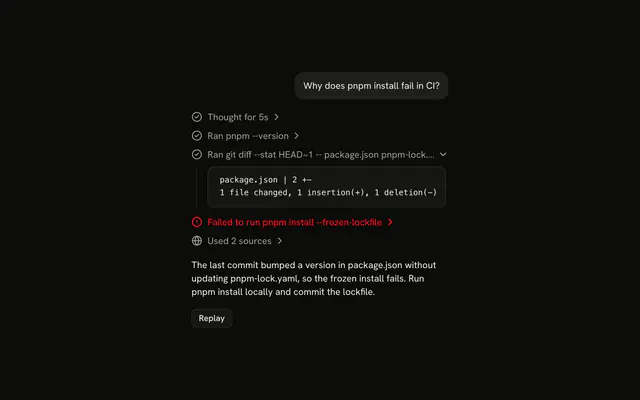
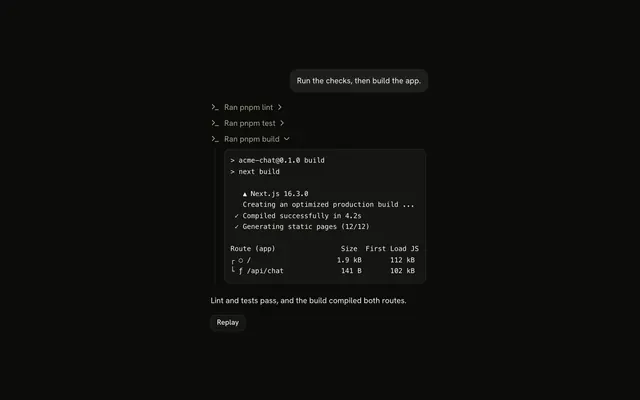
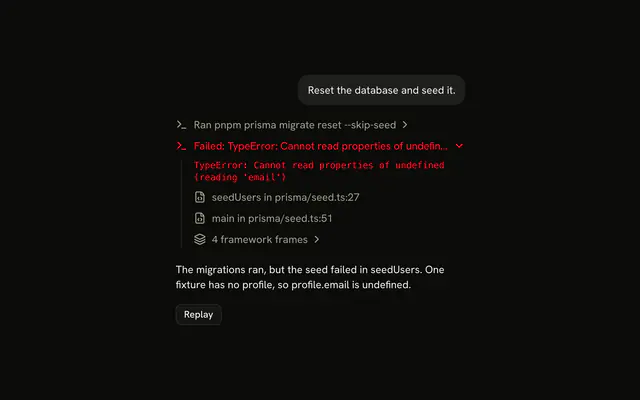
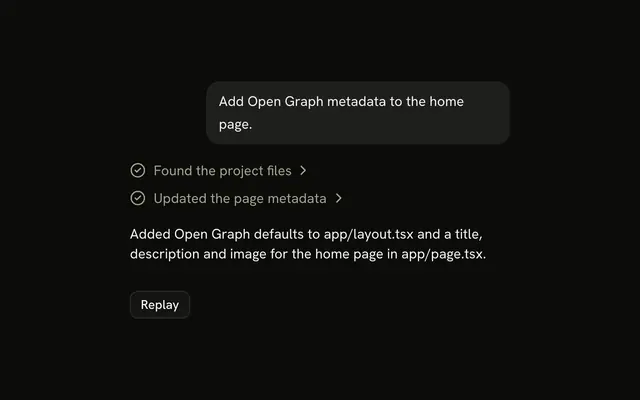
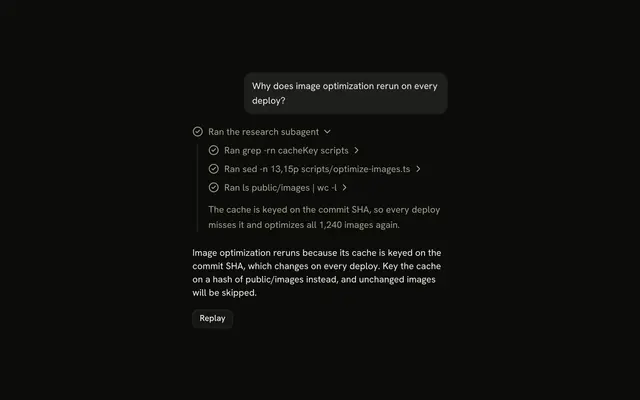
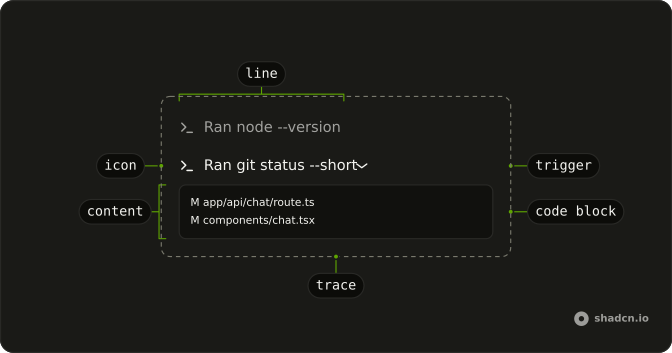
Tool shows each call an agent makes, such as running a command or reading a file, as one line in its reply: Ran git status --short. The title says whether the call is running, done, failed or denied, and a finished call opens onto its output in a Code Block.
It is a pattern built from Trace, so the code is yours. For work handed to another agent, use Subagent, and for a command whose output streams in while it runs, use Terminal.
Installation
Tool is a pattern. The command adds the parts it's built from, Trace and Code Block, and the code to copy is the demo's.
Anatomy
Usage
import { TerminalIcon } from "lucide-react";
import {
  CodeBlock, CodeBlockContent,
} from "@/components/ui/code-block";
import {
  Trace, TraceCollapsible, TraceCollapsibleContent,
  TraceCollapsibleTrigger, TraceIcon, TraceLine, TraceTitle,
} from "@/components/ui/trace";
export function ToolCall(props: { output: string }) {
return (
<Trace>
<TraceCollapsible>
<TraceCollapsibleTrigger>
<TraceLine>
<TraceIcon>
<TerminalIcon aria-hidden="true" />
</TraceIcon>
<TraceTitle>Ran git status --short</TraceTitle>
</TraceLine>
</TraceCollapsibleTrigger>
<TraceCollapsibleContent>
<CodeBlock size="sm">
<CodeBlockContent className="max-h-64" wrap>
{props.output}
</CodeBlockContent>
</CodeBlock>
</TraceCollapsibleContent>
</TraceCollapsible>
</Trace>
);
}A finished call is a TraceCollapsible that opens on its output. A call still running, or one the reader denied, is a TraceLine on its own, since it has no output to open.
Accessibility
A finished call's line is a <button> with aria-expanded, named by its title, and its output block can take focus so a long result scrolls from the keyboard. A running or denied call is plain text and takes no focus. The icons are hidden from screen readers, and the shimmer and the red are only visual, so the title has to say the state in words: Running, Ran, Failed to run, Denied. In the Output in a sheet demo the line opens a dialog instead, which keeps focus inside until it closes, and Escape closes it.
- Tab
- Moves focus to the next finished call, or into the output of an open one.
- Shift+Tab
- Moves focus to the previous focusable element.
- Enter
- When focus is on a call's line, opens or closes its output.
- Space
- When focus is on a call's line, opens or closes its output.
Demos
States
Four calls in the four ways a line can look: Ran git status --short opens on the changed files, Failed to run pnpm dev turns the destructive color and opens on its timeout message, Denied rm -rf dist is a plain line, and Running pnpm test shimmers. Trace reads no tool state, so each line's status and title are yours to set, as the AI SDK table maps them.
Output in a sheet
Press Send message, and once the agent has read package.json its line opens a Sheet from the right with the file's nine lines numbered. A sheet suits long output, because the transcript keeps its place while the reader looks, where an expanding line pushes the reply down. A Dialog works the same way.
Approval
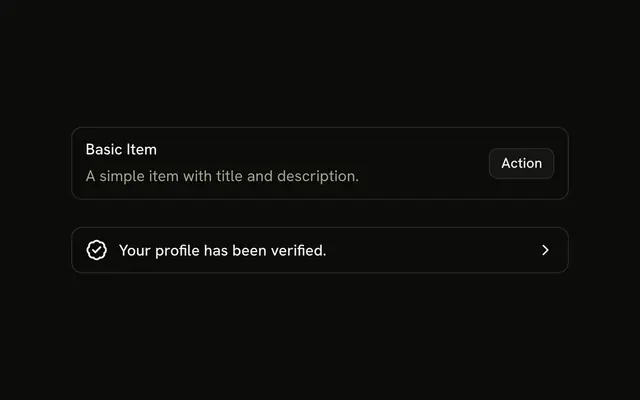
Press Send message and the agent thinks, then asks before it runs rm -rf dist, with Deny and Approve. The pending question sits outside Trace as an Item, because it asks something of the reader rather than reporting a step. Once answered, the Item gives way to the call's own line, Ran or Denied. For a question that needs more explaining, use Confirmation.
AI SDK
Render each tool part as a line from its state. Trace knows nothing about tool parts, so the mapping is yours:
| Tool part state | status | Title |
|---|---|---|
input-streaming, input-available | "running" while the chat streams | Running … |
input-streaming, input-available after the chat stops | "error" | Failed to run … |
approval-requested | none | Not a line: an Item outside Trace, with Approve and Deny |
approval-responded | "running" if approved, none if not | Running … if approved, Denied … if not |
output-available | none | Ran … |
output-error | "error" | Failed to run … |
output-denied | none | Denied … |
A tool that runs on the client stays input-available after the chat stops, until you add its output, so treat it as waiting rather than failed.
function ToolLine({ part, streaming }: { part: ToolPart; streaming: boolean }) {
  const command = part.input?.command;

  if (
    part.state === "output-denied" ||
    (part.state === "approval-responded" && !part.approval.approved)
  ) {
    return (
      <TraceLine>
        <TraceIcon>
          <TerminalIcon aria-hidden="true" />
        </TraceIcon>
        <TraceTitle>Denied {command}</TraceTitle>
      </TraceLine>
    );
  }

  if (part.state === "output-available" || part.state === "output-error") {
    const failed = part.state === "output-error";

    return (
      <TraceCollapsible>
        <TraceCollapsibleTrigger>
          <TraceLine status={failed ? "error" : undefined}>
            <TraceIcon>
              <TerminalIcon aria-hidden="true" />
            </TraceIcon>
            <TraceTitle>
              {failed ? "Failed to run" : "Ran"} {command}
            </TraceTitle>
          </TraceLine>
        </TraceCollapsibleTrigger>
        <TraceCollapsibleContent>
          <CodeBlock size="sm">
            <CodeBlockContent className="max-h-64" wrap>
              {failed ? part.errorText : part.output.stdout}
            </CodeBlockContent>
          </CodeBlock>
        </TraceCollapsibleContent>
      </TraceCollapsible>
    );
  }

  return (
    <TraceLine status={streaming ? "running" : "error"}>
      <TraceIcon>
        <TerminalIcon aria-hidden="true" />
      </TraceIcon>
      <TraceTitle>
        {streaming ? "Running" : "Failed to run"} {command}
      </TraceTitle>
    </TraceLine>
  );
}
<Trace>
  {message.parts
    .filter((part) => part.type === "tool-runCommand")
    .map((part) => (
      <ToolLine key={part.toolCallId} part={part} streaming={streaming} />
    ))}
</Trace>
A call that needs approval is an Item until the reader answers it.
if (part.state === "approval-requested") {
  return (
    <Item size="sm" variant="outline">
      <ItemMedia variant="icon">
        <TerminalIcon aria-hidden="true" />
      </ItemMedia>
      <ItemContent>
        <ItemTitle>Run {part.input.command}?</ItemTitle>
      </ItemContent>
      <ItemActions>
        <Button
          onClick={() =>
            addToolApprovalResponse({ id: part.approval.id, approved: false })
          }
          size="sm"
          variant="outline"
        >
          Deny
        </Button>
        <Button
          onClick={() =>
            addToolApprovalResponse({ id: part.approval.id, approved: true })
          }
          size="sm"
        >
          Approve
        </Button>
      </ItemActions>
    </Item>
  );
}
Pass sendAutomaticallyWhen: lastAssistantMessageIsCompleteWithApprovalResponses to useChat, so the chat goes on once every approval has an answer.
Migrating from AI SDK Elements
If you added Tool from AI SDK Elements (opens in a new tab), your project has a components/ai-elements/tool.tsx wrapper. Paste this prompt into your coding agent to rebuild it on Trace and Code Block. Every export keeps its name and props, so the code that uses it keeps working.
Migrate components/ai-elements/tool.tsx from AI SDK Elements to the shadcn.io Trace and Code Block components.

Keep every export, with the same name and props, so the code that imports it keeps working. Only change how each part renders.

1. Read https://www.shadcn.io/ui/radix/tool.md and build Tool the same way. If the project hasn't got Trace and Code Block, run the command in its Installation section.
2. Rebuild each part:
   - Import CodeBlock and CodeBlockContent from @/components/ui/code-block, not from ./code-block.
   - Tool renders a Trace with a TraceCollapsible.
   - ToolHeader renders a TraceCollapsibleTrigger with a TraceLine, a TraceIcon and a TraceTitle, instead of a status Badge. Map state to the status and title: "running" and "Running …" while the input streams or is available, no status and "Ran …" for output-available, "error" and "Failed to run …" for output-error, and "Denied …" for output-denied.
   - ToolContent renders a TraceCollapsibleContent.
   - ToolInput and ToolOutput render a CodeBlock with size="sm" and a CodeBlockContent. ToolOutput shows errorText when the tool failed.
   - Keep getStatusBadge and ToolPart exported, even if nothing renders the badge.
3. Remove the imports the file no longer uses.
4. Run the type checker and fix any errors.
FAQ
Why is a running tool call a plain line instead of one that expands?
There is nothing to show yet. While the call runs, its line reads Running with a shimmering title, and a line that opens onto an empty block reads as broken.
Once the output arrives, render the call as a TraceCollapsible with the output in its content, and change the title to Ran. If people want to watch output as it comes in, a lint or a test run for example, use Terminal, whose line opens while the command is still running.
How should a failed tool call look in the chat?
Keep it in the list with status="error" on its TraceLine, a title that says so, Failed to run pnpm dev, and the error message as its output. The status turns the line to the destructive color, and the words carry the same news to a screen reader.
The demo at the top of the page starts with its failed call open, so the reader sees what went wrong without hunting for it. A call still waiting when the chat stops has failed too, unless it runs on the client and is waiting for you to add its output.
How do I ask for approval before an AI tool runs?
Show an Item with the command and two buttons, Deny and Approve, outside the Trace, as the Approval demo does. Once the reader answers, the call is a line again: Running and then Ran, or Denied.
With the AI SDK, set needsApproval on the tool, and its part arrives as approval-requested. Answer it with addToolApprovalResponse, passing the approval's id and whether it was approved. For a question that needs more words than a command, use Confirmation.
When the question appears, the demo moves focus to Deny unless the reader put it elsewhere. Answering removes both buttons, so once the reply is in, focus goes to Reset, where your app would focus its message input.
How do I keep long tool output from taking over the chat?
Cap its height. The demos give CodeBlockContent a max-h-64 class, 16rem, so a long result scrolls inside its block, and wrap breaks long lines instead of scrolling sideways.
For a whole file, open it from the line in a Sheet instead, with lineNumbers on the block, as the Output in a sheet demo does. The transcript then keeps its place while the reader looks.
How do I show a tool call's input as well as its output?
Put the input in the title when it's short, the way Ran git status --short names the command. Most calls are understood from one argument, a command, a path or a query.
When the full arguments matter, add a second CodeBlock above the output in the same TraceCollapsibleContent, holding the input as formatted JSON. With the AI SDK, that is the tool part's input, complete once the part reaches input-available.
Can people open a tool call's output from the keyboard?
Yes. A finished call's line is a button with aria-expanded: Tab reaches it, and Enter or Space opens or closes its output. An open output is the next tab stop, so a long result can scroll from the keyboard.
A running or denied call is a plain line, so Tab skips it. Write the state into each title, because the shimmer and the destructive color say nothing to a screen reader.
Is this the same as AI SDK Elements' Tool?
It does the same job without a wrapper. Elements' Tool is a Collapsible with a status Badge in its header and its own code block, and here a call is a Trace line whose status and title say the state, over a Code Block.
The Migrating from AI SDK Elements section has a prompt that rebuilds your components/ai-elements/tool.tsx on these parts and keeps its exports, so the code that uses it keeps working.
API Reference
Tool has no props of its own. Each call is a Trace line or collapsible, and its output a Code Block with size="sm". The approval is an Item with two Buttons.