shadcn.io is an independent project built on shadcn/ui
Type a few letters and the list narrows to the matches. If nothing is left, show an empty state.
Use it when the set is long or the names are hard to remember. Three order statuses are quicker as a Select. In React, React Aria handles the popup, the highlight, and the keyboard path.
Installation
Anatomy
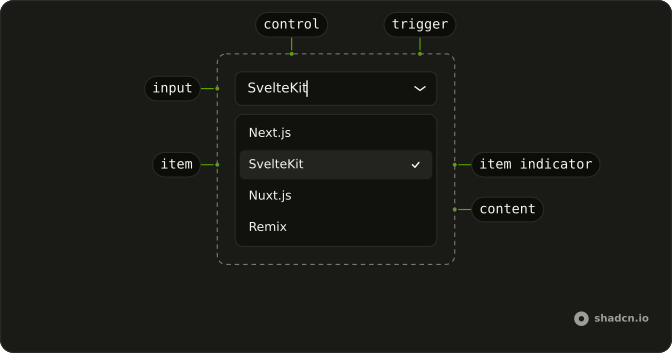
ComboboxRoot
├── ComboboxClear
├── ComboboxContent
├── ComboboxControl
├── ComboboxFieldInput
├── ComboboxItem
│   ├── ComboboxGroup
│   │   └── ComboboxGroupLabel
│   ├── ComboboxItemIndicator
│   └── ComboboxItemText
├── ComboboxLabel
├── ComboboxList
├── ComboboxPositioner
└── ComboboxTrigger
Usage
import {
  Combobox, ComboboxContent, ComboboxEmpty, ComboboxInput, ComboboxItem,
  ComboboxList,
} from "@/components/ui/combobox";
const frameworks = [
"Next.js",
"SvelteKit",
"Nuxt.js",
"Remix",
"Astro",
] as const;
const ComboboxDemo = () => (
<Combobox allowsEmptyCollection aria-label="Framework">
<ComboboxInput placeholder="Select a framework" />
<ComboboxContent>
<ComboboxList
renderEmptyState={() => <ComboboxEmpty>No items found.</ComboboxEmpty>}
>
{frameworks.map((item) => (
<ComboboxItem id={item} key={item}>
{item}
</ComboboxItem>
))}
</ComboboxList>
</ComboboxContent>
</Combobox>
);Accessibility
- Arrow Down
- When the combobox is closed, opens the listbox and highlights to the first option. When the combobox is open, moves focus to the next option.
- Arrow Up
- When the combobox is closed, opens the listbox and highlights to the last option. When the combobox is open, moves focus to the previous option.
- Home
- When the combobox is open, moves focus to the first option.
- End
- When the combobox is open, moves focus to the last option.
- Escape
- Closes the listbox.
- Enter
- Selects the highlighted option and closes the combobox.
- Space
- Activate the focused control.
Demos
Basic
Five framework names, an input, and a list. The filter narrows the rows as you type, and ComboboxEmpty shows when the query matches nothing. Start here. Chips, groups, and a custom row are the same control with more furniture, and you do not need them for one pick from a flat list.
Multiple
More than one framework can stay selected, and each pick is a chip you can remove without opening the list. The text field lives in that chip row, so the control grows with the selection instead of hiding it behind a closed value. Use this for tags. A field that has to end as one value should stay single-select.
Clear
The field already has a value, and showClear puts a button in the input that wipes it. Use that when empty is allowed, such as an optional framework, or when people often change their mind and should not have to select the text and delete it. Leave the button off a required field, where blank is always an error waiting to happen.
Groups
Timezones split into Americas, Europe, and Asia/Pacific, with a heading on each group and a separator between them. Use groups when people know the category better than the item, and a flat list would be a wall of offsets. Five framework names do not need this. The separator is optional, and the heading is what actually helps someone scan.
Custom
Each country is a row with the name, the continent, and the code, using Item inside ComboboxItem. Use a custom row when the label is not enough to choose, and a second line saves a lookup. Filtering still keys off the country name, so the continent is for reading, not a second search field. Keep the row short or the list becomes a table.
Invalid
The field is flagged invalid, which turns on the error styling and tells assistive tech the value is wrong. Use it after a submit that failed, next to a sentence that says why. Do not paint the combobox red on first view. An empty optional field is not invalid yet, and a red border with no explanation is just noise.
Disabled
The combobox and its input are both disabled, so the list will not open and typing does nothing. Use that for a value fixed by the plan or the role, where showing the current choice still matters and changing it does not. If there is nothing to search, plain text is clearer than a control that looks broken.
Auto Highlight
Enter should commit the obvious framework without a down-arrow first. That is worth turning on for a short list of names, and worth leaving off when the top hit is often the wrong place name. React Aria has no such prop, so this preview will not highlight for you.
Popup
The closed control is a button that shows the selected country. Search moves inside the popup, so the field looks like a select until someone opens it. Use this when the page is dense and a full input is too loud, but the list is still long enough to need a filter. The popup is anchored to that button, not to a separate field sitting somewhere else.
Input Group
A globe sits in the input as an addon, ahead of the timezone text, and the list stays grouped by region. Use an addon when the icon explains the field better than the placeholder does. The popup is nudged so it lines up with the text, not with the icon. Otherwise the menu looks like it belongs to the wrong edge of the control.
Rtl
Arabic category names, multiple chips, and dir set to rtl on the field and the combobox. The placeholder asks for more categories, and the empty copy is in the same language. Use this when the page is right to left, so the chips, the caret, and the list sit on the correct side. A left-to-right combobox dropped into an rtl form is what this is checking.
FAQ
Should I use a Combobox or a Select?
Use a Combobox when the list is long enough that people want to type to find an option, like countries or timezones. For a short, fixed set of options, use a Select: it has no text input, so it's quicker to scan.
How do I filter Combobox options as the user types in React Aria?
Pass the options as defaultItems and React Aria filters them as the user types. With a controlled items list, filter it yourself from onInputChange.
How do I select multiple values in a Combobox?
Set selectionMode to "multiple" and show the picks as chips with ComboboxChips and ComboboxChipsInput, as in the Multiple demo.
How do I control the Combobox value in React?
Hold the selection yourself and pass it back on every change.
Pass selectedKey and update it in onSelectionChange, which receives the selected key.
Can users type a value that isn't in the Combobox list?
Yes, with allowsCustomValue.
For free text with suggestions, an Autocomplete fits better.
How do I show a message when no Combobox options match?
Put a ComboboxEmpty with the text, like "No results", in the list: it only shows when the filter leaves nothing to pick.
Is the Combobox accessible with the keyboard?
Yes. It follows the WAI-ARIA combobox pattern: the arrow keys open the list and move through the options, Enter picks the highlighted one and Escape closes the list. Screen readers announce the highlighted option while focus stays in the input.
Does the Combobox work in forms?
Yes. Connect your form state to the combobox's controlled value and its change handler, and put it in a Field for the label, description and error.
API Reference
Combobox
allowsCustomValue?boolean
Whether the ComboBox allows a non-item matching input value to be set.
defaultInputValue?string
The default value of the ComboBox input (uncontrolled).
- Default
""
defaultItems?Iterable<T>
The list of ComboBox items (uncontrolled).
- Type
Iterable<T>
defaultSelectedKey?Key | null
The initial selected key in the collection (uncontrolled). Deprecated.
- Type
Key | null
inputValue?string
The value of the ComboBox input (controlled).
items?Iterable<T>
The list of ComboBox items (controlled).
- Type
Iterable<T>
menuTrigger?"focus" | "input" | "manual"
The interaction required to display the ComboBox menu.
- Type
"focus" | "input" | "manual"- Default
"input"
onInputChange?(value: string) → void
Handler that is called when the ComboBox input value changes.
- Parameters
value– string- Returns
void
onOpenChange?(isOpen: boolean, menuTrigger?: MenuTriggerAction) → void
Method that is called when the open state of the menu changes. Returns the new open state and the action that caused the opening of the menu.
- Type
(isOpen: boolean, menuTrigger?: MenuTriggerAction) → void- Parameters
isOpen– booleanmenuTrigger?– MenuTriggerAction- Returns
void
onSelectionChange?(key: Key | null) → void
Handler that is called when the selection changes. Deprecated.
- Type
(key: Key | null) → void- Parameters
key– Key | null- Returns
void
selectedKey?Key | null
The currently selected key in the collection (controlled). Deprecated.
- Type
Key | null
selectionMode?M
Whether single or multiple selection is enabled.
- Default
"single"
data-invalid?string
Present when invalid is true.
data-readonly?string
Present when readOnly is true.
ComboboxValue
data-slot="combobox-value"
data-invalid?string
Present when invalid is true.
data-readonly?string
Present when readOnly is true.
ComboboxTrigger
data-slot="combobox-trigger"
isDisabled?boolean
Whether the button is disabled.
className?string
Merged with the part's classes.
data-invalid?string
Present when invalid is true.
data-readonly?string
Present when readOnly is true.
ComboboxClear
data-slot="combobox-clear"
children?ReactNode
The content to display in the button.
clickEffect?boolean
Apply a click effect to the button.
- Default
true
download?LinkPrimitiveProps["download"]
With href, downloads the linked file instead of opening it.
href?string
When set, the button renders as a link.
isDisabled?boolean
Whether the button is disabled.
isLoading?boolean
Show a loading indicator.
- Default
false
pill?boolean
Fully rounded corners.
- Default
false
rel?string
With href, the link's relationship to the page (noreferrer, …).
size?"icon-sm" | "icon-xs" | "sm" | "xs"
The size.
- Type
"icon-sm" | "icon-xs" | "sm" | "xs"- Default
"xs"
target?string
With href, where the linked page opens (_blank, …).
type?"button" | "submit" | "reset"
The button's type: button by default, so it never submits its form.
- Type
"button" | "submit" | "reset"
variant?"default" | "destructive" | "ghost" | "link" | "outline" | "secondary"
The visual style.
- Type
"default" | "destructive" | "ghost" | "link" | "outline" | "secondary"- Default
"default"
className?string
Merged with the part's classes.
data-invalid?string
Present when invalid is true.
data-readonly?string
Present when readOnly is true.
ComboboxInput
data-slot="combobox-trigger"
showClear?boolean
Shows a button that clears the input.
- Default
false
showTrigger?boolean
Shows the button that opens the list.
- Default
true
className?string
Merged with the part's classes.
data-invalid?string
Present when invalid is true.
data-readonly?string
Present when readOnly is true.
ComboboxContent
data-slot="combobox-content"
defaultOpen?boolean
Whether the overlay is open by default (uncontrolled).
onOpenChange?(isOpen: boolean) → void
Handler that is called when the overlay's open state changes.
- Parameters
isOpen– boolean- Returns
void
anchor?React.RefObject<HTMLDivElement | null>
The element it's positioned against, when not the input group.
- Type
React.RefObject<HTMLDivElement | null>
arrowBoundaryOffset?number
The minimum distance the arrow's edge should be from the edge of the overlay element.
- Default
0
arrowRef?RefObject<Element | null>
A ref for the popover arrow element.
- Type
RefObject<Element | null>
boundaryElement?Element
Element that that serves as the positioning boundary.
- Default
document.body
containerPadding?number
The placement padding that should be applied between the element and its surrounding container.
- Default
12
crossOffset?number
The additional offset applied along the cross axis between the element and its anchor element.
- Default
0
getTargetRect?(target: Element) → DOMRect | null
Overrides the target element's bounding rectangle. Useful for positioning relative to a specific point such as the mouse cursor (e.g. context menus) or text selection.
- Type
(target: Element) → DOMRect | null- Default
target.getBoundingClientRect()- Parameters
target– Element- Returns
DOMRect | null
isEntering?boolean
Whether the popover is currently performing an entry animation.
isExiting?boolean
Whether the popover is currently performing an exit animation.
isKeyboardDismissDisabled?boolean
Whether pressing the escape key to close the popover should be disabled. Most popovers should not use this option. When set to true, an alternative way to close the popover with a keyboard must be provided.
- Default
false
isNonModal?boolean
Whether the popover is non-modal, i.e. elements outside the popover may be interacted with by assistive technologies. Most popovers should not use this option as it may negatively impact the screen reader experience. Only use with components such as combobox, which are designed to handle this situation carefully.
isOpen?boolean
Whether the overlay is open by default (controlled).
maxHeight?number
The maxHeight specified for the overlay element. By default, it will take all space up to the current viewport height.
offset?number
The additional offset applied along the main axis between the element and its
anchor element. Ark default: 8.
- Default
6
onBlurWithin?(e: FocusEvent) → void
Handler that is called when the target element and all descendants lose focus.
- Parameters
e– { relatedTarget: (EventTarget & RelatedTarget) | null; target: EventTarget & Target }- Returns
void
onFocusWithin?(e: FocusEvent) → void
Handler that is called when the target element or a descendant receives focus.
- Parameters
e– { relatedTarget: (EventTarget & RelatedTarget) | null; target: EventTarget & Target }- Returns
void
onFocusWithinChange?(isFocusWithin: boolean) → void
Handler that is called when the the focus within state changes.
- Parameters
isFocusWithin– boolean- Returns
void
placement?"bottom" | "bottom left" | "bottom right" | "bottom start" | "bottom end" | "top" | "top left" | "top right" | "top start" | "top end" | "left" | "left top" | "left bottom" | "start" | "start top" | "start bottom" | "right" | "right top" | "right bottom" | "end" | "end top" | "end bottom"
The placement of the element with respect to its anchor element.
- Type
"bottom" | "bottom left" | "bottom right" | "bottom start" | "bottom end" | "top" | "top left" | "top right" | "top start" | "top end" | "left" | "left top" | "left bottom" | "start" | "start top" | "start bottom" | "right" | "right top" | "right bottom" | "end" | "end top" | "end bottom"- Default
"bottom"
scrollRef?RefObject<Element | null>
A ref for the scrollable region within the overlay.
- Type
RefObject<Element | null>- Default
overlayRef
shouldCloseOnInteractOutside?(element: Element) → boolean
When user interacts with the argument element outside of the popover ref, return true if onClose should be called. This gives you a chance to filter out interaction with elements that should not dismiss the popover. By default, onClose will always be called on interaction outside the popover ref.
- Parameters
element– Element- Returns
boolean
shouldFlip?boolean
Whether the element should flip its orientation (e.g. top to bottom or left to right) when there is insufficient room for it to render completely.
- Default
true
shouldSkipAnimation?boolean
Whether the popover should appear and disappear without an entry or exit animation. This is used by components such as PreviewTrigger to skip animations when quickly swapping between overlays.
shouldUpdatePosition?boolean
Whether the overlay should update its position automatically.
- Default
true
slot?string | null
A slot name for the component. Slots allow the component to receive props from a parent
component. An explicit null value indicates that the local props completely override all
props received from a parent.
- Type
string | null
style?StyleOrFunction<T>
The inline [style](https://developer.mozilla.org/en-US/docs/Web/API/HTMLElement/style) for the element. A function may be provided to compute the style based on component state.
- Type
StyleOrFunction<T>
trigger?string
The name of the component that triggered the popover. This is reflected on the element
as the data-trigger attribute, and can be used to provide specific
styles for the popover depending on which element triggered it.
triggerRef?RefObject<Element | null>
The ref for the element which the popover positions itself with respect to. When used within a trigger component such as DialogTrigger, MenuTrigger, Select, etc., this is set automatically. It is only required when used standalone.
- Type
RefObject<Element | null>
UNSTABLE_portalContainer?Element
The container element in which the overlay portal will be placed. This may have unknown behavior depending on where it is portalled to. Deprecated. - Use a parent UNSAFE_PortalProvider to set your portal container instead.
- Default
document.body
render?DOMRenderFunction<E, T>
Overrides the default DOM element with a custom render function.
This allows rendering existing components with built-in styles and behaviors
such as router links, animation libraries, and pre-styled components.
Requirements:
- You must render the expected element type (e.g. if <button> is expected, you cannot render an
<a>).
- Only a single root DOM element can be rendered (no fragments).
- You must pass through props and ref to the underlying DOM element, merging with your own prop
as appropriate.
- Type
DOMRenderFunction<E, T>
className?string
Merged with the part's classes.
data-invalid?string
Present when invalid is true.
data-readonly?string
Present when readOnly is true.
--trigger-anchor-pointstring--trigger-widthstringComboboxList
data-slot="combobox-list"
className?string
Merged with the part's classes.
data-invalid?string
Present when invalid is true.
data-readonly?string
Present when readOnly is true.
ComboboxItem
data-slot="combobox-item"
className?string
Merged with the part's classes.
data-invalid?string
Present when invalid is true.
data-readonly?string
Present when readOnly is true.
ComboboxGroup
data-slot="combobox-group"
className?string
Merged with the part's classes.
data-invalid?string
Present when invalid is true.
data-readonly?string
Present when readOnly is true.
ComboboxLabel
data-slot="combobox-label"
render?DOMRenderFunction<E, T>
Overrides the default DOM element with a custom render function.
This allows rendering existing components with built-in styles and behaviors
such as router links, animation libraries, and pre-styled components.
Requirements:
- You must render the expected element type (e.g. if <button> is expected, you cannot render an
<a>).
- Only a single root DOM element can be rendered (no fragments).
- You must pass through props and ref to the underlying DOM element, merging with your own prop
as appropriate.
- Type
DOMRenderFunction<E, T>
className?string
Merged with the part's classes.
data-invalid?string
Present when invalid is true.
data-readonly?string
Present when readOnly is true.
ComboboxEmpty
<div> data-slot="combobox-empty"
className?string
Merged with the part's classes.
ComboboxSeparator
data-slot="combobox-separator"
children?ReactNode
The children of the component.
elementType?string
The HTML element type that will be used to render the separator.
orientation?"horizontal" | "vertical"
The orientation of the separator.
- Type
"horizontal" | "vertical"- Default
"horizontal"
style?object
The inline [style](https://developer.mozilla.org/en-US/docs/Web/API/HTMLElement/style) for the element.
- Type
{ prop?: string]: string | number }
className?string
Merged with the part's classes.
data-invalid?string
Present when invalid is true.
data-readonly?string
Present when readOnly is true.
ComboboxChips
data-slot="combobox-chips"
children?ChildrenOrFunction<T>
The children of the component. A function may be provided to alter the children based on component state.
- Type
ChildrenOrFunction<T>
isDisabled?boolean
Whether the group is disabled.
isInvalid?boolean
Whether the group is invalid.
isReadOnly?boolean
Whether the group is read only.
role?"group" | "region" | "presentation"
An accessibility role for the group. By default, this is set to group.
Use region when the contents of the group is important enough to be
included in the page table of contents. Use presentation if the group
is visual only and does not represent a semantic grouping of controls.
- Type
"group" | "region" | "presentation"- Default
"group"
slot?string | null
A slot name for the component. Slots allow the component to receive props from a parent
component. An explicit null value indicates that the local props completely override all
props received from a parent.
- Type
string | null- Default
combobox-chips
style?StyleOrFunction<T>
The inline [style](https://developer.mozilla.org/en-US/docs/Web/API/HTMLElement/style) for the element. A function may be provided to compute the style based on component state.
- Type
StyleOrFunction<T>
render?DOMRenderFunction<E, T>
Overrides the default DOM element with a custom render function.
This allows rendering existing components with built-in styles and behaviors
such as router links, animation libraries, and pre-styled components.
Requirements:
- You must render the expected element type (e.g. if <button> is expected, you cannot render an
<a>).
- Only a single root DOM element can be rendered (no fragments).
- You must pass through props and ref to the underlying DOM element, merging with your own prop
as appropriate.
- Type
DOMRenderFunction<E, T>
className?string
Merged with the part's classes.
data-invalid?string
Present when invalid is true.
data-readonly?string
Present when readOnly is true.
ComboboxChipList
data-slot="combobox-chip-list"
addIdAndValue?boolean
Whether to add id and value props to all child items.
children?ReactNode | ((item: T) → ReactNode)
The contents of the collection.
- Type
ReactNode | ((item: T) → ReactNode)
dependencies?ReadonlyArray<any>
Values that should invalidate the item cache when using dynamic collections.
- Type
ReadonlyArray<any>
idScope?Key
A scope to prepend to all child item ids to ensure they are unique.
renderEmptyState?(props: TagListRenderProps) → ReactNode
Provides content to display when there are no items in the tag list.
- Type
(props: TagListRenderProps) → ReactNode- Parameters
props– { isEmpty: boolean; isFocused: boolean; isFocusVisible: boolean; state: ListState<unknown> }- Returns
ReactNode
style?StyleOrFunction<T>
The inline [style](https://developer.mozilla.org/en-US/docs/Web/API/HTMLElement/style) for the element. A function may be provided to compute the style based on component state.
- Type
StyleOrFunction<T>
render?DOMRenderFunction<E, T>
Overrides the default DOM element with a custom render function.
This allows rendering existing components with built-in styles and behaviors
such as router links, animation libraries, and pre-styled components.
Requirements:
- You must render the expected element type (e.g. if <button> is expected, you cannot render an
<a>).
- Only a single root DOM element can be rendered (no fragments).
- You must pass through props and ref to the underlying DOM element, merging with your own prop
as appropriate.
- Type
DOMRenderFunction<E, T>
className?string
Merged with the part's classes.
data-invalid?string
Present when invalid is true.
data-readonly?string
Present when readOnly is true.
ComboboxChip
data-slot="combobox-chip"
id?Key
A unique id for the tag.
isDisabled?boolean
Whether the tag is disabled.
onAction?() → void
Handler that is called when a user performs an action on the item. The exact user event depends
on the collection's selectionBehavior prop and the interaction modality.
- Returns
void
showRemove?boolean
Shows a button that removes the chip.
- Default
true
style?StyleOrFunction<T>
The inline [style](https://developer.mozilla.org/en-US/docs/Web/API/HTMLElement/style) for the element. A function may be provided to compute the style based on component state.
- Type
StyleOrFunction<T>
textValue?string
A string representation of the tags's contents, used for accessibility. Required if children is not a plain text string.
render?DOMRenderFunction<E, T>
Overrides the default DOM element with a custom render function.
This allows rendering existing components with built-in styles and behaviors
such as router links, animation libraries, and pre-styled components.
Requirements:
- You must render the expected element type (e.g. if <button> is expected, you cannot render an
<a>).
- Only a single root DOM element can be rendered (no fragments).
- You must pass through props and ref to the underlying DOM element, merging with your own prop
as appropriate.
- Type
DOMRenderFunction<E, T>
className?string
Merged with the part's classes.
data-invalid?string
Present when invalid is true.
data-readonly?string
Present when readOnly is true.
ComboboxChipsInput
data-slot="combobox-chip-input"
children?ReactNode
The children of the component.
enterKeyHint?"enter" | "done" | "go" | "next" | "previous" | "search" | "send"
An enumerated attribute that defines what action label or icon to preset for the enter key on virtual keyboards. See [MDN](https://developer.mozilla.org/en-US/docs/Web/HTML/Global_attributes/enterkeyhint).
- Type
"enter" | "done" | "go" | "next" | "previous" | "search" | "send"
style?object
The inline [style](https://developer.mozilla.org/en-US/docs/Web/API/HTMLElement/style) for the element.
- Type
{ prop?: string]: string | number }
className?string
Merged with the part's classes.
data-invalid?string
Present when invalid is true.
data-readonly?string
Present when readOnly is true.
ComboboxCollection
addIdAndValue?boolean
Whether to add id and value props to all child items.
children?ReactNode | ((item: T) → ReactNode)
The contents of the collection.
- Type
ReactNode | ((item: T) → ReactNode)
dependencies?ReadonlyArray<any>
Values that should invalidate the item cache when using dynamic collections.
- Type
ReadonlyArray<any>
idScope?Key
A scope to prepend to all child item ids to ensure they are unique.
items?Iterable<T>
Item objects in the collection.
- Type
Iterable<T>
data-invalid?string
Present when invalid is true.
data-readonly?string
Present when readOnly is true.