shadcn.io is an independent project built on shadcn/ui
Pressed buttons for formatting or alignment, one at a time or several together.
Use it in a toolbar, where a form control would look out of place. When every option needs a visible label and the answer is required, use a Radio Group. In React, React Aria makes the row a single tab stop, and the arrow keys move across the buttons.
Installation
Anatomy
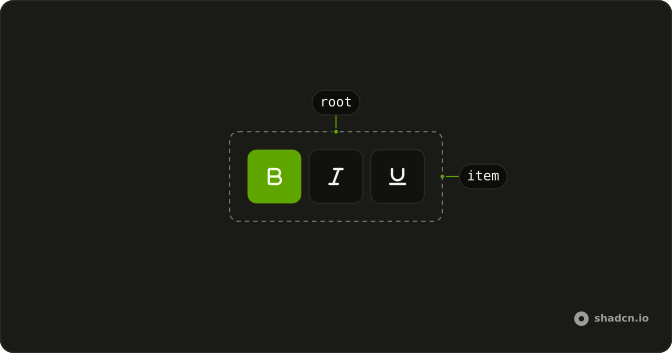
useToggleGroup
└── ToggleGroupItem
Usage
import { BoldIcon, ItalicIcon, UnderlineIcon } from "lucide-react";
import {
  ToggleGroup, ToggleGroupItem,
} from "@/components/ui/toggle-group";
const ToggleGroupDemo = () => (
<ToggleGroup selectionMode="multiple" variant="outline">
<ToggleGroupItem aria-label="Toggle bold" id="bold">
<BoldIcon aria-hidden="true" className="size-4" />
</ToggleGroupItem>
<ToggleGroupItem aria-label="Toggle italic" id="italic">
<ItalicIcon aria-hidden="true" className="size-4" />
</ToggleGroupItem>
<ToggleGroupItem aria-label="Toggle strikethrough" id="strikethrough">
<UnderlineIcon aria-hidden="true" className="size-4" />
</ToggleGroupItem>
</ToggleGroup>
);Accessibility
- Tab
- Moves focus to either the pressed item or the first item in the group.
- Space
- Activates/deactivates the item.
- Enter
- Activates/deactivates the item.
- Arrow Down
- Moves focus to the next item in the group.
- Arrow Right
- Moves focus to the next item in the group.
- Arrow Up
- Moves focus to the previous item in the group.
- Arrow Left
- Moves focus to the previous item in the group.
- Home
- Moves focus to the first item.
- End
- Moves focus to the last item.
Demos
Outline
variant set to outline draws a border around the items, here All and Missed as a small filter. One of them is pressed, starting with All. The outline reads as a single control more clearly than the default style, which has no border. Use it when the group sits on a busy surface and the buttons need an edge to hold them together.
Sizes
size is set on the group, and every item follows. The first row is sm, the second is the default md, both with the same Top, Bottom, Left, and Right labels so the difference is only height and type. Use the small size in a toolbar that is already crowded. Keep the default when the toggles are a primary control and need a comfortable target.
Spacing
spacing is the gap between items, in the same units as a Tailwind spacing step. Here it is 2, which is also the default, so the four position labels sit apart as separate buttons. Set it to 0 when they should join into one segmented control with shared borders. A wider gap helps when each item is a distinct tool rather than a slice of one choice.
Vertical
orientation set to vertical stacks the formatting buttons, with spacing of 1 and bold plus italic already pressed. More than one can stay on, which suits text styles that combine. Use a column for a narrow tool palette beside a canvas. Up and down move between the items, and the row no longer competes with the text for horizontal space.
Disabled
disabled on the group turns every button off, and none of them start pressed. Clicks and keyboard activation do nothing, and the icons fade. Use it when formatting is unavailable, such as a read-only document, rather than hiding the tools and shifting the layout. To retire one action only, disable that item and leave the rest of the group working.
Font Weight Selector
Four tiles preview Light, Normal, Medium, and Bold, and the caption names the class for the pressed weight. The group is controlled at size lg, with a gap so the tiles do not touch. Clicking the pressed tile would clear the choice, so the handler falls back to Normal and one weight always stays on. Use tiles when the option is easier to see than to read.
Rtl
dir is rtl, and the labels are Arabic for list, grid, and cards, with list pressed. The first item sits at the start of the line, which is the right side, and the outline border follows. Set the direction on the group when this control lives in a right-to-left page, even if the rest of the app is not. The pressed state does not need its own mirroring.
FAQ
How do I allow one or several selections in a Toggle Group in React?
A Toggle Group allows a single pressed item by default.
With React Aria, set selectionMode to single or multiple.
How do I control the value of a Toggle Group?
Keep the selected values in state and pass them back to the group.
With React Aria, pass selectedKeys and onSelectionChange, which receives the selected keys.
How do I keep at least one item pressed in a Toggle Group?
Keep a value when the last pressed item is clicked again; the Font Weight Selector demo falls back to Normal in its change handler.
Set disallowEmptySelection.
How do I join or space the items of a Toggle Group?
Set spacing: 0 joins the items into one segmented control, and a number spaces them apart, as the Spacing demo does. variant="outline" and size apply to every item at once.
Is the Toggle Group accessible with the keyboard?
Yes. The group is one Tab stop; the arrow keys move between items, and Space or Enter presses the focused one. Set orientation="vertical" for a column, and the Up and Down keys move instead.
Should I use a Toggle Group or a Radio Group?
Use a Toggle Group for toolbar-style buttons, like text alignment or formatting. Use a Radio Group for a required choice in a form, with a visible label for each option.
API Reference
ToggleGroup
defaultSelectedKeys?Iterable<Key>
The initial selected keys in the collection (uncontrolled).
- Type
Iterable<Key>
disallowEmptySelection?boolean
Whether the collection allows empty selection.
isDisabled?boolean
Whether all items are disabled.
onSelectionChange?(keys: Set<Key>) → void
Handler that is called when the selection changes.
- Type
(keys: Set<Key>) → void- Parameters
keys– Set<Key>- Returns
void
orientation?"horizontal" | "vertical"
Horizontal or vertical: which arrow keys move between items.
- Type
"horizontal" | "vertical"- Default
"horizontal"
selectedKeys?Iterable<Key>
The currently selected keys in the collection (controlled).
- Type
Iterable<Key>
selectionMode?"single" | "multiple"
Whether single or multiple selection is enabled.
- Type
"single" | "multiple"- Default
"single"
slot?string | null
A slot name for the component. Slots allow the component to receive props from a parent
component. An explicit null value indicates that the local props completely override all
props received from a parent.
- Type
string | null
spacing?number
The gap between items, in spacing units. At 0 they join into one bar.
- Default
2
style?StyleOrFunction<T>
The inline [style](https://developer.mozilla.org/en-US/docs/Web/API/HTMLElement/style) for the element. A function may be provided to compute the style based on component state.
- Type
StyleOrFunction<T>
render?DOMRenderFunction<E, T>
Overrides the default DOM element with a custom render function.
This allows rendering existing components with built-in styles and behaviors
such as router links, animation libraries, and pre-styled components.
Requirements:
- You must render the expected element type (e.g. if <button> is expected, you cannot render an
<a>).
- Only a single root DOM element can be rendered (no fragments).
- You must pass through props and ref to the underlying DOM element, merging with your own prop
as appropriate.
- Type
DOMRenderFunction<E, T>
className?string
Merged with the part's classes.
data-disabled?string
Present when disabled is true.
data-focus?string
Present when focus.
data-orientationstring
Mirrors the orientation prop.
--gapstringToggleGroupItem
data-slot="toggle-group-item"
children?ReactNode
The content to display in the button.
defaultSelected?boolean
Whether the element should be selected (uncontrolled).
isDisabled?boolean
Whether the button is disabled.
isSelected?boolean
Whether the element should be selected (controlled).
onChange?(isSelected: boolean) → void
Handler that is called when the element's selection state changes.
- Parameters
isSelected– boolean- Returns
void
className?string
Merged with the part's classes.
data-disabled?string
Present when disabled is true.
data-focus?string
Present when focus.
data-orientationstring
Mirrors the orientation prop.
data-size?string
Mirrors resolvedSize.
data-spacing?string
Mirrors spacing.
data-variant?string
Mirrors resolvedVariant.